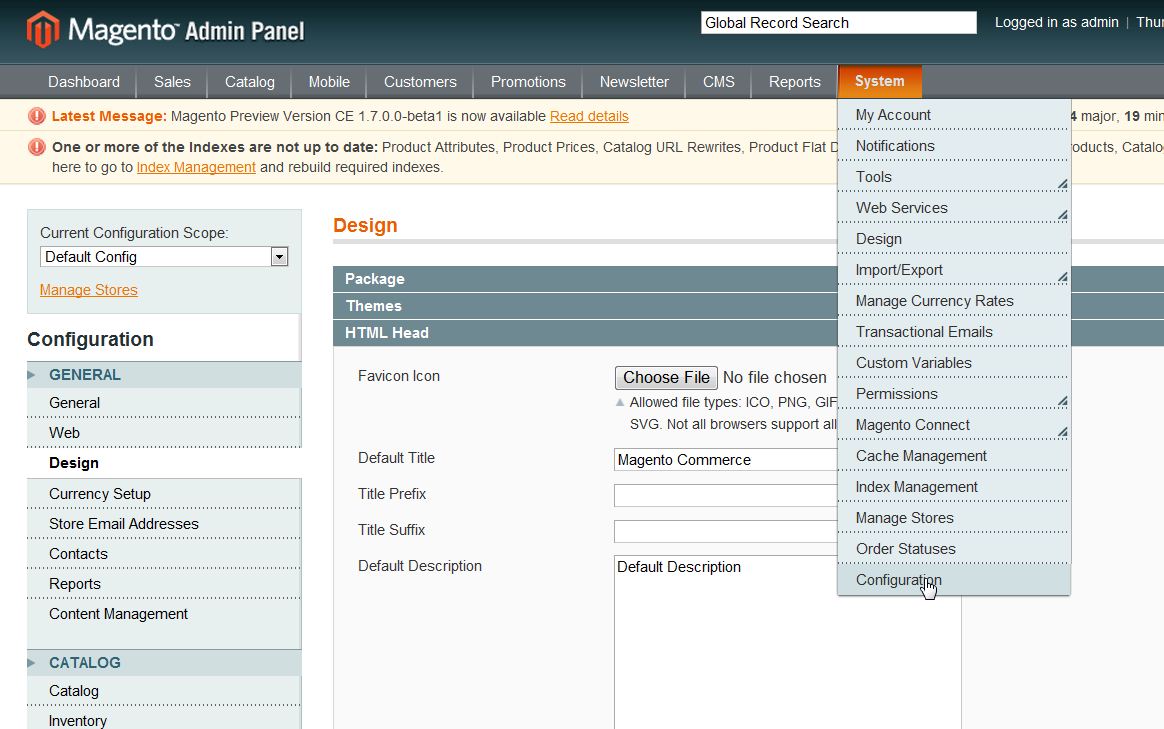
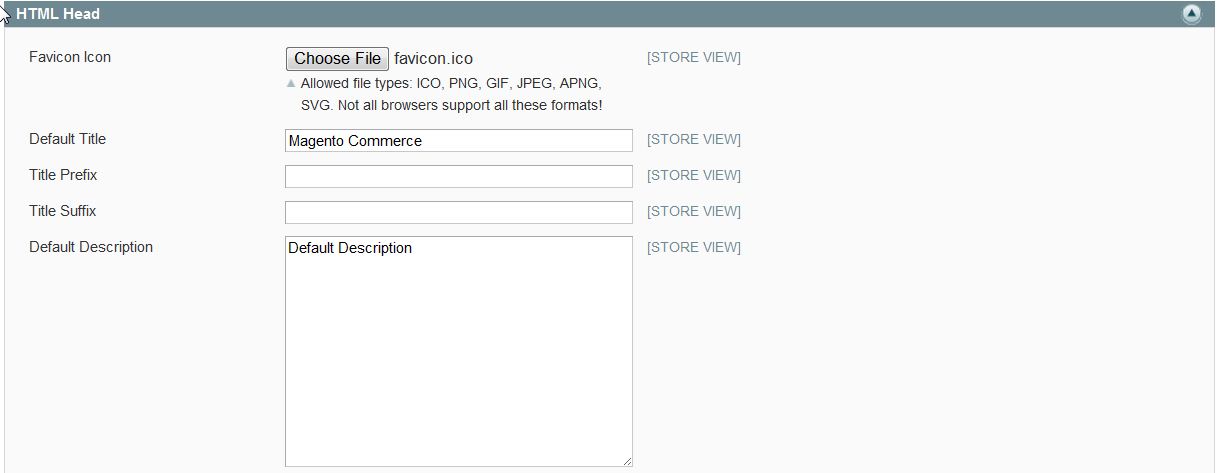
How to Add a Custom Favicon in Magento 1.6 Carrie SmahaUpdated on August 16, 2021 1 Minute Read Magento 1.6 allows you to further customize your shopping cart by adding a custom favicon. By default, the favicon is set to the Magento 1.6 logo. You can add a favicon of your logo or change it to any other custom image you wish. Customizing the favicon in Magento 1.6 is done through your Magento Admin Backend. Please feel free to visit our other Magento Tutorials in our Education Channel. Log into your Magento Admin Panel Go to System ->> Configuration In the left menu pane under “General” select “Design” Click on the “HTML Head” section in the center of your browser screen to open it Next to the “Favicon Icon” heading click “Choose File” to upload your favicon image Click “Save Config” For more step-by-step guides and practical tips, visit our Drupal Education Channel. Share this Article Carrie Smaha Senior Manager Marketing Operations Carrie Smaha is a digital strategy, web development, and SEO leader with 20 years of experience. She built her foundation in fast-paced agency environments before moving in-house to InMotion Hosting, where she leads go-to-market programs, agency initiatives, and technical product marketing that connects product capability to real customer decisions. More Articles by Carrie Related Articles 10 Magento Security Tips Changing the Magento 1.6 Login to Case Sensitive How to Allow Backorders in Magento 1.6 Changing the Year-To-Date Report Dashboard in Magento 1.6 Adding Store Email Addresses to Magento How to stop Displaying Product Reviews in Magento 1.6 How to Install Magento Manually Merging Javascript Files in Magento 1.6 How to Edit the Footer in Magento 1.6 Changing the Default Welcome Message in Magento 1.6