In our last tutorial, we showed you how to create an Add an event page to allow users to create events within your JEvents Calendar in Joomla 3. In this tutorial, we’ll walk you through the steps a user would take to add an event.
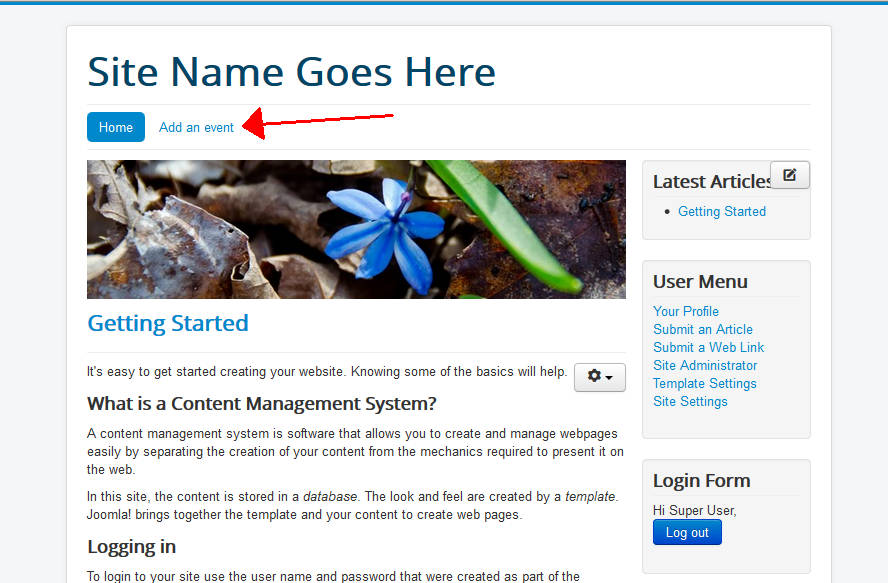
Click the link
Now that you have added a menu link allowing users to create an event (see the link above), go to the frontend of your website and click the Add an event link.
- Login
If you are not logged in, login to the frontend of your Joomla 3 site, otherwise you will see the the following warning:
Message
You are not authorised to create/edit events 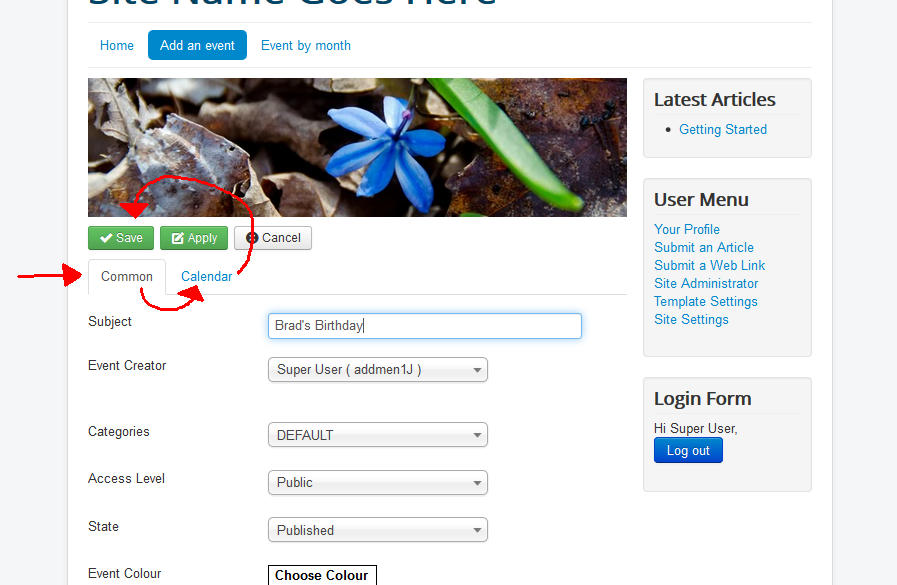
Add the event details
After you login and visit the Add an event page, you will see a form where you can add an event. For example, you can type in a subject, choose an event colour, and type in details about the activity.
In our testing, we did the following:
Subject Brad’s Birthday Activity Wed Apr 9, help us celebrate Brad’s birthday at Paul’s Pizzeria. We then clicked the Calendar tab (see screenshot above), set the Start date and End date, and then clicked the green Save button towards the top of the page. The event will be added and you will see the following message:
Message
Event SavedNow that we’ve added a new event, let’s show you how to display a calendar on your Joomla 3 site so you can see the event!