
After you have completed the request to have your primary domain changed to another domain name, you still have the task of removing the old primary domain files, transferring the new website files, or simply building a new website. The following instructions use the file manager within the cPanel to illustrate the location of the files. If you are going to be transferring files, it is highly recommended that you transfer the files using an FTP client.
Before you move your files
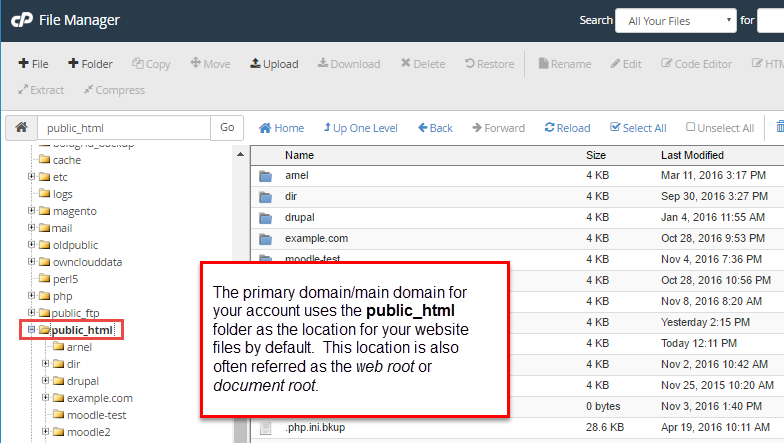
What is the PUBLIC_HTML folder?
By default, the primary domain or main domain of your account is located in the PUBLIC_HTML folder. If you have requested that the folder for the document root(folder where primary domain website files are located; also called the web root) be changed to something else, then you should be looking in that folder for your primary domain website files. The following instructions use the PUBLIC_HTML as the document root of the website.
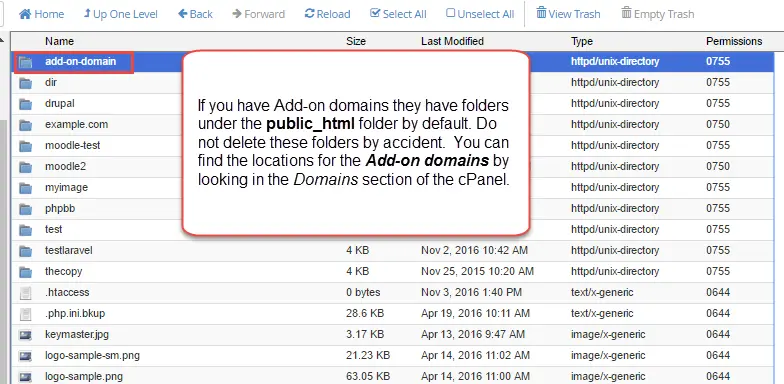
ADD-ON Domains
If you have already added a website as your primary domain, then there will be website files in the public_html folder. CAUTION: If you have set up add-on domains, then the folders containing the website files for the add-on domains would be in the same location. Use the cPanel Add-on or subdomains options in order to locate the folders that you may want to keep.
Moving and Transferring files for you Primary Domain Change
To REMOVE or MOVE the old primary domain files:
- Login to the cPanel
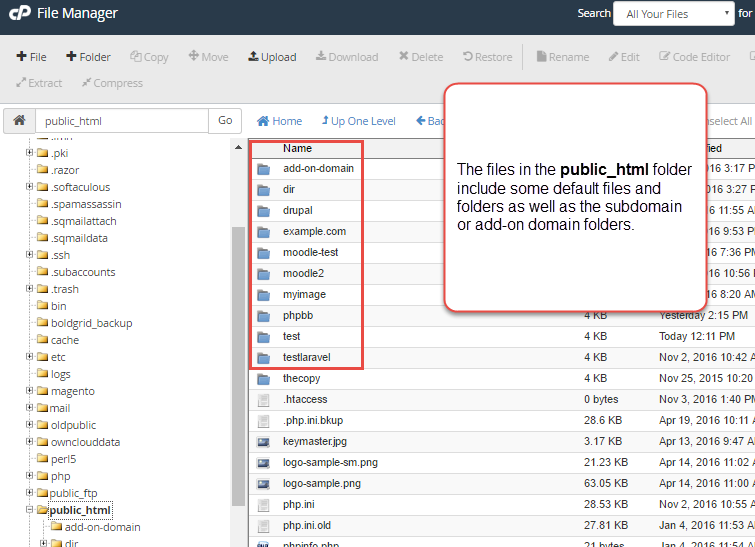
Go to the File Manager and navigate to the root directory of the primary domain (by default, this is public_html)
- Select the files that you wish to move or delete, then move/delete the files. You are ready to move in the new files or create new ones by building a new website when all of the older files have been removed or transferred.

To TRANSFER THE WEBSITE FILES:
- Launch your FTP client and then login to your FTP account

Navigate to your root folder (default is public_html)
- Make sure that the old files and folders are removed as per the instructions for removing/moving files above
- Upload the new files and folders for your website

Building a new website
If you are building a new website, then first make sure that you have removed the old files, then go about the business of building your new website to that location. Just make sure that you are saving or publishing your files to the document root folder.
This completes the tutorial for moving/removing your files for a primary domain change within InMotion Hosting. For more information see Changing the Main Domain.