This article will assist you with configuring your Yahoo account to access an email address that is hosted on an InMotion Hosting server.
Log into your Yahoo mail account.
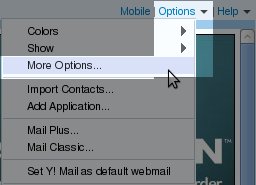
In the upper right hand corner, click Options and then click More Options…
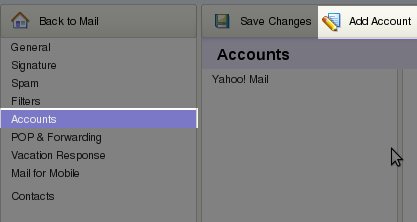
In the left menu, click Accounts. Then click Add Account
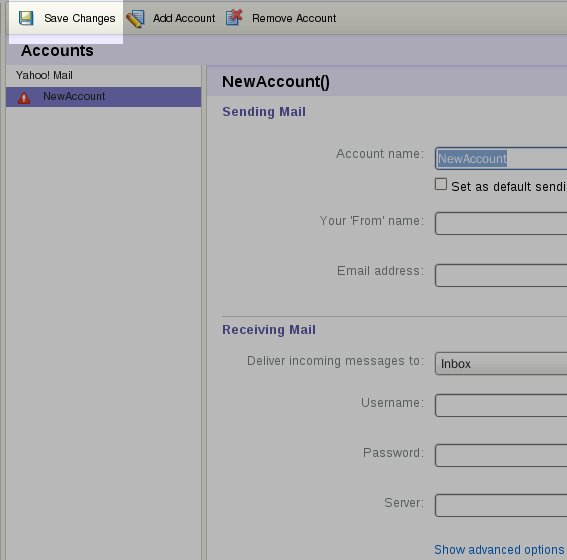
Fill out the information on the page under New Account(). Use the following settings under Receiving Mail:
| Username: | [email protected] |
| Password: | ******** Enter your email address password |
| Server: | mail.domain.com Be sure to replace domain.com with your actual domain name. |
After filling out all of the necessary information, click the Save Changes button in the upper left.
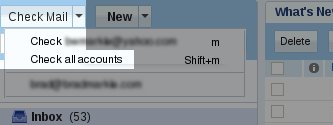
Yahoo, by default, will not automatically POP the newly added account. To do so, click the drop-down arrow to the right of Check Mail and click Check all accounts