
In our article on how to add animation to WordPress, we highlighted the Editor Plus plugin – which extends the functionality of Gutenberg and allows block customization without the use of code.
However, there is more to Editor Plus that meets the eye. The creator, Munir Kamal, also launched a free WordPress Gutenberg blocks library on his website Gutenberg Hub. Though editor plus does a great job of adding additional customization features to Gutenberg, users with simple themes may still find a need for specific blocks not currently included in the core Gutenberg block library.
In addition to blocks, his website also hosts a WordPress page template library that has both full and partial page templates that can be added to a website for free using his Editor Plus plugin.
Continue to learn how to use the Editor Plus plugin to add unique WordPress Gutenberg blocks.
Adding New Blocks From the Gutenberg Hub Library
Of course, the first step to using custom blocks from the Gutenberg Hub Library on your WordPress site is to download blocks via the Editor Plus plugin. Let’s learn how to add Gutenberg Hub blocks to WordPress.
- Install and activate the Editor Plus plugin in your WordPress dashboard.
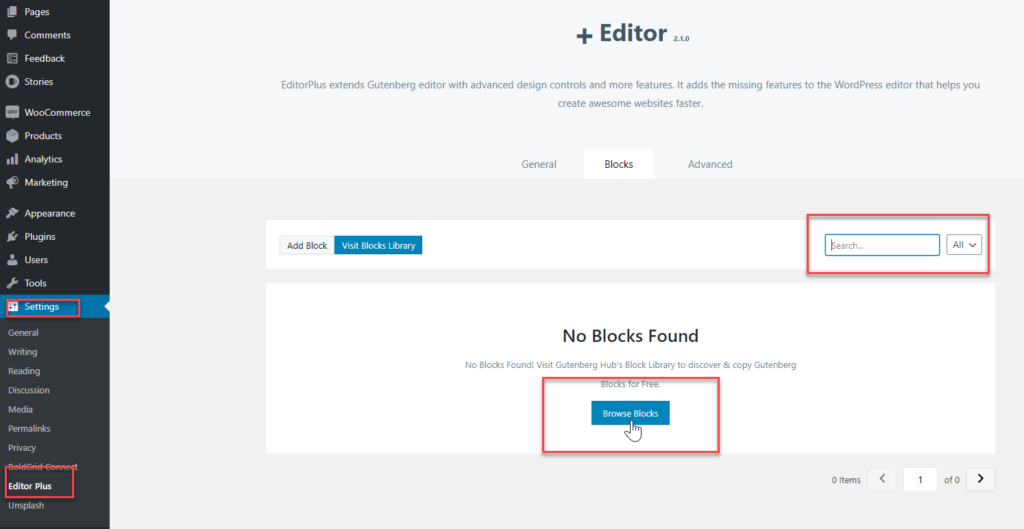
- Navigate to Settings > Editor Plus > Blocks.
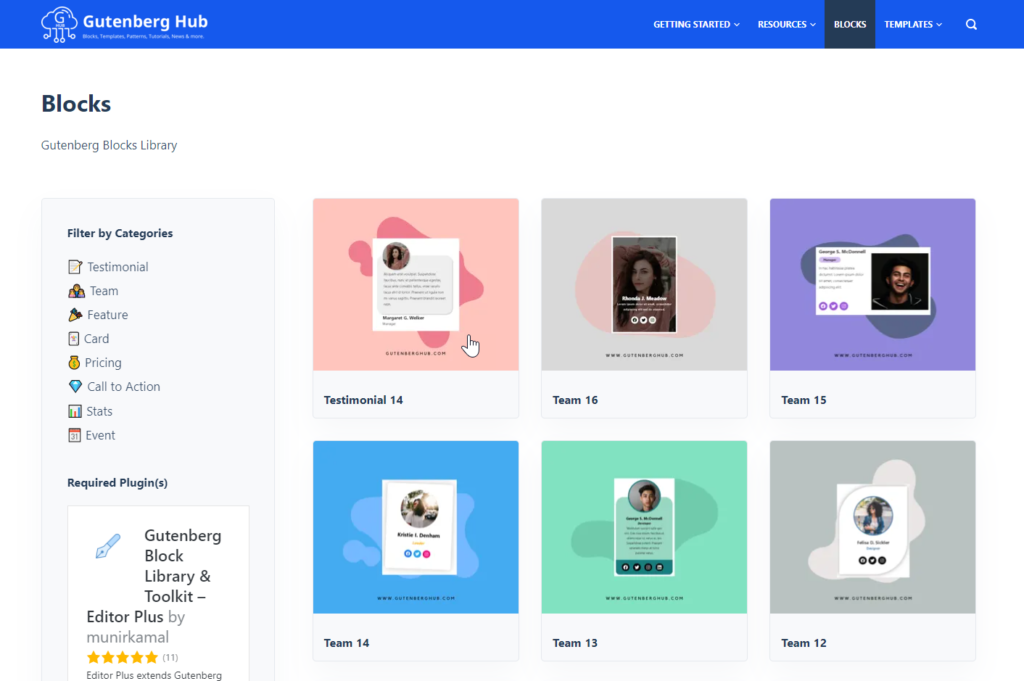
- Click Browse to search for blocks. You can also use the search bar to find a block if you know the title.
- The Gutenberg Hub Blocks Library will open in a new tab.
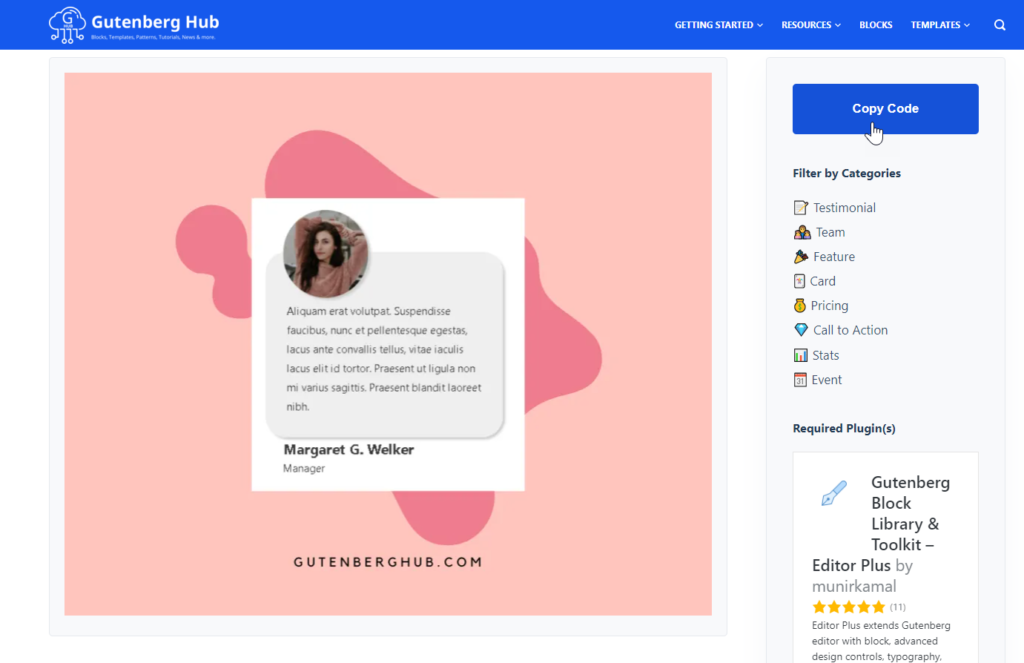
- Once you find a new block you like, click on the block then click Copy Code.
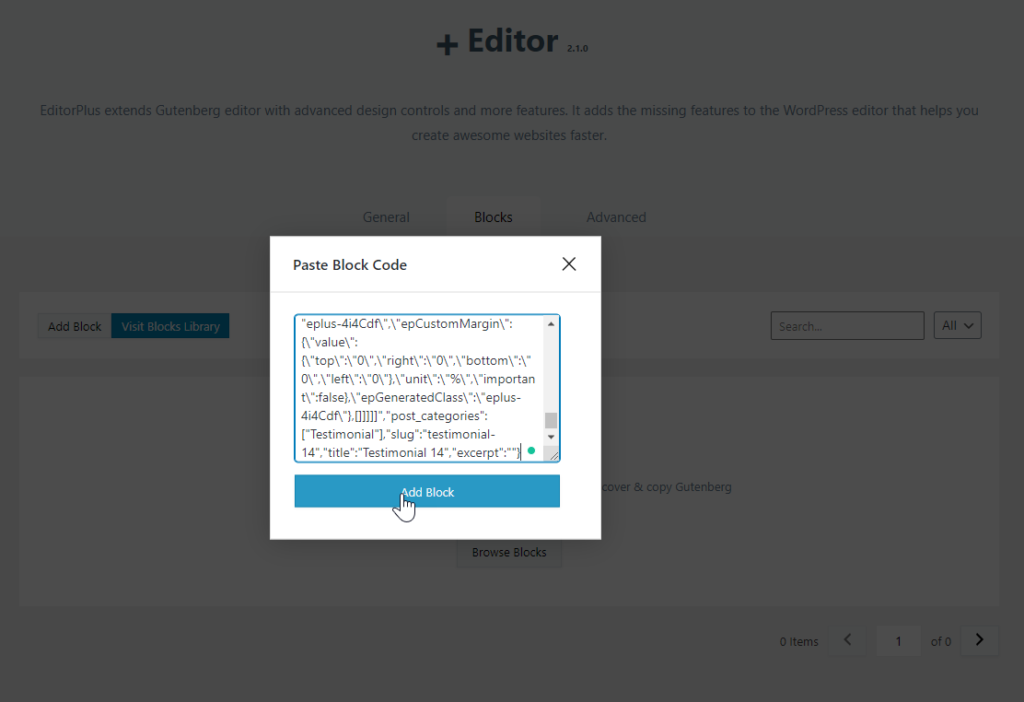
- Back on the Settings > Editor Plus > Blocks page, click Add Block, paste the code, then click Add Block again.
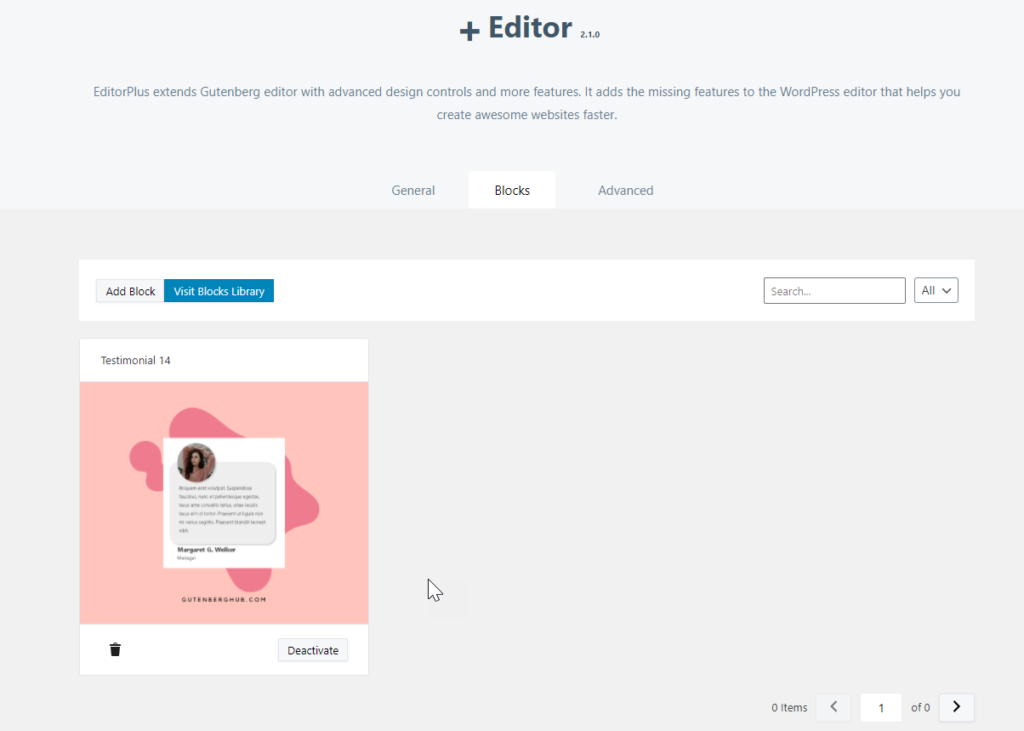
- You should then see your newly added block on the Blocks page.
Using New WordPress Gutenberg Blocks in a Page or Post
Once you’ve added new blocks via the Editor Plus plugin, you can then use them on posts and pages with the Gutenberg editor.
- Create or edit a page or post.
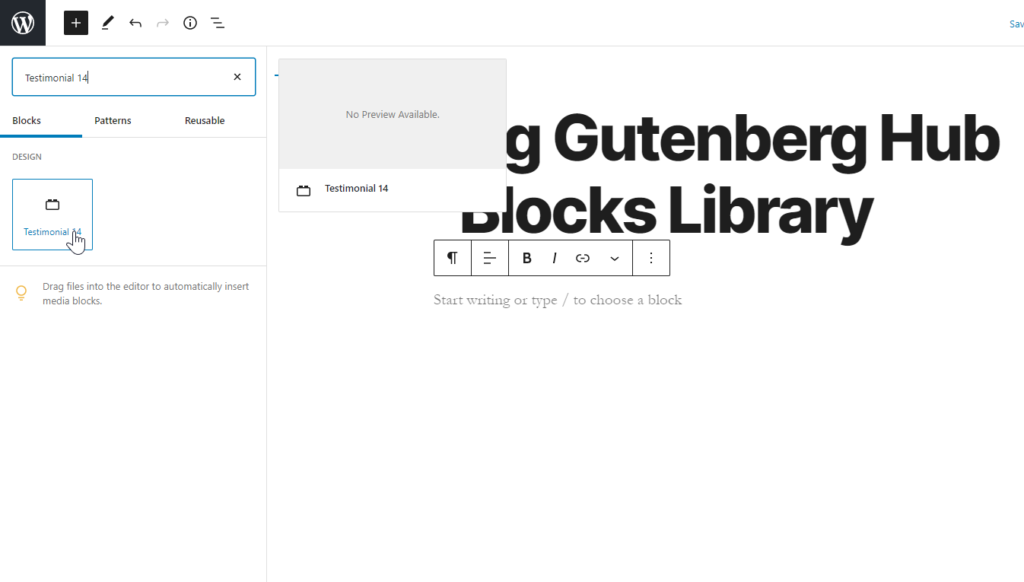
- Click on the + sign in the upper left corner or within the editor screen, then search for and add the new block. We had to search using the block’s name to find it.
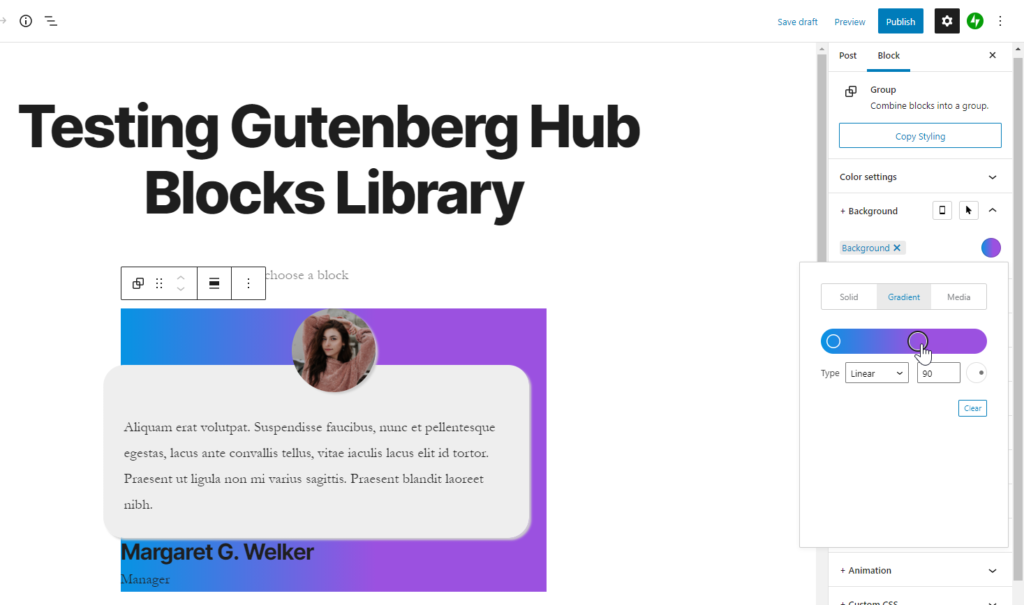
- Once added, you’ll be able to use all of the additional customization features provided by the Editor Plus plugin. A quick overview of additional settings can be read on our adding animation to WordPress article.
- Click Publish or Update to save your changes.
Learn more about the new WordPress editor, Gutenberg, and the capabilities of the separate Gutenberg plugin with our helpful Gutenberg tutorials.