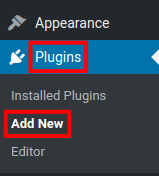
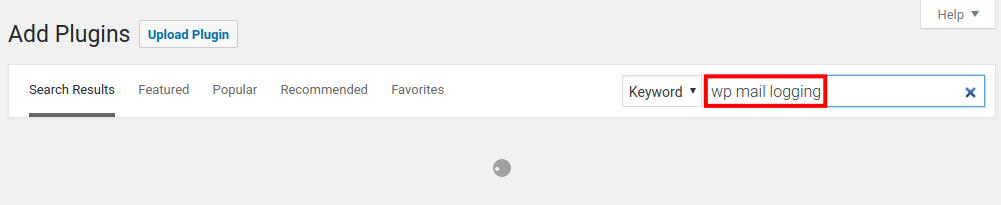
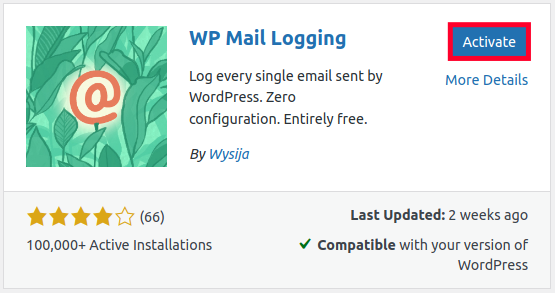
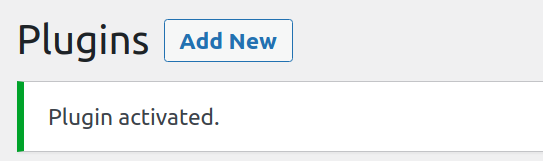
How to Install WP Mail Logging in WordPress Updated on February 10, 2022 by InMotion Hosting Contributor 0 Minutes, 44 Seconds to Read In this first guide in our series on the WP Mail Logging plugin for WordPress, we will show you how to install WP Mail Logging. Once it has been installed you can view your mail logs right in the Dashboard and import/export your settings. Check back as we will be covering these topics in future guides. Install WP Mail Logging Log into your WordPress Dashboard.Click Plugins then Add New.In the search field type ‘wp mail logging’ without the quotation marks.You will see WP Mail Logging by Christian Zöller listed, click the Install Now button.Once it has been installed click the Activate button.You are finished when you see a “Plugin activated” message. Congratulations, now you know how to install WP Mail Logging! Check back for the next guide where we will go over all the settings for the WP Mail Logging plugin. Share this Article IC InMotion Hosting Contributor Content Writer InMotion Hosting contributors are highly knowledgeable individuals who create relevant content on new trends and troubleshooting techniques to help you achieve your online goals! More Articles by InMotion Hosting Related Articles Transferring Emails from Your Old Host to InMotion Hosting How to Setup Office 365 DNS Records How to fix OLMAPI32.dll and WWLIB.dll error in Outlook 2013 How to Setup Outlook 2016 for Mac Issues with Outlook 2007 Running on Windows 10 Outlook not working after installing Windows 10 IMAP Issues Affecting Outlook 2013 and Office 365 Outlook 2013/Office 365 – Subscribing to your Inbox How to create an email signature in Outlook 2003 How to create an email signature for Mac in Outlook 2011