Surveys ranking reasons websites get hacked almost always have the same thing listed as the #1 reason:
outdated software.
Sucuri.net
Security, like customer service, is everyone’s responsibility. cPanel users can see the number of Outdated Installations on their Softaculous homepage. Meanwhile, VPS Hosting root users can use Web Host Manager (WHM) to check the entire server for outdated web apps.
This only works on programs imported via sync or manually into Softaculous. Consider emailing all cPanel users about the security benefits of this process along with how to upgrade programs in Softaculous. This could also help you identify websites using outdated scripts in Softaculous which are more vulnerable to being hacked.
Below we’ll cover how to view outdated installations in Softaculous and email cPanel users.
Note: VPS Hosting customers can purchase Softaculous in your Account Management Panel (AMP).
View Outdated Installations
- Log in to WHM.
- Click Softaculous – Instant Installs on the left.
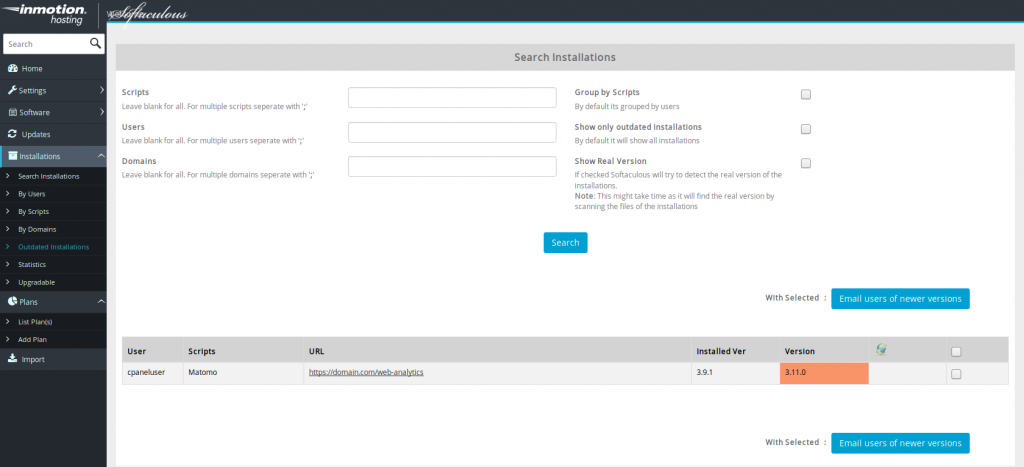
- Click Installations, then > Outdated Installations. The other options under Installations filter installed installations accordingly excluding Statistics.
- If you have a long list, you can filter the results at the top by script, user, domain. Remember to check the box to Show only outdated Installations.
- Click Search to update your results.
Email cPanel Users
Outdated installations may have been abandoned after testing a new function or creating a quick site for a friend. Remind all cPanel users with a few clicks.
While on the Outdated Installations page, click the checkbox of an outdated installation and click Email users of newer versions to email the cPanel users. The emails will be sent to the Contact Email listed on the WHM List Accounts page.
The default email will include the installation, installation URL domain, and steps to upgrade in Softaculous.
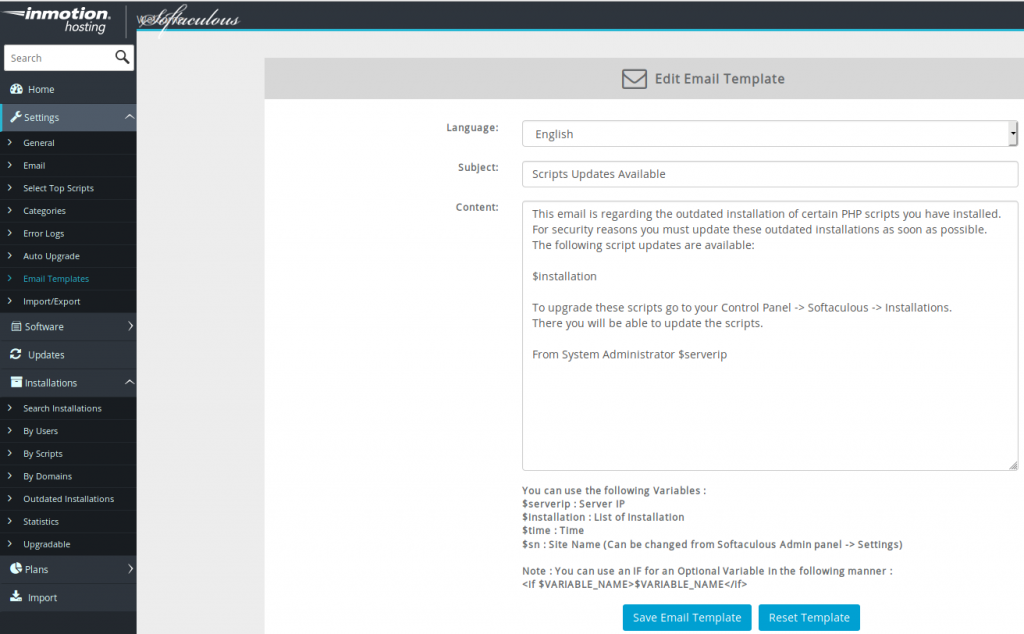
Edit Email Template
To customize the template for this email:
- In Softaculous – Instant Installs, Click Settings, then Email Templates.
- Click the edit icon to the right of Updates Available Template (From ADMIN).
- After editing the subject and content, click Save Email Template.