In this article, we will introduce the WordPress is_preview() function. This is how you can effectively edit what content is generated when you preview a page or post. Most commonly, this can be used to differentiate the preview page from published pages. This is especially helpful if you are using something like Google analytics to track pageviews.
The is_preview() function is a conditional tag. So, using the example above, if you don’t want to track pageviews for preview pages, this is the function you will want to use.
How to use the is_preview() function
If you are using a theme designed by someone else, it would be best to make this modification in a child theme. However, if you are using a custom theme, you’re ready to get started.
The directory we will be working with is the theme directory for your theme. This will be slightly different depending on your theme, but the location is always the same: /wp-content/themes/name-of-theme. In this case, “name-of-theme” is substituted for the name of the theme you’re working with.
Also, we will be using the cPanel File Manager to edit our theme files.
In this example, we are going to instruct WordPress to only include our analytics code on pages that are not preview pages.
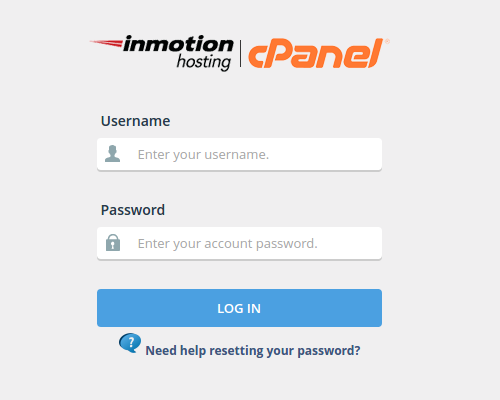 Log into cPanel
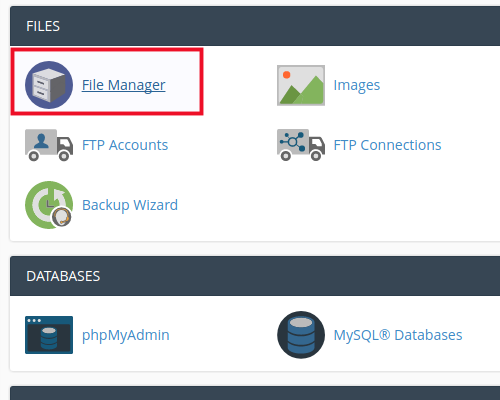 Under Files choose File Manager
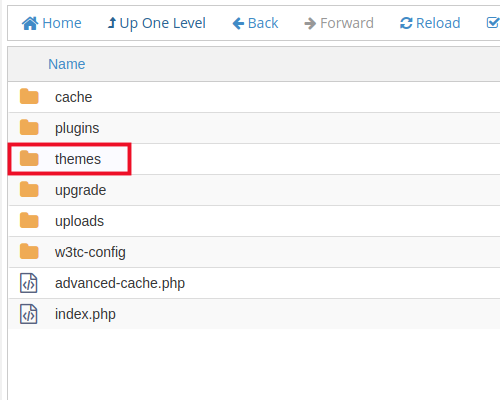 Navigate to the theme directory listed above
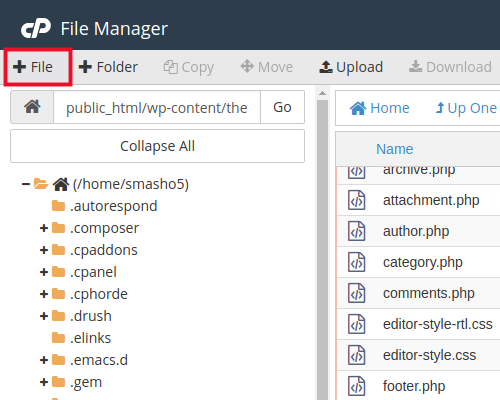 Create a file (by clicking the +File button) to contain your analytics code; for this example, we can name it analytics-code.txt
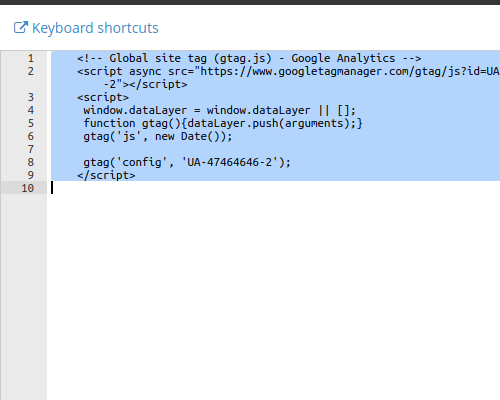 Paste your analytics code into the “analytics-code.txt” file
 Click Save Changes
 Click Close
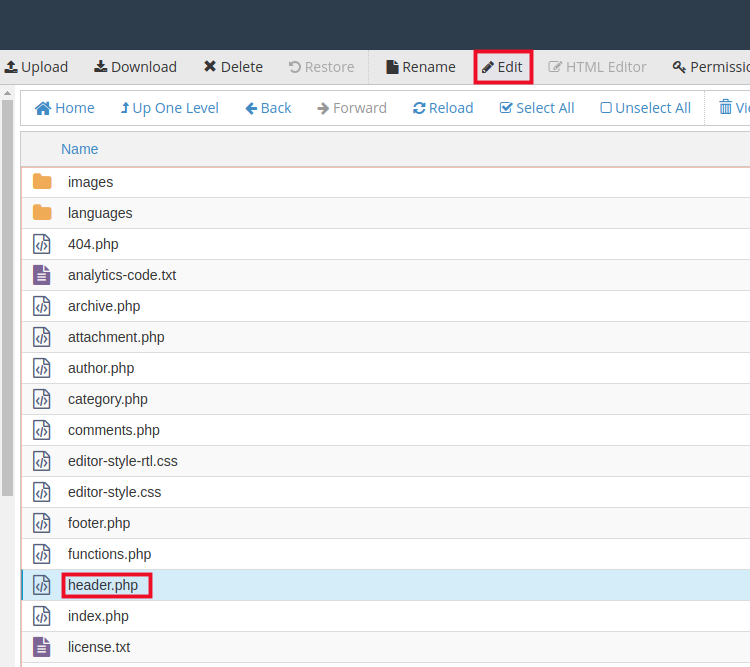 Now open the
 header.phpfile by highlighting it and clicking the Edit button or using a right-click and choosing Edit (depending on your theme, the header.php file may be in a “template parts” directory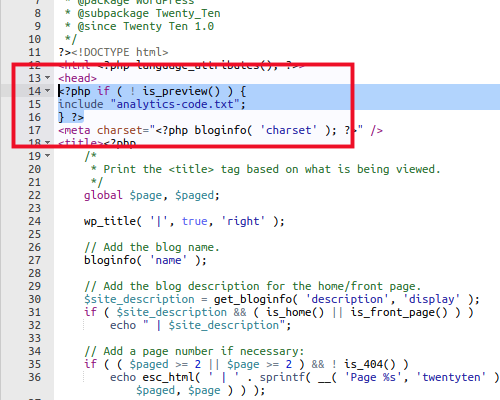 Add the following code just beneath the
 <head>section:<?php if ( ! is_preview() ) { include "analytics-code.txt"; } ?>
You may notice the exclamation point placed before the is_preview() function in the code snippet above. This means, if the page is not a preview page then insert our analytics code. This means all pages and posts will include the analytics code necessary for tracking purposes.
Well done! You now know how to use the is_preview() function in a conditional statement to modify your preview page in WordPress.
