
If you want to modify a WordPress theme, you should create what’s called a child theme. A child theme allows you to make updates that would not be overwritten by updates to the theme. Theme updates occur on a regular basis, usually in response to updates to WordPress.
If the modifications were made to the main theme, then they would be erased upon the theme update. The child theme allows you to avoid losing your modifications. The following article takes you through the steps needed to create a basic child theme.
How to Create a Child Theme
-
- Login to the cPanel.
- Open the cPanel File Manager and then go to your WordPress installation directory. Look for the wp-content/themes folder.
- Create a New Folder and name it 2014child. You can actually name this folder any name, but to keep things simple and easy to understand we will name it 2014child.
- In File Manager, click on the newly created folder to open it. Click on Create New File to create a new file named style.css.
- Using the same steps, create another file called functions.php.
- In File Manager, click on your newly created CSS file and edit the file by clicking on Code Editor in the menu. Add the following into the blank style.css file:
/*

Theme Name: 2014-Child-theme

Author: My Child theme

Template: twentyfourteen

*/ - Click Save Changes in order to save the changes to the style.css file.
- Next, you will edit the functions.php file that you just created. Click on the file, and edit it with the Code Editor as you did the last file. Add the following code:
<?php

add_action( 'wp_enqueue_scripts', 'theme_enqueue_styles' );

function theme_enqueue_styles() {

wp_enqueue_style( 'parent-style', get_template_directory_uri() . '/style.css' );

wp_enqueue_style( 'child-style', get_stylesheet_uri(), array( 'parent-style' ) );

}
This code is the final step in creating the child theme. As per WordPress, the code in the functions.php allows you to enqueue the parent theme stylesheets. NOTE: The previous method of using “@import” is no longer considered best practice for importing the parent theme stylesheet. For more information, please see WordPress Codex: child themes. - Click Save Changes in order to save the changes to the functions.php file.
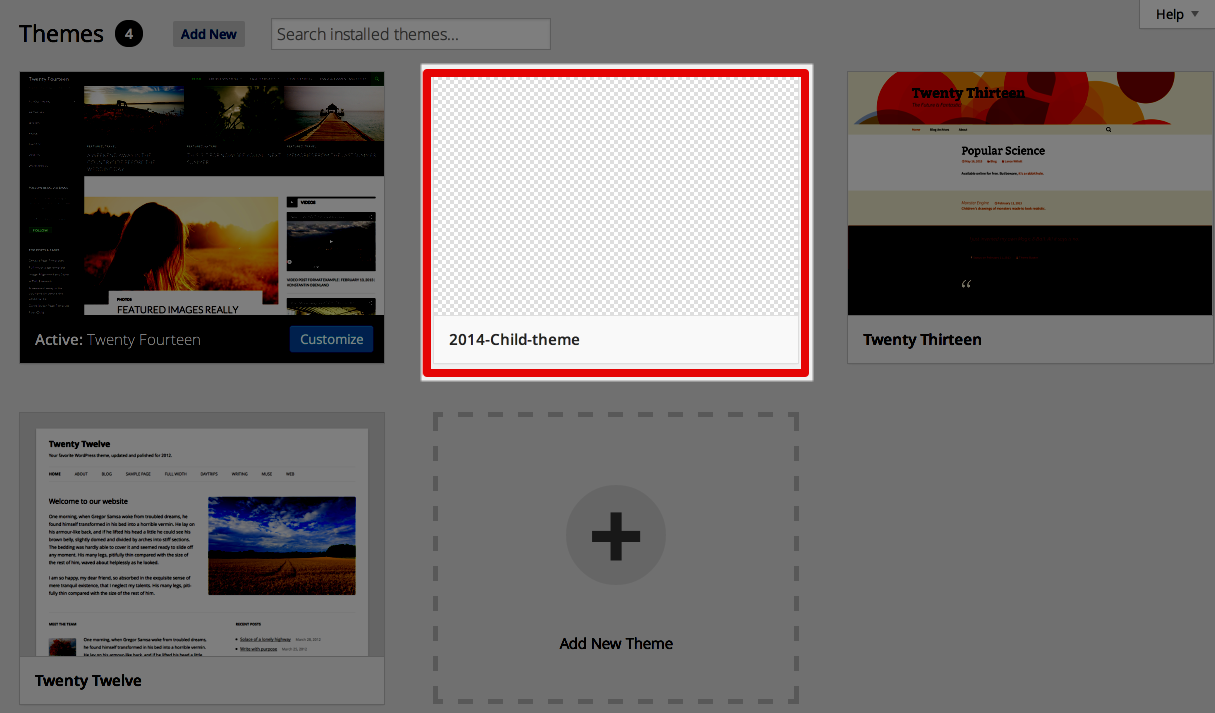
Go back into your WordPress dashboard. In the menu, select Appearance >Themes. When you look at the list of themes, you should see your Child theme listed under available themes. Click on ACTIVATE under your child theme to make it the active WordPress theme.
- Optional step: In order to provide a thumbnail of your Child theme in the theme list, you will need to add an image in the folder that you created for the child theme. The image is typically a screenshot of the theme and should be either a PNG, JPEG or GIF file. Make sure that the size of the image is 300 px wide by 225 px high. Once you have the file, name it screenshot.jpg and copy into the child theme folder.
- We will be adding code to the CSS file of the child theme in order to change the font, font color and alignment of the site title. The code also centers the entire site since the 2014 theme was designed to be left-aligned.
#site-title

#site-description {

font-family: Georgia, "Times New Roman", Times, serif;

font-weight:bold;

text-align: center;

margin:10px auto;

color #e56c07

}

#site-title a {

color: #0c8fbe

}

.site {

margin: 0 auto;

}
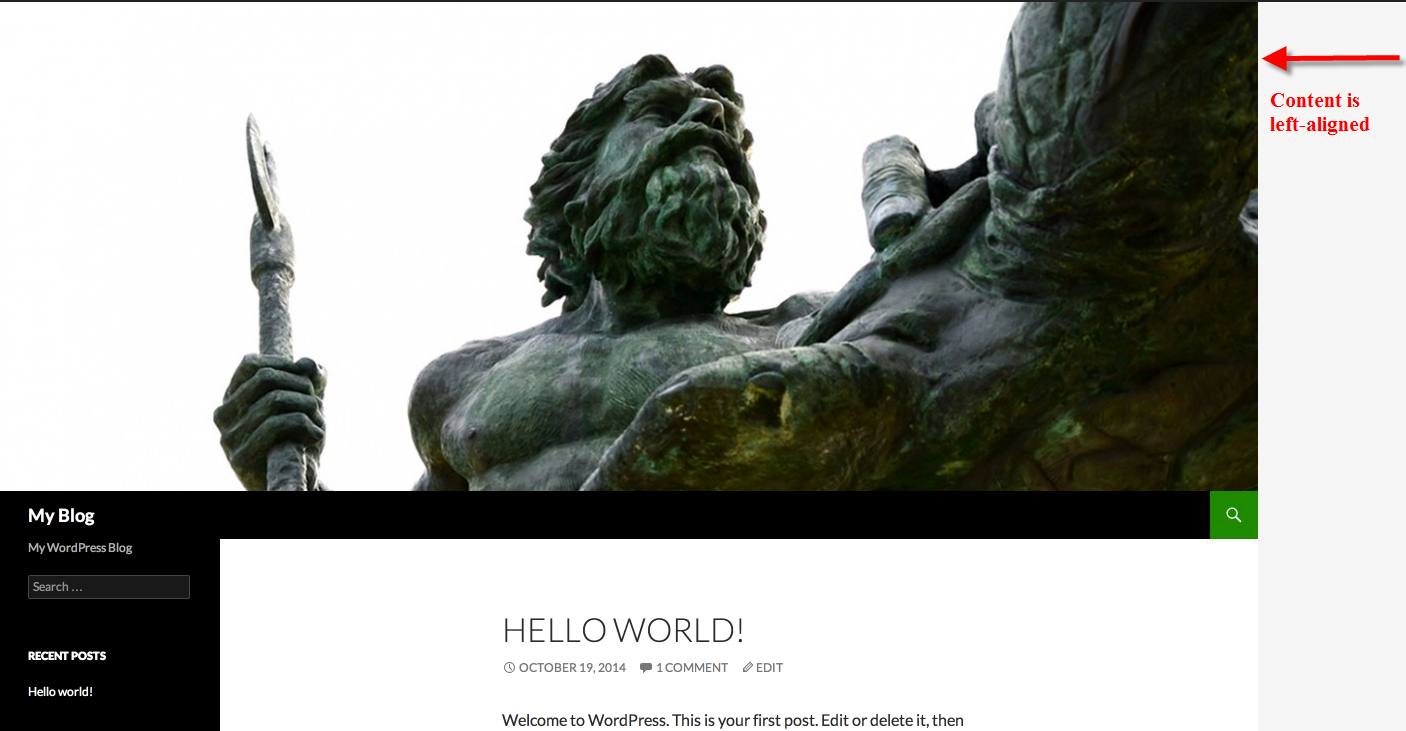
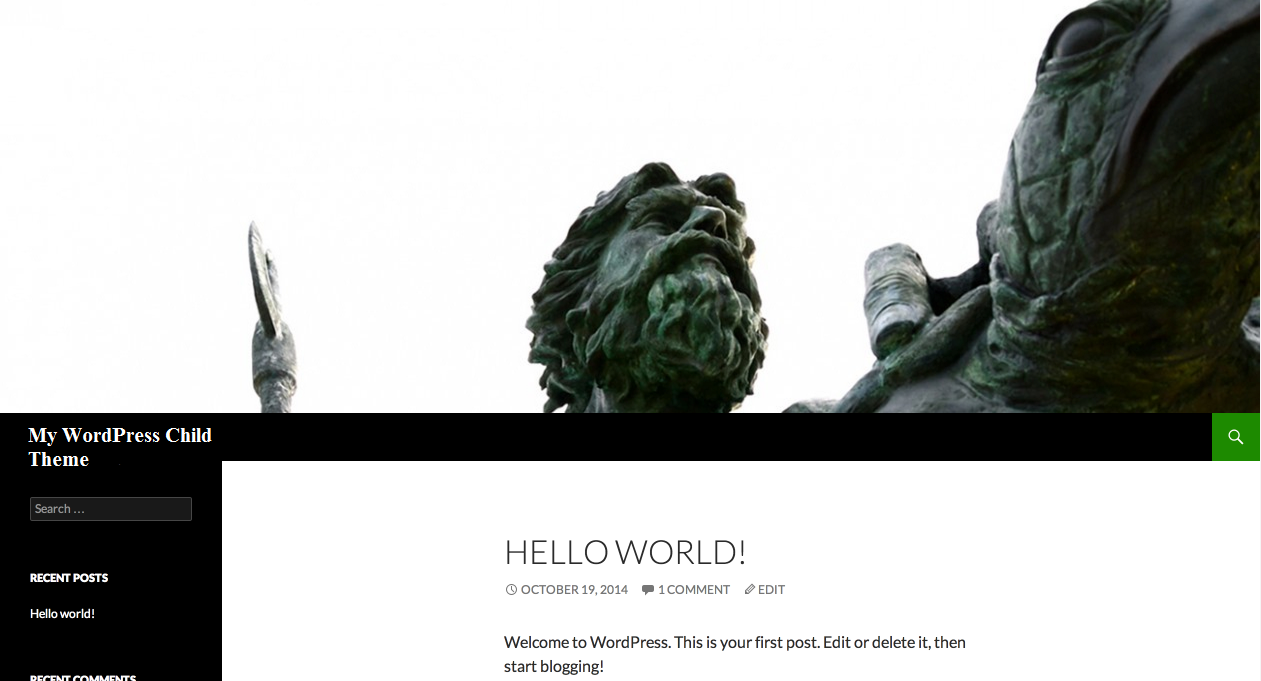
The code above changes your fonts and centers the site orientation. To see a before and after view of the WordPress site with the changes take a look at the screen captures below. The original site is left aligned, so you will see a white space on the right. The child theme is centered so that content is centered in the screen.
| BEFORE | AFTER |
|
|
- Click the Save Changes button to save our new CSS declarations.
This completes the tutorial on creating a child them using the WordPress twenty-fourteen theme. Note that this is only the foundation upon which you will base all of your future changes to the site. Child themes are used to preserve modifications to a theme so that theme updates do not destroy your changes.
