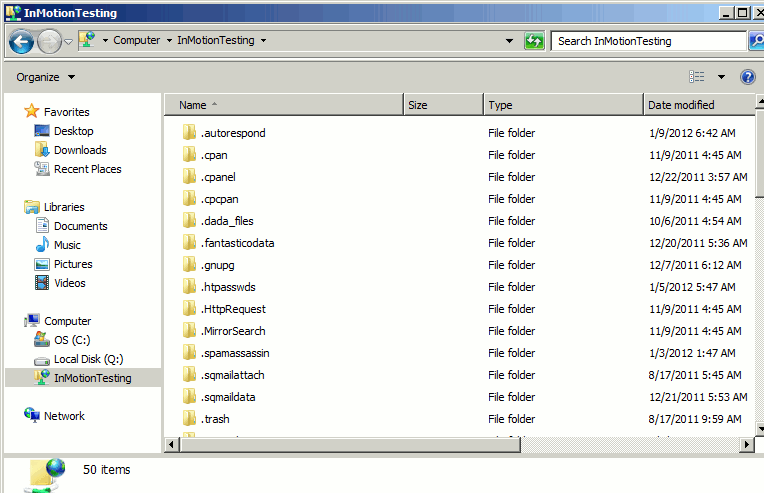
Creating a network drive allows you to connect to your hosting account and manage your files similar to how you manage local files and folders on your computer. For example, you can easily drag and drop files to upload them, delete files, etc.
This article references a username and password, which is your FTP username and password. If you’re unfamiliar with FTP, you can find more information in our FTP Getting Started Guide.
To create a Network Drive in Windows 7:
- Click your Start Menu and then click “Computer”
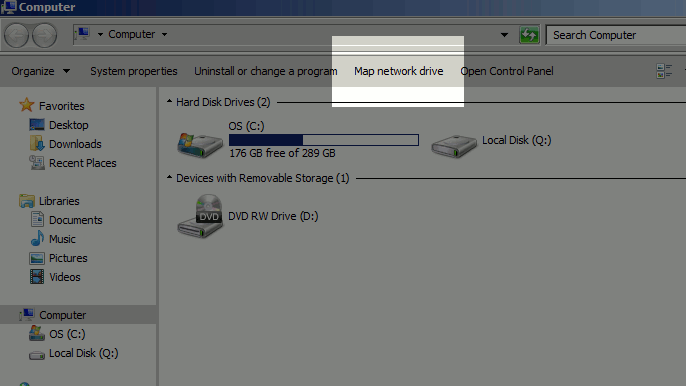
- Find and click the button at the top labeled “Map Network Drive”
- Click the link that says, “Connect to a website that you can use to store your documents and pictures”
- Click “Next” to the introduction screen
- Click the option that says, “Choose a custom network location” and then click “Next”
- At “Internet or Network Address”, enter ftp://example.com (be sure to replace example.com with your actual domain), and click “Next”
- Uncheck the option to “Log on Anonymously” and enter your FTP user as the username (which is your cPanel username), then click “Next”
- Type in a name to reference your network location and then click “Next”
- Click Finish
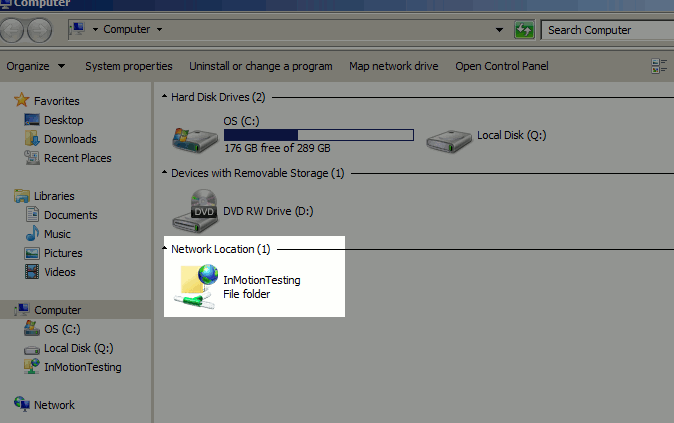
- From here you can now click on your Start Menu and then click Computer. Under “Network Location” you should see the shortcut we’ve just created.
- After you double click to open the network location, you will be prompted for your ftp password. Enter it here and then click “Log On”
- After you have connected, you should see a folder open with a listing of all the files on your hosting account. The functionality will be very similar to what you can do when you open folders on your local computer.