When creating a Joomla menu item, you will find that most menu item types have Page Display settings. In this article, we are going to review two of the options found within Page Display settings: Browser Page Title and Page Heading.
What do these settings do?
In our testing, we are working with a Login Form menu item. We configured the title and heading settings as follows:
Browser Page Title: Login
Page Heading: Website Login
Before we made any changes, the page title (as seen in the top of our browser) was the title of the article and no heading was shown on the page. After making changes, you can see below that the Browser Page Title setting changes the name of the tab in our browser and the Page Heading simply adds a <h1> tag with the text we entered.
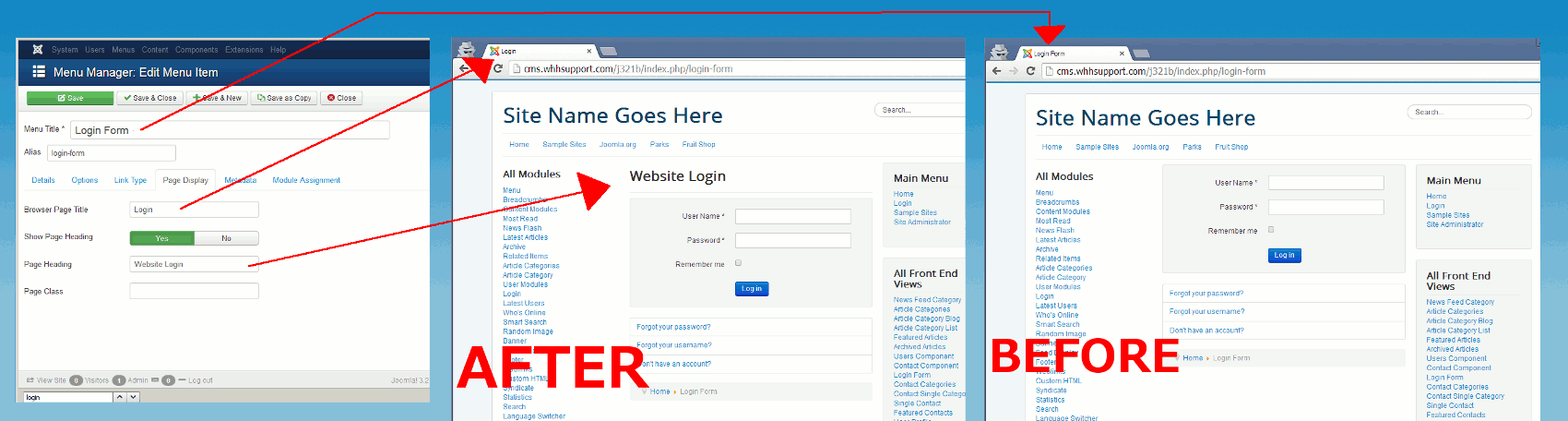
Please note! The Show Page Heading setting must be set to Yes in order for the Page Heading you enter to appear. You can see this setting in the screenshot above.
How to change Page Title and Page Heading settings in Joomla 3
- Login to your Joomla 3 admin dashboard
- In the top menu, click Menus and then click Menu Manager
- Find the menu item that you want to change and click on it
- Click the Page Display tab
- Enter in values for the Browser Page Title and Page Heading settings, ensure the Show Page Heading set is set to Yes, and then click the Save button in the top left of the page.