AWStats is a tool in your cPanel that creates graphical reports from your website’s access logs. It’s great for taking a quick look at things such as visits to your site per day and the number of pages viewed on your website.
Note: AWStats analyzes Apache logs to generate your website statistics. Due to the configuration of NGINX servers, AWStats is unavailable. Additionally, self-managed VPS and Bare Metal Servers do not include AWStats.
How to Access AWStats
- Login to your cPanel.
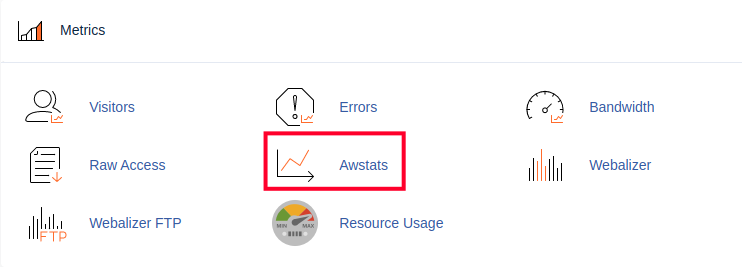
- Under METRICS click the AWStats button.
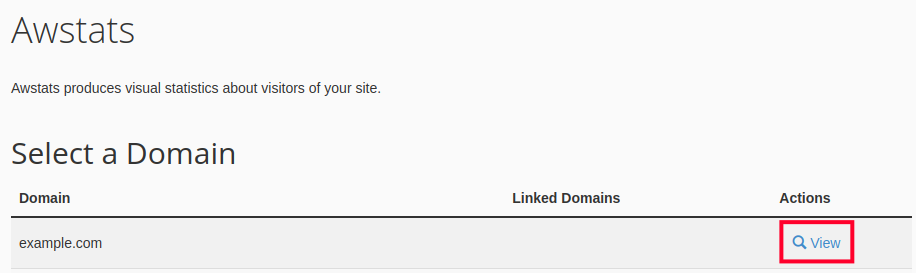
- You will then see a listing of the domain names on your account. Click the View link with a magnifying glass icon next to the domain name you wish to see stats for.
What Information Can I View in AWStats?
- Top 25 Pages
- Visit Duration
- Number of visitors to your site each month
- Number of visitors to your site per each day in a month
- Number of hits to your site per country
Reviewing Website Statistics
Summary Report
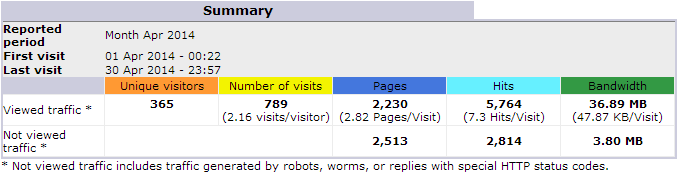
The AWStats summary view gives you a nice overview of the current report period, in this case Apr 2014.
AWStats Terms
Here are some of the common terms that you’ll run across when viewing your AWStats reports:
- Unique Visitors: The unique amount of visitors you’ve had to your website.
- Number of Visits: The number of visits to your website made by all unique visitors.
- Pages: The number of full pages that have been viewed.
- Hits: The total number of hits for resources such as images or JavaScript files.
- Bandwidth: The total amount of bandwidth consumed serving all of the website requests.
For a detailed explanation of these terms, please see the AWStats documentation website.
Monthly History
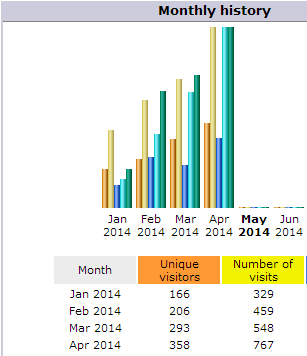
The AWStats monthly history report gives you a look at how your traffic is trending on a monthly basis.

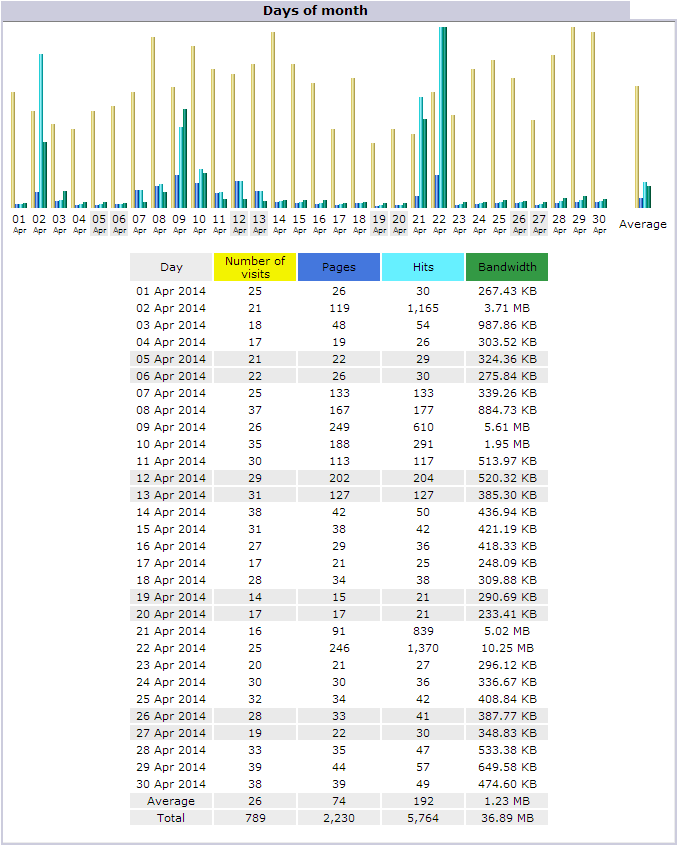
Days of Month
The AWStats days of month report lets you easily see what days during a month are your site’s busiest.
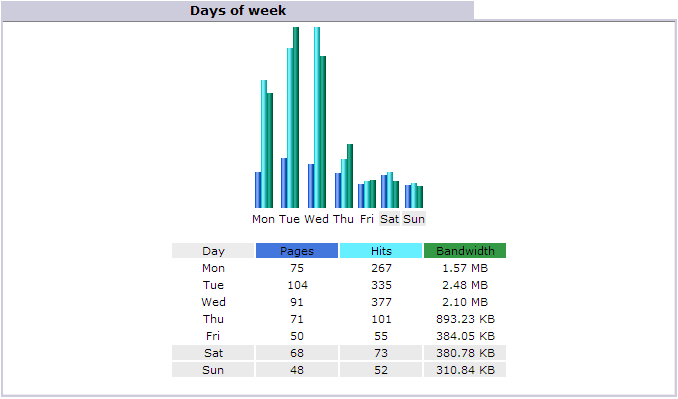
Days of Week
The AWStats days of week report shows which days of the week bring the most traffic to your site.
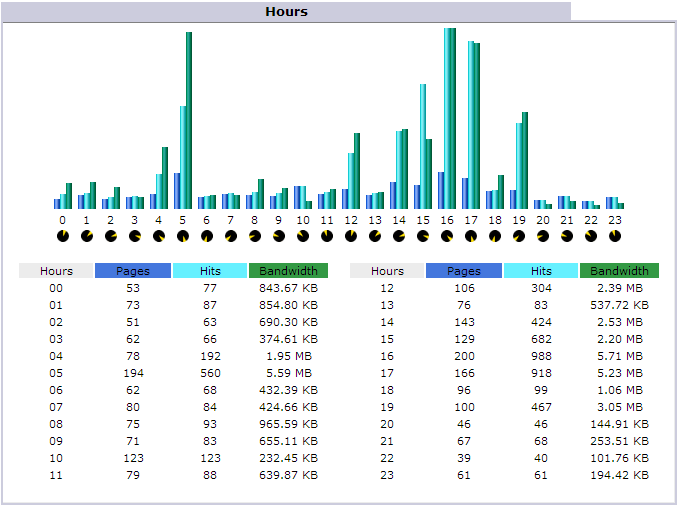
Hours
The AWStats hours report gives you a nice view of which hours during the day your site gets the most hits.
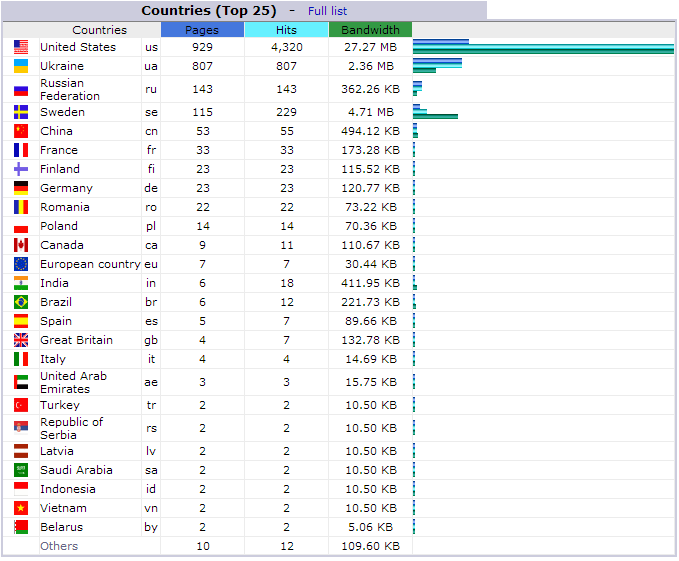
Countries
The AWStats countries report lets you see what region of the world your visitors are coming from.
Hosts
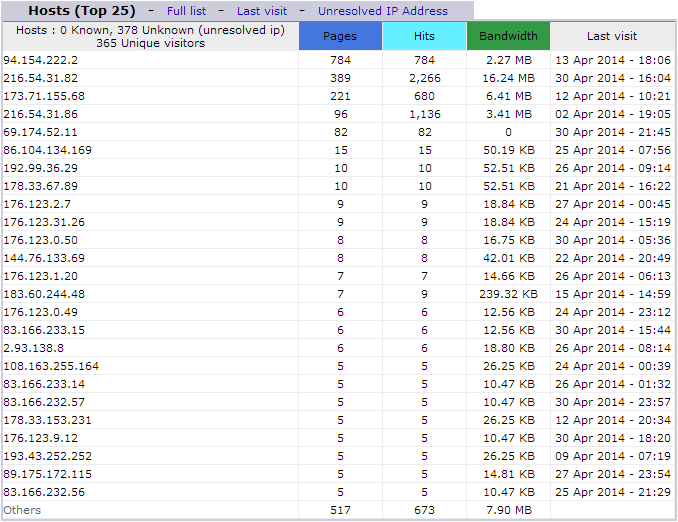
The AWStats hosts report shows the top IP addresses that have been visiting your website. If you notice any that have a far higher number of requests than others, you might want to think about blocking unwanted users from your site using .htaccess.
Robots / Spiders
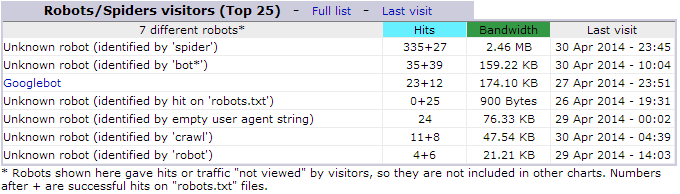
The AWStats robots / spiders report shows non-human visits from search engines and other automated sources. If you notice higher than normal CPU usage, consider temporarily blocking bad bots or stopping search engines from crawling your website.
File Type
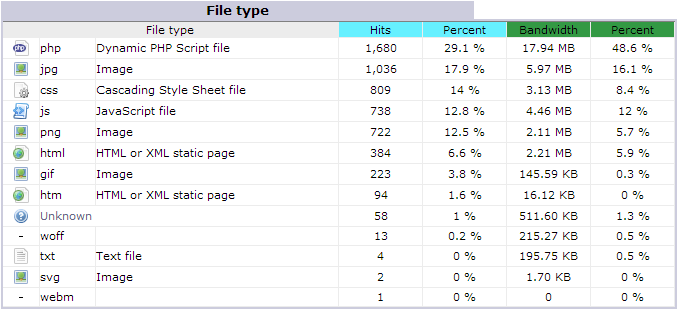
The AWStats file type report allows you to easily see what type of files are requested the most often.
Pages-URL
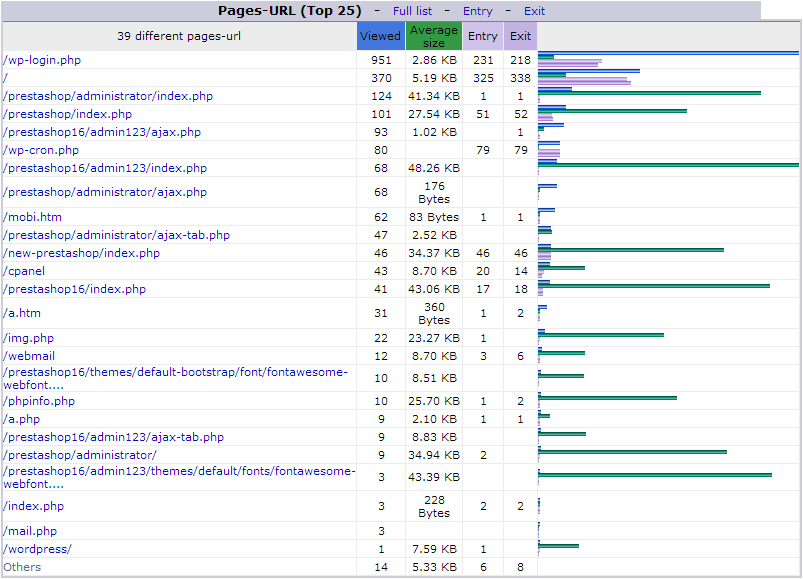
The AWStats pages URL report lets you easily see what pages are being requested the most.
Operating-Systems
This report lets you see what operating systems your visitors are using.

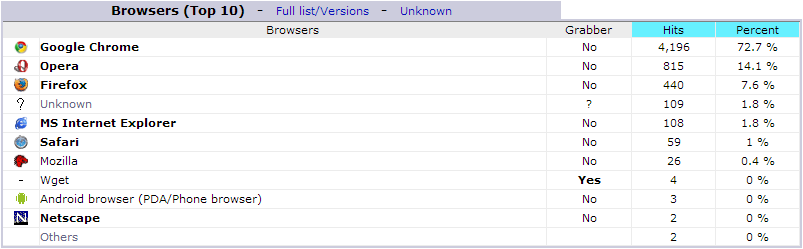
Browsers
The AWStats browsers report allows you to see what web browsers your site is being viewed with.
HTTP Status Codes
The AWStats HTTP status codes report lets examine unusual HTTP responses that your website is giving.
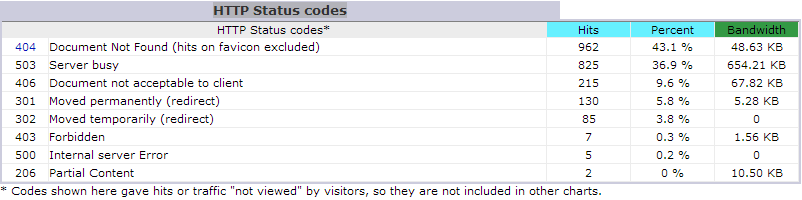
You should notice that the 404 status is a link you can click on:
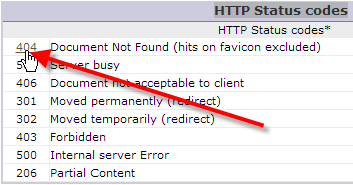
You can see that there were over 900 404 errors from bots trying to hit this website’s wp-login.php script.
AWStats Troubleshooting
Vital processes for keeping your website up, have a higher priority than statistic processing, so sometimes a server can get behind on its report calculations. If your stats have not updated in over 36 hours, you can manually run them from cPanel. This guide will walk you through manually updating your AWStats through cPanel.