
Microsoft Outlook is a widely used email client that will often take emails that were created or formatted using Rich Text and then automatically store the formatting data into a file named winmail.dat. This file is then attached to the email that you are sending. You can avoid this by using HTML or Plain Text when composing emails. Follow the directions in our guide below to learn how you can configure Outlook to stop this issue.
Prevent the Winmail.dat file attachment with Outlook Settings Changes
All of the steps below do require that you have access to the Outlook client settings. If your access levels prevent you from making these changes then you will need to speak with your administrator before these changes can be made.
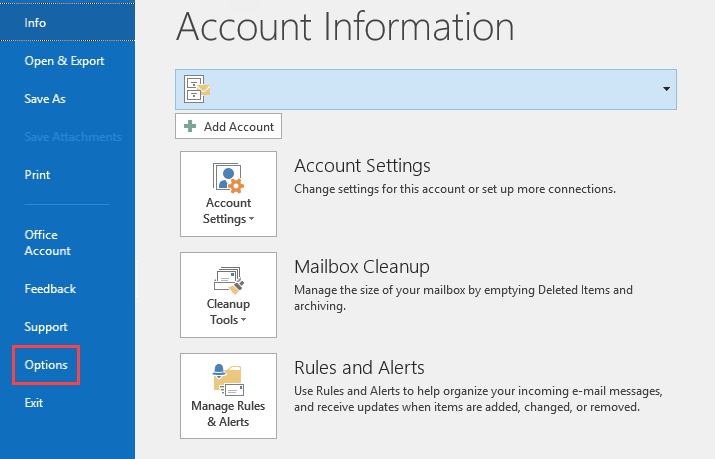
- Login to Outlook, then click on File to go to the Account Information page. Click on Options.
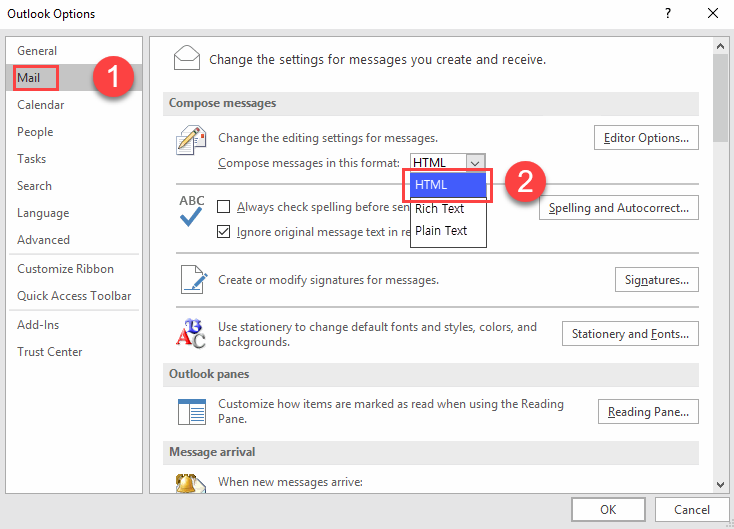
- Next, in the column at left click on Mail. Then go to the section labeled Compose messages. In the drop-down menu next to Compose messages in this format, click on HTML or Plain Text. Any messages that you compose will automatically be set to this format.
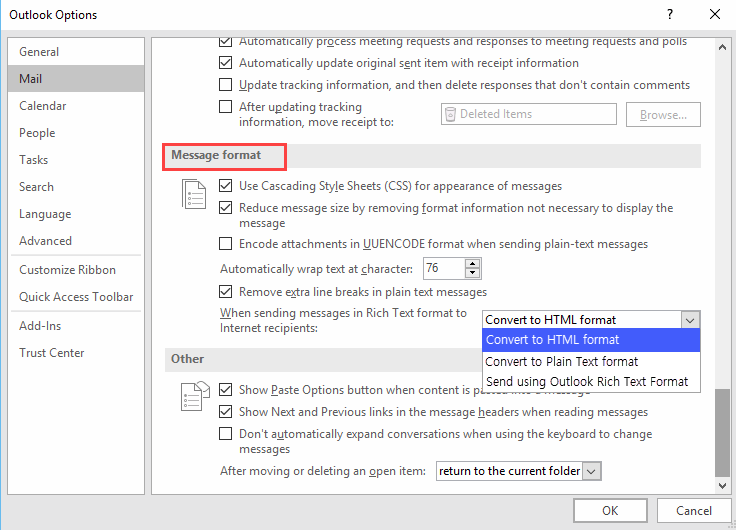
- After you have set your message composer to use HTML, we have to go the Message format section for one other setting. Scroll down until you find When sending messages in Rich Text format to Internet recipients. Click on the drop-down menu and make sure that it set to Convert to HTML format. Click OK when you’re done with your changes in order to save your settings.
For Outlook 2003 or 2007, you will need to click on Tools to get to the Options menu. From there, instead of Message Format you will need to find Mail Format. Here you can select HTML or Plain text as per the instructions above.
These changes are being made so that Outlook doesn’t send or convert messages to Rich Text. The instructions should work in recent versions of Outlook but won’t work in Outlook 2016 and 2019 when emails are assigned to an address book entry. You can make changes to individual contact settings to help prevent sending the winmail.dat file as per the steps below.
Disable Winmail.dat for Individual Contacts
In order to make changes to individual contacts, you will need to be in an email that you are composing in Outlook.
- Go to the To: field and right-click on the email address you’re sending to.
- Select Open Outlook Properties.
- Find Internet Format, then click on Send Plain text only.
- Click on OK in order to save your changes.
In Outlook 2007, 2010, and 2013 you will need to go to the Outlook Contacts. The steps are essentially the same as above, but you are simply not composing a message.
- Search for the contact that you want to make sure that you’re not sending a winmail.dat file.
- Right-click on the contact (or double-click it). Select Open Outlook Properties.
- Find Internet Format, then click on Let Outlook decide the best sending format or Send Plain text only.
- Click on OK in order to save your changes.
That completes our guide on making changes to the Outlook email client so that you don’t send a winmail.dat file. For more information on email clients and many other topics, check out our Email channel in the InMotion Hosting Support Center.
Reliable Shared Hosting for Growing Businesses
Get the performance your business website demands with NVMe SSD storage, industry-standard cPanel management, and direct access to hosting experts whenever you need assistance.
 Free Website Migration 24/7 Human Support 100% Money-Back Guarantee