
Horde is one of the three webmail clients available to subscribers of InMotion Hosting accounts. Horde gives you the option to create multiple address books, but it’s not immediately obvious on how to create email lists that allow you to send a single email to multiple people. The following tutorial walks you through the steps of creating an email list in the Horde client.

Steps to create Email list
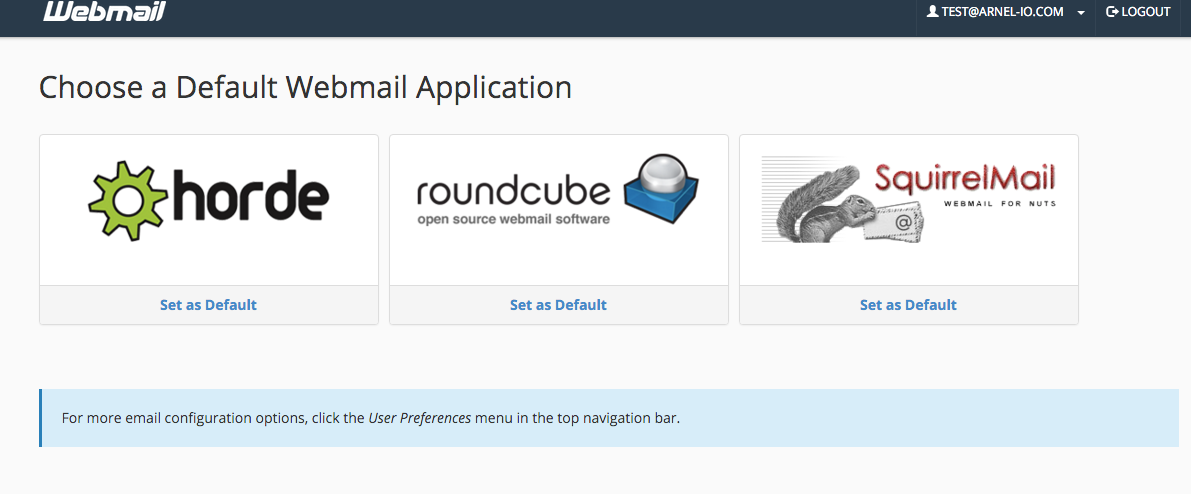 Login to the Horde Webmail client
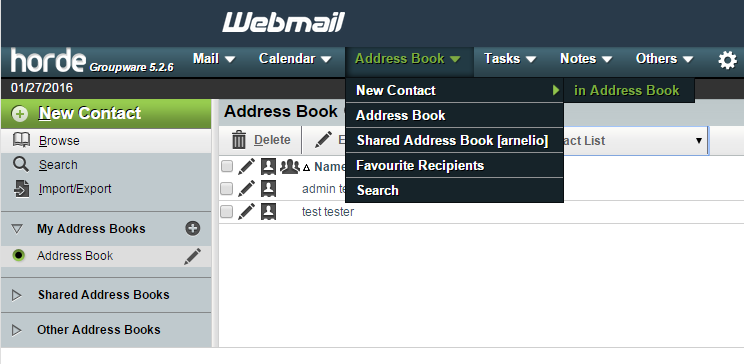 Before you can create the list, all the emails that you want to include in the list must be added to an address book in Horde. Click on Address book to open the drop-down menu. Click on New Contact in order to add contacts to an address book.
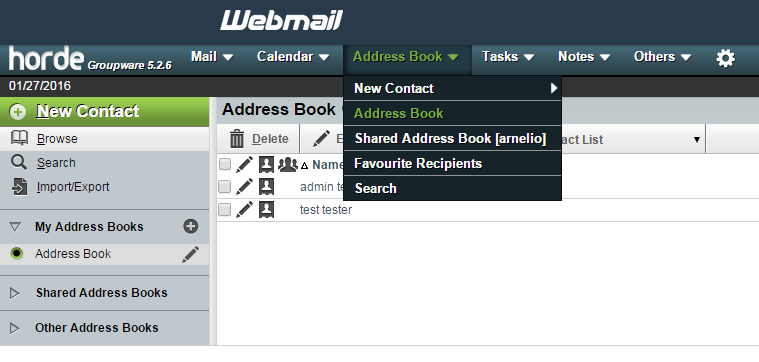 When you have completed adding the addresses to your Address book, click on Address Book again, and then click on Address Book in the drop down menu.
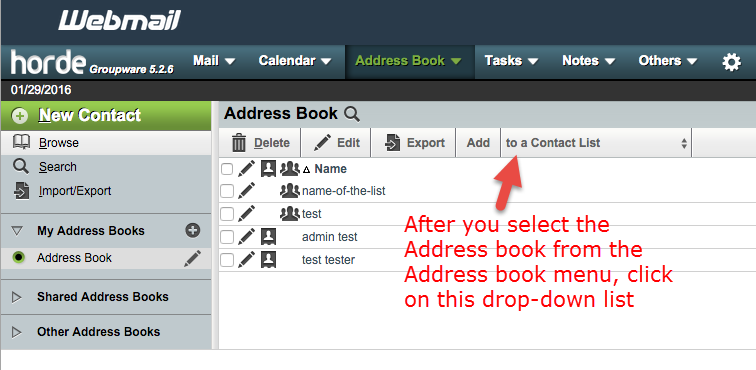 You will see a menu list about the contacts and a drop down menu labeled “to a Contact list”. Click on this drop down menu.
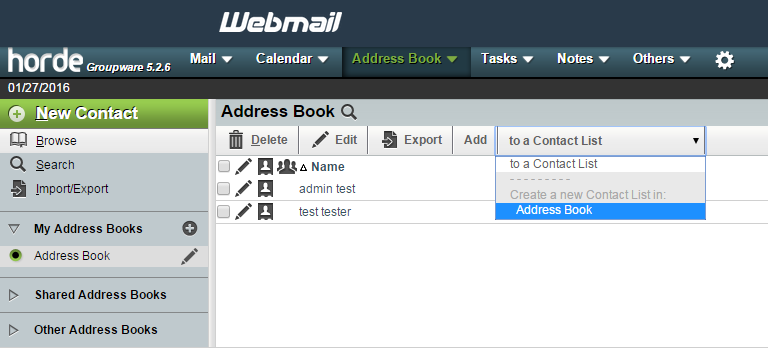 In the drop down menu you’ll see an option that says “Create a new contact list in:” and you’ll be able to select an address book. If you have multiple address books, then you’ll see them listed here. Make sure you choose the one with all of your contacts. Select your address book, if necessary.
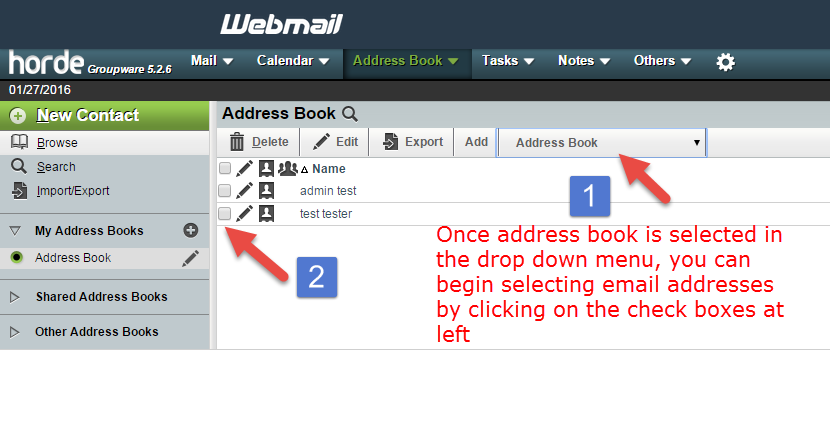 The menu above the listed users will now show the Address Book name. Click on check boxes for the users that you want in the list.
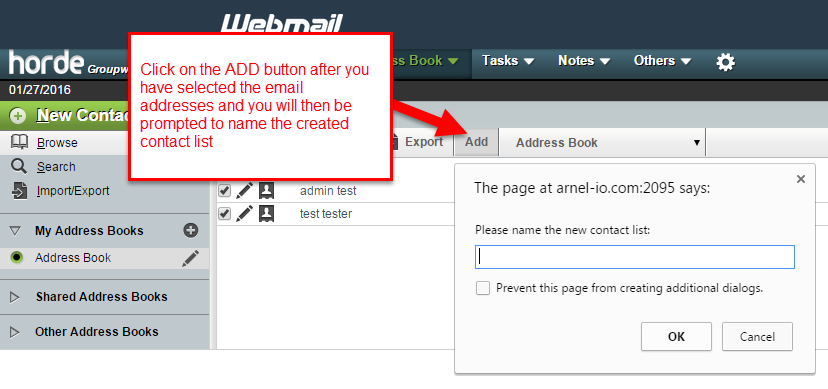 Once you have finished selecting the users in your list, click on the ADD button in the menu line (next to the address book name). This will open up a pop-up window that says, “The page at domain_name.com:2095 says: Please name the contact list:”. Type in a name for your contact list in the blank, then click on OK to create it.
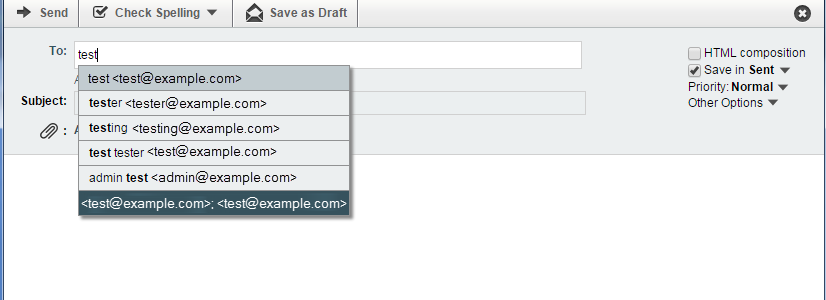 That completes the creation of your email list! When the list is created, you will be able to call it up by typing the name of the list in the To: field of the email.