CRM stands for Customer Relationship Management. And it’s something you may want to learn about now that you have an e-commerce business. There are many different CRM platforms available.
CRM applications on the market today do a lot of things (maybe too many things). But, in general, they are meant to do one thing well: help you relate to your customers. CRM tools collect data about your customers, help you contact them, set up appointments, provide support, and much more.
In this article, we’re going to focus on the Agile CRM and their free WordPress plugin. We will show you how to install the Agile CRM plugin and sync it with your account.
How to Install the Agile CRM Plugin
To get started using Agile CRM, we are going to install the WordPress plugin (free version). Of course there are premium options available, but we can get started with the free features for now, and you can add more later.
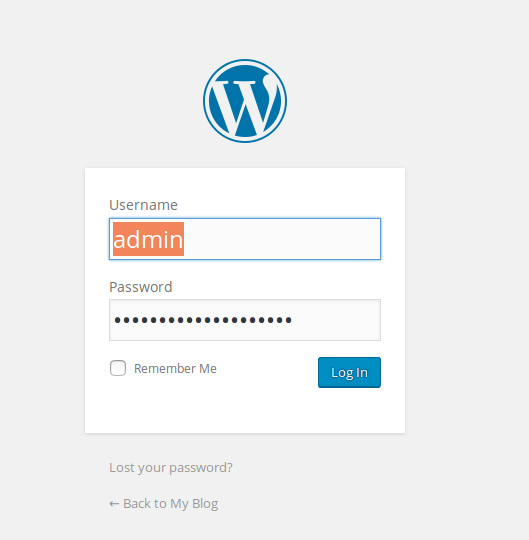
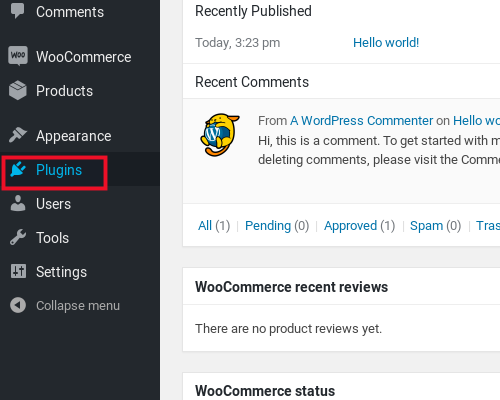
Click Plugins on the left side panel
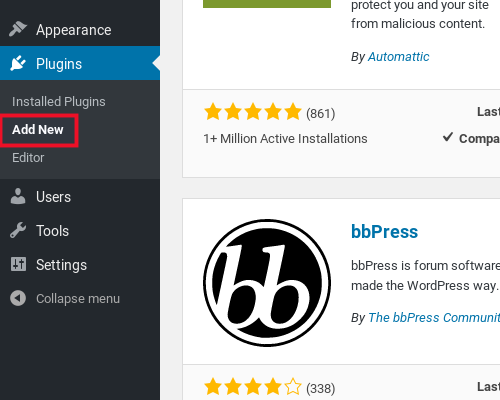
Under Plugins click Add New
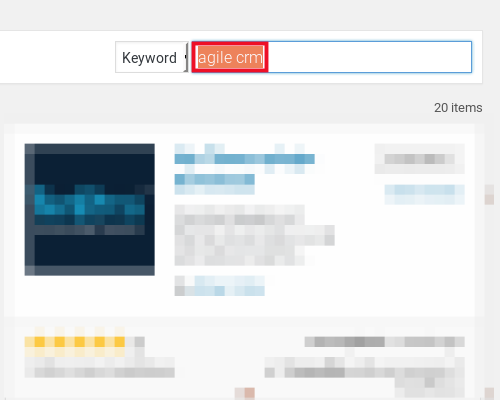
Use the search bar to search for: agile crm
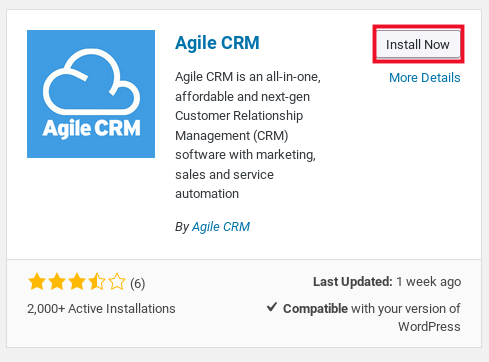
Click Install Now on the Agile CRM plugin
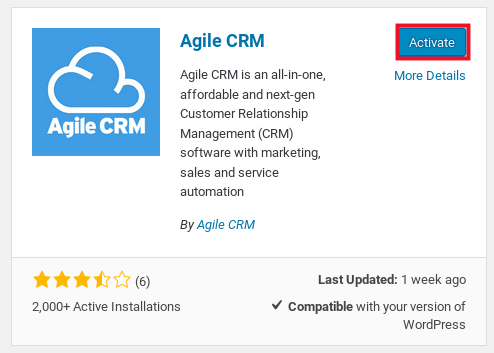
Click Activate
Now that we have the plugin installed, we will connect it to our Agile CRM account following the steps in the next section.
Connect to Your Agile CRM Account
Now that we have installed the Agile CRM plugin, we are going to input our account details. This will sync your plugin with your Agile CRM account.
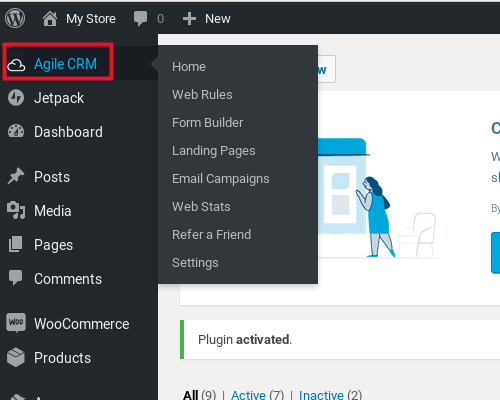
Click on the Agile CRM link in your WordPress admin area
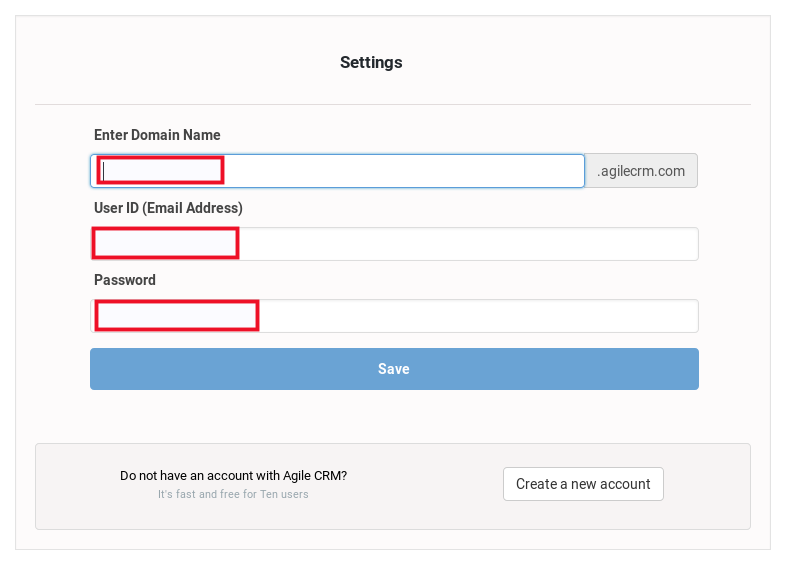
Fill in the form with your account details
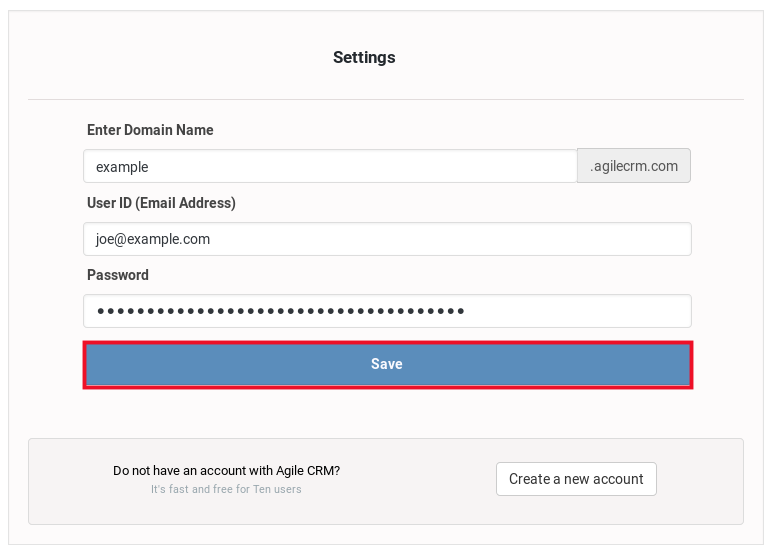
Click Save
Installation Complete
Now that you have the Agile CRM plugin installed, we will go over the settings in the next guide of our Agile CRM series.
