
WordPress can encounter a blank page sometimes, and the most common issue is a PHP Fatal error regarding the Allowed memory size of xxxxxxx bytes exhausted and in this guide I’ll show you how to easily fix this problem.
Find PHP error behind blank WordPress page Fix Allowed memory size exhausted error
Find PHP error behind blank WordPress page
If WordPress is displaying a blank page this typically means that you’ve encountered a PHP error and your account isn’t setup to display errors. You can use the steps below to ensure you’re seeing the error that’s causing your blank page.
If you’d like more in-depth information you can also review our guide on displaying and logging errors in PHP.
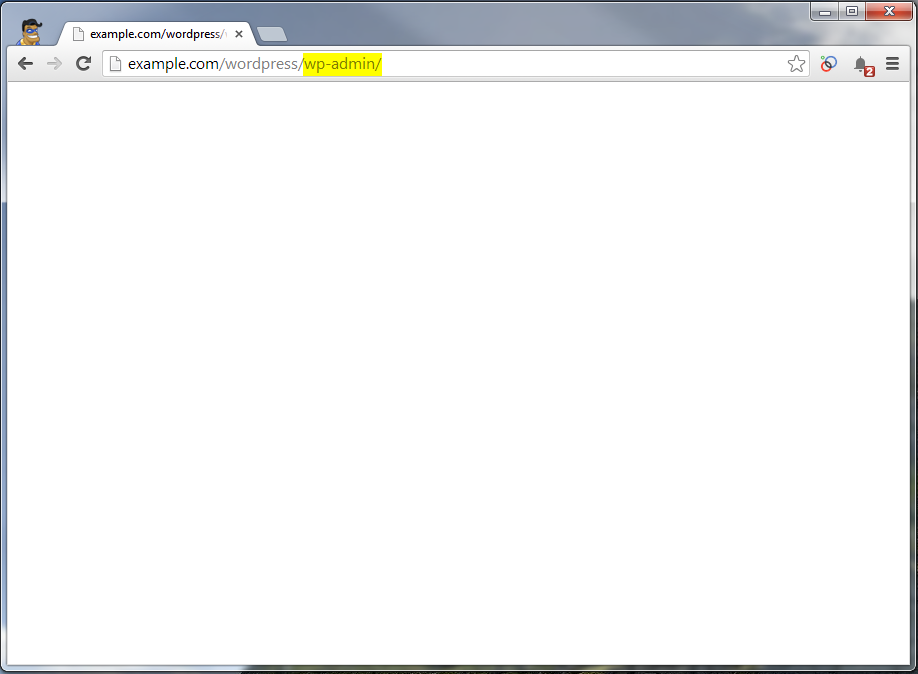 Navigate to the WordPress page that is coming up blank, in this case it is our WordPress dashboard at /wp-admin causing issues.
-
You’ll want to modify your php.ini file and also ensure that you make your php.ini file recursive.
Your php.ini file should be located in your /public_html directory, if it is not you can create one.
To make your php.ini settings recursive and take place across your entire account you’ll want to modify or create a .htaccess file in your /public_html directory with the following code:
SuPHP_ConfigPath /home/userna5/public_html
In this case userna5 is our cPanel username and with the SuPHP_ConfigPath command we are telling the server where to load the php.ini file for our account.
- Now you’ll want to edit your php.ini file with the following settings:
display_errors = On
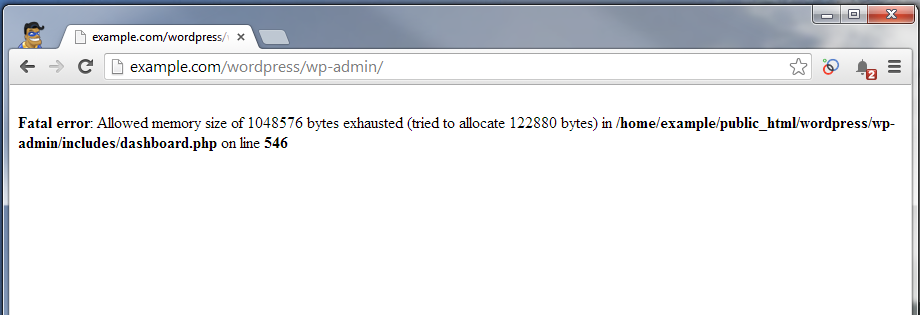
Save the php.ini file and then refresh your blank WordPress page again, and this time you should see an error.
Fatal error: Allowed memory size of 1048576 bytes exhausted (tried to allocate 122880 bytes) in /home/example/public_html/wordpress/wp-admin/includes/dashboard.php on line 546
Fix WordPress Fatal error: Allowed memory size exhausted
Once you’ve determined the actual PHP error that you’re getting, the most common one you’ll run across is exhausting the memory allowed for a PHP script to run.
The steps below will walk you through making sure you have a large enough memory_limit for PHP set in your php.ini file, and how to use the WP_MEMORY_LIMIT variable in your wp-config.php file if that isn’t working.
- Take note of the error you’re getting, and how much memory is trying to be allowed:
Fatal error: Allowed memory size of 1048576 bytes exhausted (tried to allocate 122880 bytes) in /home/example/public_html/wordpress/wp-admin/includes/dashboard.php on line 546Allowed memory size Tried to allocate Filename causing memory problems 1048576 bytes 122880 bytes /home/example/public_html/wordpress/wp-admin/includes/dashboard.php 1 MB 120 KB Here we can see PHP is allowed to use up to 1 MB of memory, and it’s exhausting this limit by the time it gets to our dashboard.php script on line 546 which is trying to allocate an additional 120 KB
-
Now you’ll want to take a look at your php.ini file and raise your memory_limit setting:
;;;;;;;;;;;;;;;;;;; ; Resource Limits ; ;;;;;;;;;;;;;;;;;;; max_execution_time = 30 max_input_time = 60 memory_limit = 1M
You see that I’ve only got it set to 1 M which is causing our PHP error, and I can simply raise it some:
memory_limit = 32M
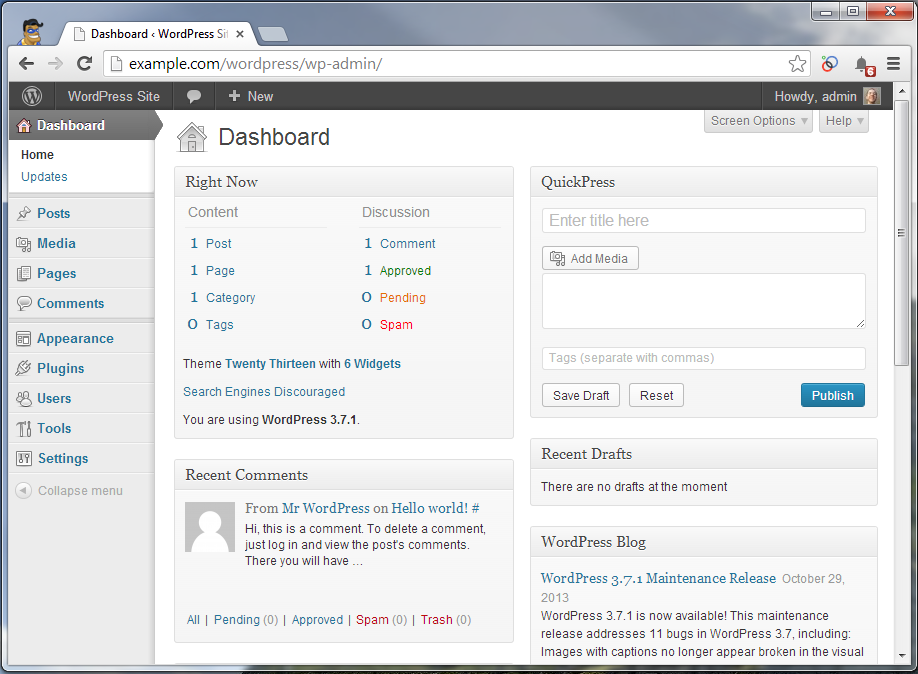 Now you’ll want to verify your php.ini settings are recursive and then try to access your WordPress website again. You should get your admin normal dashboard disaplying now.
-
If you’re still getting a memory exhausted error verify your php.ini setting is being read by setting up a phpinfo() page that can simply be named info.php inside your WordPress directory and look like:
<?php phpinfo(); ?>
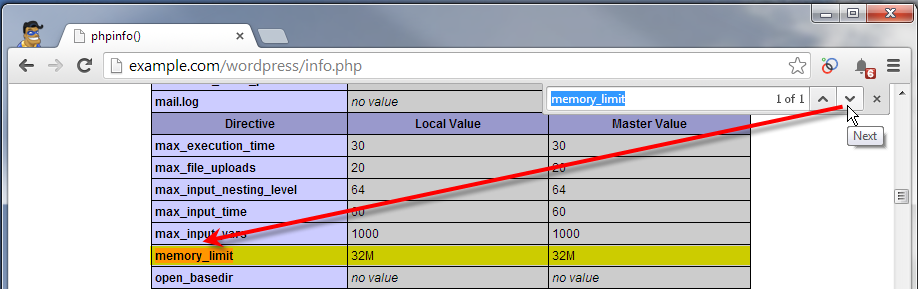
Access the info.php script you created in your web-browser, then hit Ctrl-F and do a search and look for memory_limit and make sure it matches what you set for this variable.
- If this still isn’t working for you, as a last resort you can add define(‘WP_MEMORY_LIMIT’, ’32M’); towards the top of your wp-config.php file:
define('WP_MEMORY_LIMIT', '32M');This is also covered in the official WordPress documentation for increasing memory allocated to PHP.
You should hopefully now not be encountering any further WordPress memory related errors. If these steps didn’t help resolve your particular issue, please leave a comment so that we can keep adding different errors to it to help others. You can also consider our WordPress hosting plans for Nginx caching options specifically for WordPress performance.
