

WordPress uses a file called wp-cron.php as a virtual cron job in order to automate tasks like publishing scheduled posts, checking for plugin or theme updates, sending email notifications, and more.
Why would you disable the WP-cron (wp-cron.php)? For many WordPress users, you can improve website performance when you disable the WP-cron in the WordPress site configuration file. This reduces the number of times that scheduled tasks are performed which lessens the load on the server.
There are also possible exploits that can affect the wp-cron.php file. Disabling the WP-cron can tighten security by preventing these possible exploits from affecting your WordPress installation.
Why the WP-Cron is a Performance Problem
The WP-Cron is triggered any time that a visitor loads a page on your WordPress site. Some of the tasks that are triggered include:
- Check for updates
- Publish scheduled posts
- Check for notifications from plugins
The load on the server processor and resources are affected by the list of tasks that need to be checked by WP-Cron whenever a page is visited. The longer the list of tasks and the larger the volume of content, the more the server is affected.
So, if you have a larger website with a lot of content, then these scheduled tasks could be substantial enough to affect your server performance. You can then improve performance by disabling the wp-cron and scheduling your tasks so that they don’t run every time that a page on your WordPress site is loaded.
Additionally, if you have a website that doesn’t receive regular traffic, it may be that scheduled tasks aren’t completing on time. Because cron events only run when a visitor loads your site, many cron events may be delayed until the next time a visitor comes to your website.
Disable Default WP-Cron Behavior
Using the steps below we can disable the WP-Cron (wp-cron.php) in the wp-config.php file.
- Open your wp-config.php using cPanel File Manager or FTP.
- Find the line that starts with “$table_prefix.” Hit your enter key to add a line under that statement. Then add the following code:
  /** Disable the WP_CRON processes*/
define('DISABLE_WP_CRON', true); - Click Save.
Now WordPress will not automatically run the wp-cron.php script each time your site gets a new visitor. Since the wp-cron is disabled, you will need to make sure that you set up a solution such as a manual cron job or plugin to make sure that your normally scheduled tasks are still being run. Follow the steps below for setting up a manual cron job and for some plug-in options.
Set Up Manual Cron Job in Place of WP-Cron
We don’t want to leave WordPress without any ability to automate tasks it might need to do. But at least now that it’s not running for every single visitor, we can have more control over when these tasks take place. For most WordPress users, having the wp-cron.php script run every 6 hours is perfectly fine. That would be just 4 executions in a day, compared to possibly hundreds, or even thousands if you had a lot of website traffic that day.
- Log into cPanel.
- Under the Advanced section, click on Cron Jobs.
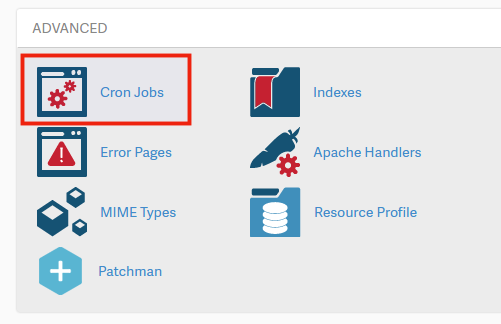
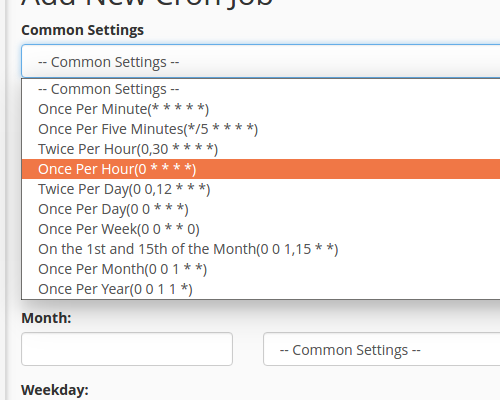
- Select Once per hour from the Common Settings drop-down.
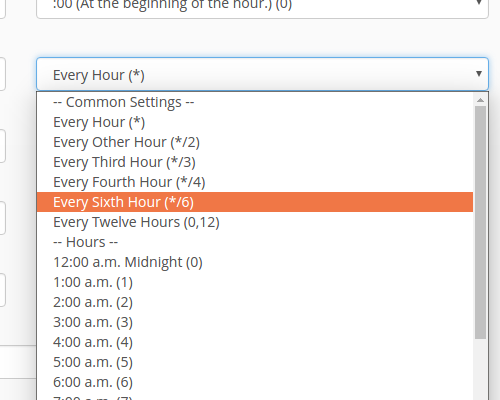
- Now select Every Sixth hours from the Hour drop-down.
- Finally fill in the code to run our cron job and click Add New Cron Job.
cd ~/public_html; php -q wp-cron.php
Keep in mind that the `~` /home/userna5/public_html path would be for a primary domain, where userna5 is your cPanel user name. If you’re using an add-on domain, or have WordPress installed in a sub-directory you’ll want to be sure to update your path by adding it to your script or editing the command line.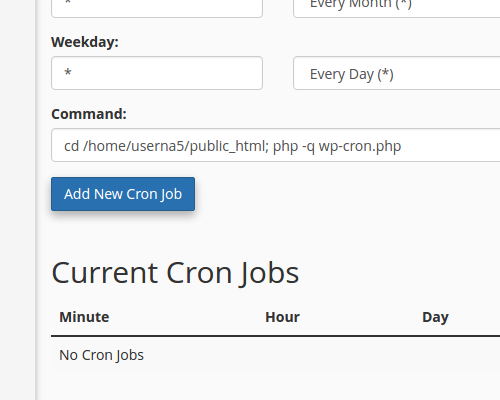
- You should see that your new cron job was added successfully.
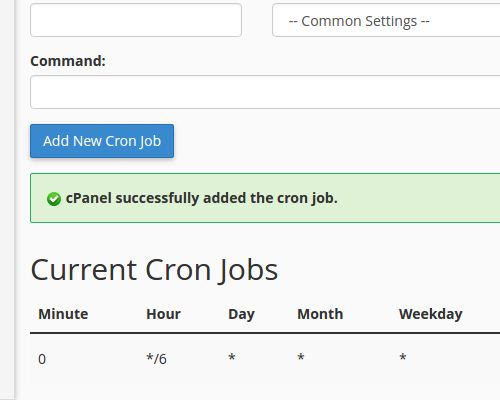





Now your WordPress website should be safely running scheduled tasks via the wp-cron.php script, but only at set intervals. If you aren’t receiving an email when the cron runs, see our guide on cron job not emailing me.
Plugin Solutions for Managing the WP-cron
Like most issues on WordPress, there is often a plugin that has been created in order to address the problem. These free plugins allow you to control or monitor the cron jobs run by the WP-cron. With this functionality, these plugins let you know when there are issues with WP-cron because you can see what’s happening to the cron jobs. The first 2 plugins allow you to add, edit, delete cron jobs as part of their basic functionality. They also include many other functions such as scheduling.
The last plugin simply gives you a status of the existing cron jobs being run by WordPress. There are many more plugins than the three that are listed here. However, we have listed the three with the most active installations per the WordPress.org site. This is a quick summary of each of the plugins:
Advanced Cron Manager – Debug & Control

Controls WordPress cron events. You can search for events, add new events, manually execute events, pause events, and much more. There is also an extensive scheduling option.
There is a pro version of the plugin that provides this additional functionality:
- Cron Logger – log cron’s execution times easily
- Events rescheduling – change event next execution date to control server load
- Error catcher – catch cron task’s fatal errors and get them displayed in the log
- Performance stats – see how much time and memory particular event took
- Debug tool – log any useful informations from Cron callback
This plugin does not disable the WP-cron but like the other plugins in this review, it provides control over the cron jobs running on your site.

Allows you to view and control what’s happening in the WP-Cron system. This plugin is the most recently updated and tested to WordPress version 5.8.
- View all cron events, recurrence, callback functions, and scheduled run date
- Edit, delete, and run any cron events
- Add, delete cron events and schedules
This plugin does not disable the WP-cron, but it gives you control over the cron jobs it manages. This is an open-source application and does not have a pro version.

You can see tasks that have been successfully run and those that did not. This gives you an overview that can help you decide on any necessary actions. This is a great troubleshooting tool and extremely helpful when tracking issues identified as problematic.
This plugin does not disable the WP-cron. It is used to carefully monitor the tasks managed by the WP-cron so that you can see what is happening. You can then easily see the cron jobs status and get an emailed status when issues occur.
There is a pro version that gives you the ability to store more than 3 logs, store them for longer periods, and get more frequent email updates.
Understanding “doing_wp_cron” Errors
WP-Cron job errors generally show up in a URL that looks like this:
https://example.com/post-name?doing_wp_cron=1245821
As we have previously stated, the automated tasks executed through wp-cron.php occur when a visitor views your WordPress site. At that time, these automated tasks are supposed to run, but sometimes things can go wrong. A plugin may not work correctly, or an automated task may work incorrectly. At worst, a task like publishing a scheduled post could happen more than once. Duplicate content – especially if it happens in large numbers – can be bad for your website due to the effect it has on your search engine results.
The best solution is to disable the WP cron jobs as we have discussed above or to use a plugin. You can easily see these error messages using a plugin or even the new Site Health tools included with WordPress. The WP-Cron Status Checker is a good plugin to use to specifically see if errors are occurring.
Congratulations! You now have a better understanding of the issues caused by the WP-Cron job (wp-cron.php). You also have solutions that can be applied when you have heavy traffic through code or by a plugin. This will help improve your WordPress site performance!
Possible Exploits Affecting WP-Cron
Cybercriminals are also aware of how the wp-cron.php file affects a WordPress site. They can manipulate a site using the WP-cron to perform a denial of service attack (DoS) in order to slow down a website or bring it down.
A Denial-of-Service (DoS) attack is an attack meant to shut down a server or network, in order to make it inaccessible.
Older versions of WordPress have also been subject to SQL injection attacks using the wp-cron.php file to attack the WordPress database.
SQL injection is a type of cyber attack that is used to manipulate a database to gain access or destroy valuable/private database information.
If you are aware that your WordPress site is subject to high traffic, then it is recommended that you disable the wp-cron.php file so that it does not run every time a visitor views your site. If your site is small and you only get a few visitors on the hour, then it will not be a problem.
Improve the performance and security of your WordPress website with our WordPress VPS Hosting plans. Featuring blazing fast servers with advanced caching, 99.99% uptime, and a robust toolkit developed by WordPress experts.
 Improve Core Web Vitals Free SSL & Dedicated IP Advanced Server Caching US & EU Data Centers
