Losing your admin user password can cause a bit of a panic. This article gives you instructions on how to reset that password via the Softaculous app in the cPanel. You do not need to alter the database manually or even use the standard email method, giving you an easier option.
How to change your WordPress Admin password within Softaculous
- Login to the cPanel interface.
 Scroll down to the Software/Services category and click on the Softaculous icon.
 Next, click on the Application Installation option from the top menu.
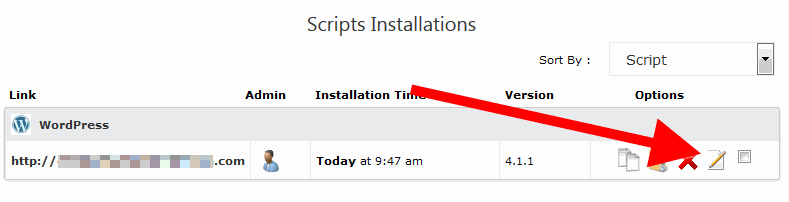 Find the installation you wish to reset the password for and click on the Edit Details icon. It is the one that looks like a paper and pencil.
 Scroll down the page until you get to the Admin Account section. Here you will enter the Admin user’s name and then enter the new password you wish to use for that account.
- Scroll down to the bottom and click on the Save Settings button.
Now that you have successfully changed the Admin user password, you can now login to your WordPress admin dashboard.
