The default currency in WHMCS is the US Dollar (USD). You can add additional currencies to the program within the Admin dashboard. Below we demonstrate how to add a new currency to your store.
Adding a New Currency in WHMCS
- Log into the WHMCS admin area
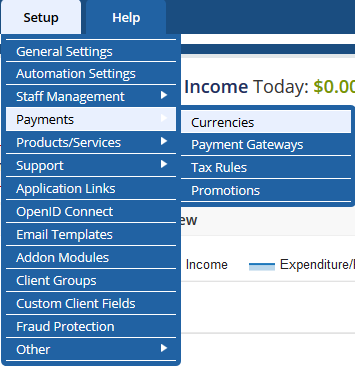
Hover over Setup and click on Payments then Currencies.
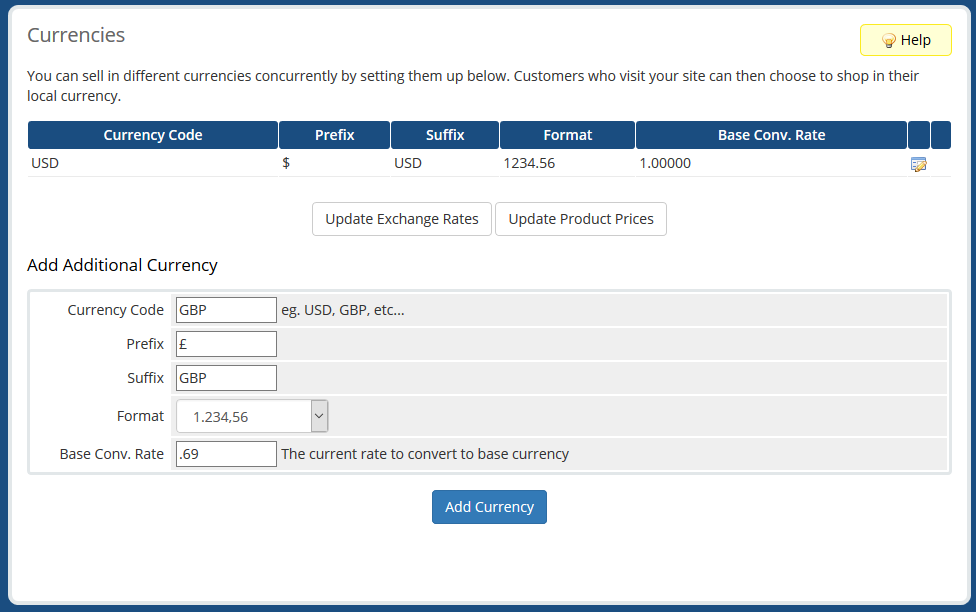
Fill out the form for the additional currency. There are several fields and they all should be filled in. Below is a chart describing them.
Code (ISO 4217 format) You can find code info here: https://en.wikipedia.org/wiki/ISO_4217 Prefix $, £, €, etc. Suffix USD for US Dollar, GBP for British Pound, etc. Format Select the preferred display format from the dropdown. Base Conv. Rate Enter conversion rate vs. the base currency (USD by default.) 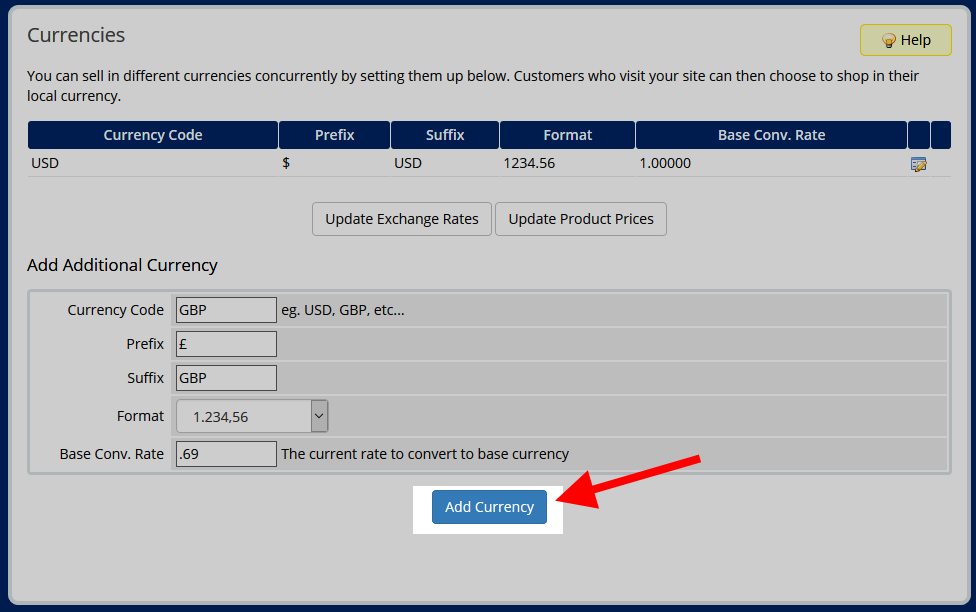
Click theAdd Currency button to save the data.
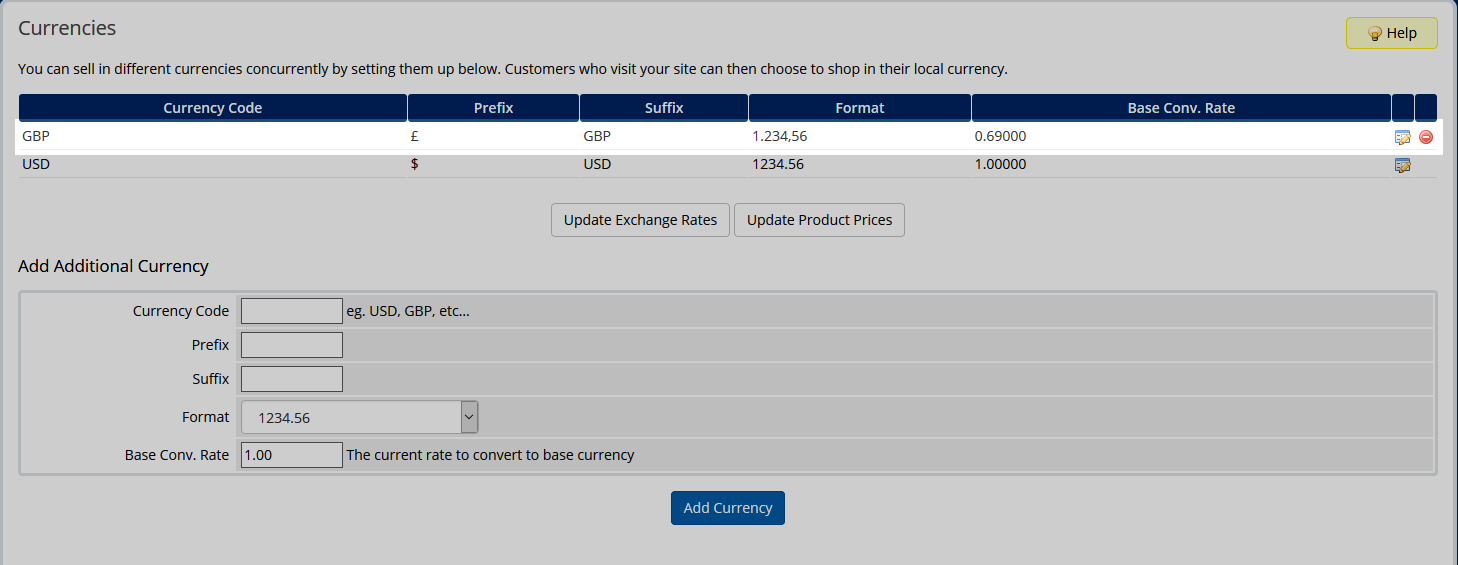
Your new currency will now appear in the list at the top of the screen in the currency list.
Congratulations! You now know how to add a new currency to WHMCS.