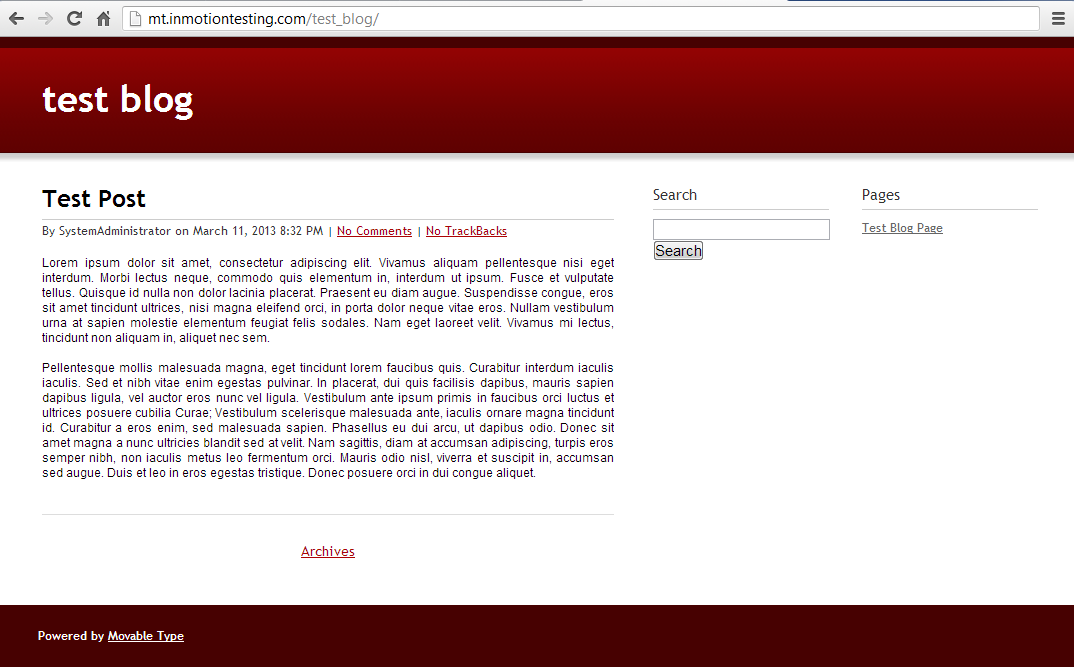
When creating a blog, it is common to allow visitors to leave a comment on posts and pages. This fosters a community feeling and helps build content. This article will demonstrate how to create a new account as a visitor in order to be able to make comments on your Movable Type blog site.
Registering as a visitor in Movable Type
- Visit the movable type blog website. For example, our test website is set up at mt.inmotiontesting.com/test_blog
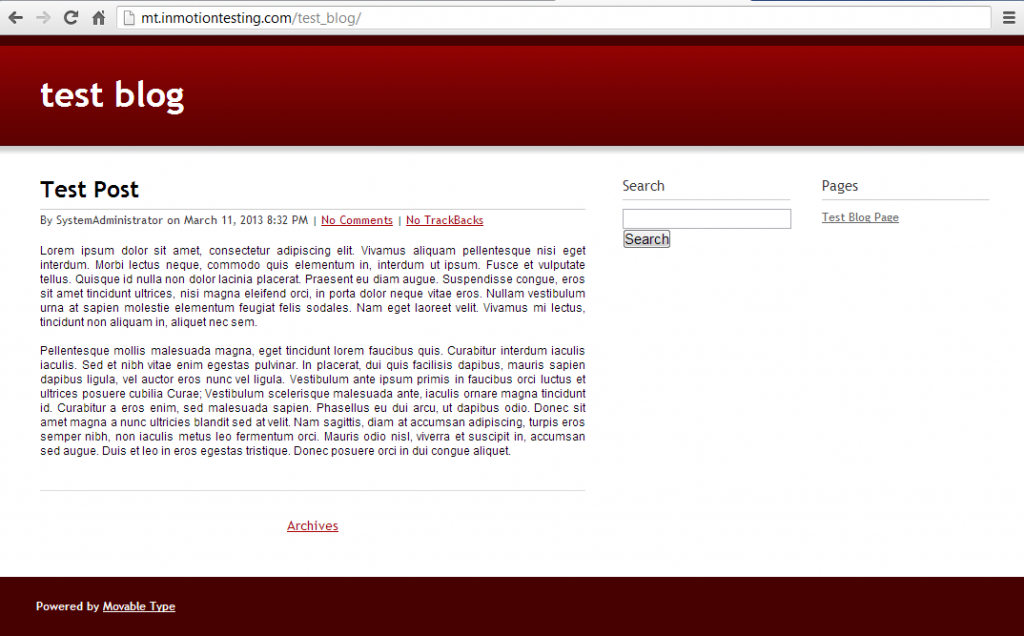
From the main blog page, you should see at the blog entries. Find an entry you want to comment on and click on the Comments (or No Comments) link.
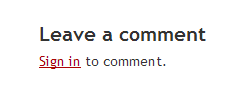
This opens up the comment area below the post. You will see a link entitled Sign In. Click there to continue.
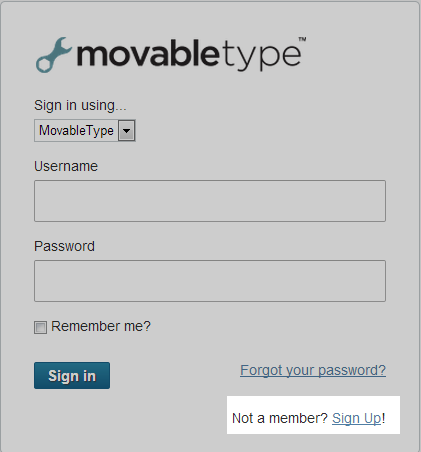
You are brought to the sign in page. At the bottom is a Sign Uplink. Click that link to begin registration.
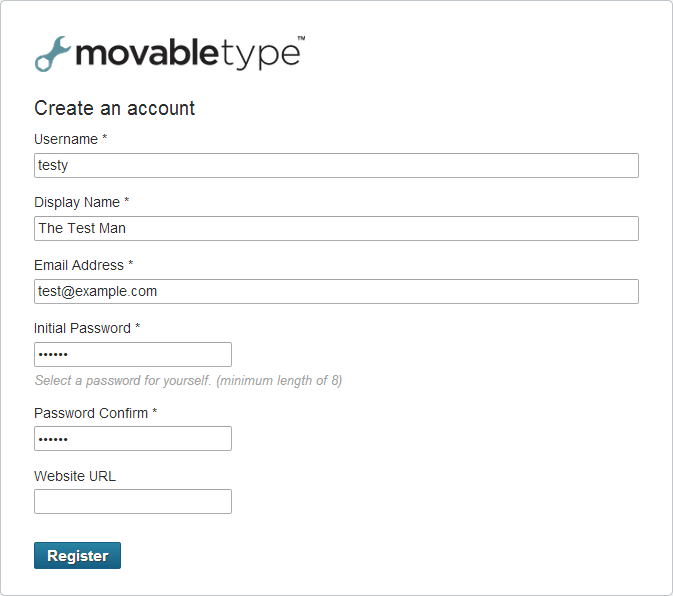
From this screen, enter your membership details. All fields except Website are required. Click the Registerbutton to continue once you have entered all of your information.
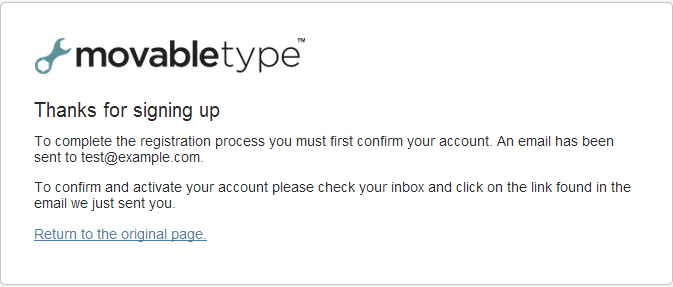
You receive a screen explaining that your email will receive a confirmation message. Log into your email and click on the link in the message.
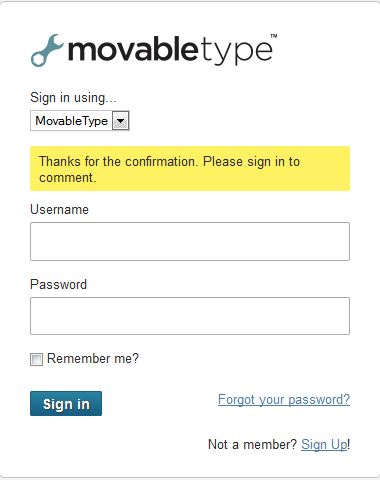
After clicking the link, you will be sent to a login screen with a confirmation message. From here you may log in and make your comment.