One of the settings within the Protostar template for Joomla 3.0 is Template Colour:
Template Colour
Choose an overall colour for the site template. Default is #08C
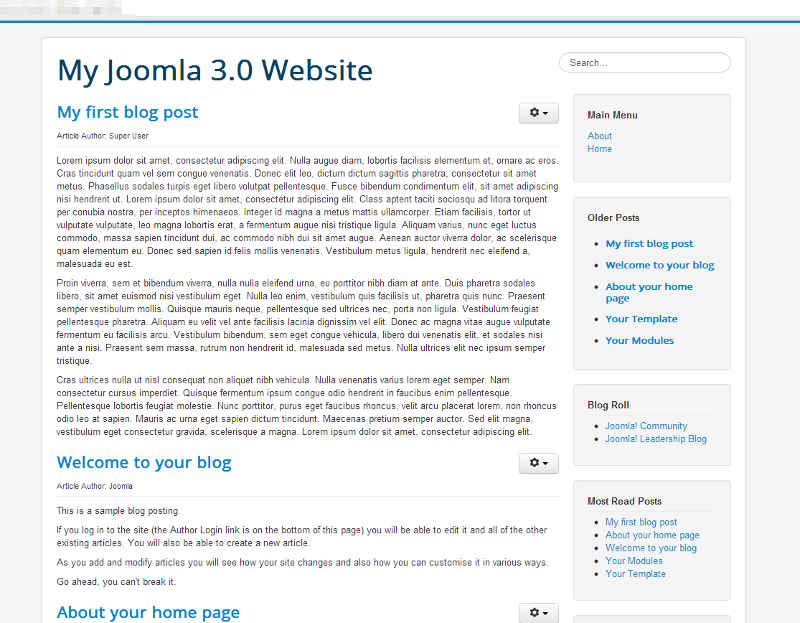
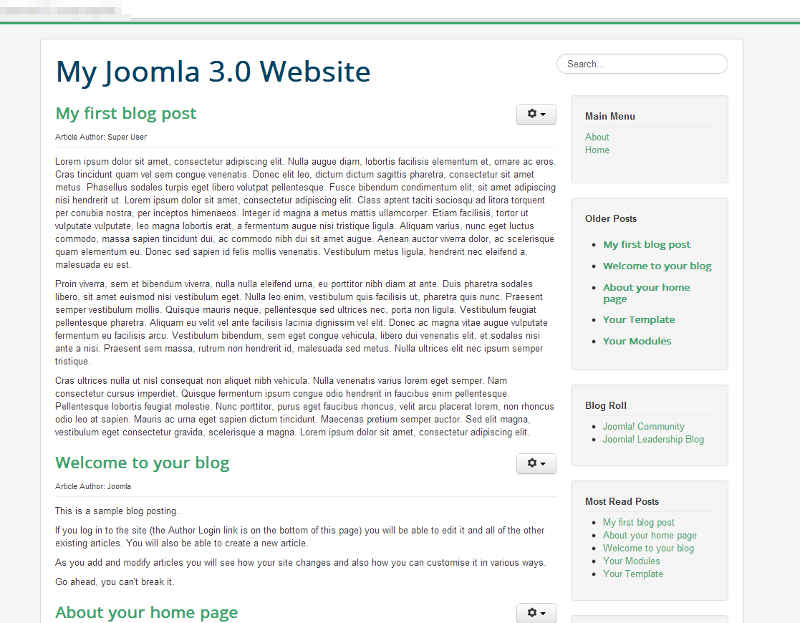
In our testing, when changing the template colour the only noticeable change was the color of the links on the page. The color is set to #08C by default, and we changed it to #3aa66c. Below you can see how changing the Template Colour will affect your website’s look and feel:
| Template Colour: #08C | Template Colour: #3aa66c |
|---|---|
|
|
In this tutorial we will show you how to change the Protostar’s Template Colour setting.
Changing font color (Template Colour) in Joomla 3.0:
- Log into your Joomla 3.0 Admin Dashboard
- In the top menu, click Extensions and then click Template Manager
- In the list of templates, find and click on the Protostar template. In our testing, we clicked on My Default Style (Protostar)
- Click the Options tab towards the top of the page
- Find the setting labeled Template Colour, and then click the box to the right. A color swatch will appear. Select the color of your choice and then click the Save button in the top left of the page to change your setting.
Are you looking to download Joomla 3.0 templates? We also have information on building your own Joomla 3.0 template.