Caching in Drupal 7 can be further configured by caching block data. Users that are registered and logged in usually receive non-cached, up to the minute data. Block caching will cause certain blocks of content (those that are not generated on the fly) to be cached for all users. This can help the site load a bit faster and spend less time on database queries with data that does not change very often. Blocks themselves are specific areas of content on the page and change from theme to theme. By default, block caching is disabled. Turning on the cache blocks feature in Drupal 7 is very simple. Simply perform the following steps.
To enable the cache blocks feature in Drupal 7:
- Log into your Drupal 7 admin dashboard.
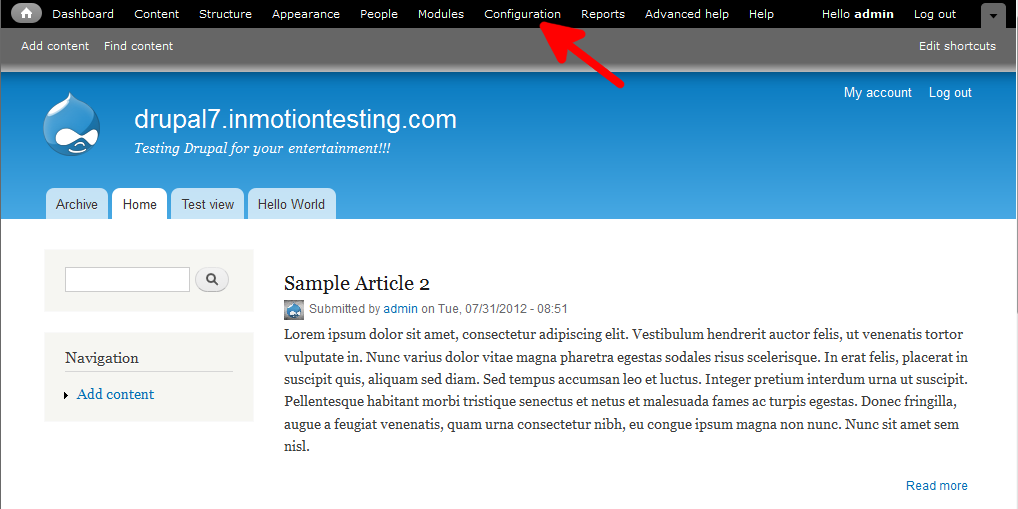
- On the top menu bar, locate the Configuration option and click on it.
- This brings you to the main Configuration category screen. Find the subcategory named Development and click on the Performance link.
- Once on the Performance screen, locate the Caching section and click on the checkbox labeled Cache Blocks. This enables Drupal to cache block data and store it in the database for faster site loading.
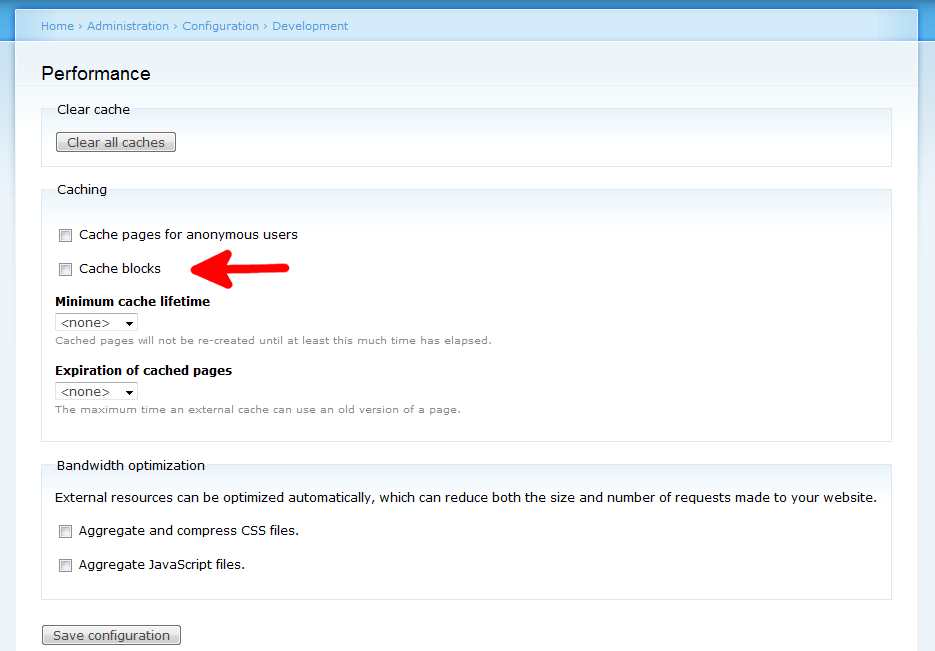
- Once finished, go down to the bottom of the screen and click the Save Configuration button.


You have successfully turned on the Cache Blocks feature in Drupal 7.