
When something goes wrong with your account or site, you want an agent working on it quickly. You can submit a support ticket from inside AMP, which verifies it automatically because you are logged in, then track it in the support widget or by email.
Before You Start
You need to be logged in to the Account Management Panel (AMP) at https://secure1.inmotionhosting.com/amp. If you cannot log in, reset your AMP password first. For a walkthrough, see Locked Out of AMP? Here’s How to Reset Your Password.
What to Include in Your Ticket
A ticket with the right details gets answered faster, because the agent can start work instead of asking follow-up questions. Include the following, and read Necessary information to know before contacting support for more.
- What software and version are you using?
- Is it a base install, or are plugins/modules added?
- What is the exact nature of the issue?
- What are the steps to duplicate the issue?
- When does this issue occur?
- Were there any changes made just prior to the start of the issue?
- If the software supports it, is caching enabled?
Never put your passwords in a ticket, because tickets and their updates travel by email. With the details gathered, you are ready to send the request.
How to Submit a Support Ticket From AMP
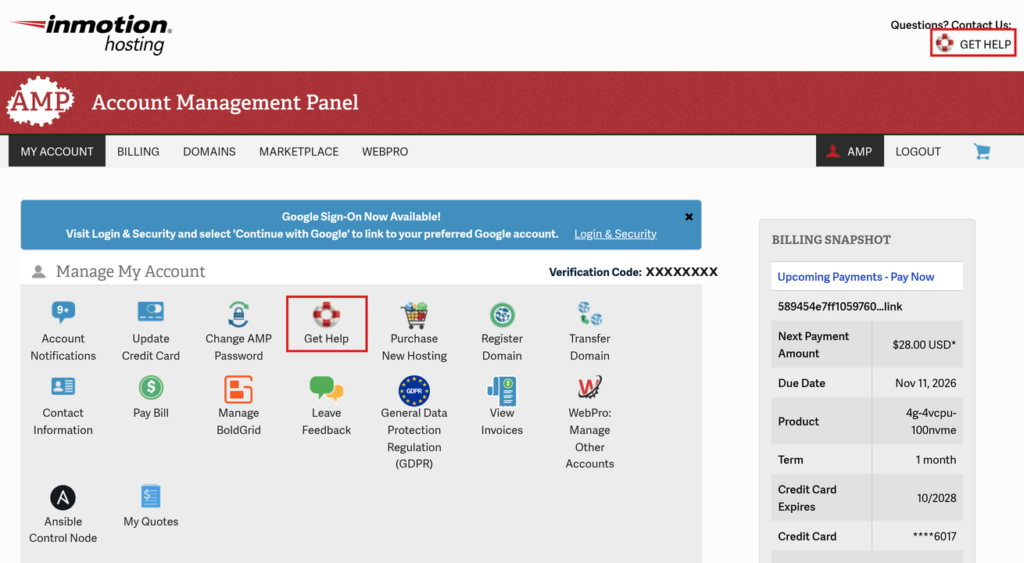
The Get Support page holds the ticket form. Two links on the AMP dashboard lead to it.
- Log in to AMP.
- On the dashboard, click the GET HELP link at the top right, under “Questions? Contact Us:”. You can also click the Get Help icon in the Manage My Account section. Both open the Get Support page.
- On the Get Support page, find the Submit a Verified Ticket to Billing or Technical Support section.
- Open the Department dropdown and choose Billing or Technical Support.
- If you chose Technical Support, the form asks “Please select the type of Technical Support inquiry:”. Pick one of Account Management Panel, Domains, Email, cPanel, BoldGrid, WordPress, or Other.
- Enter a short summary of the problem in Subject.
- Describe the issue in Support Request Detail, using the details from the previous section.
- Click SUBMIT. Next to the button, the form notes that updates will be sent to the primary email address on your account.
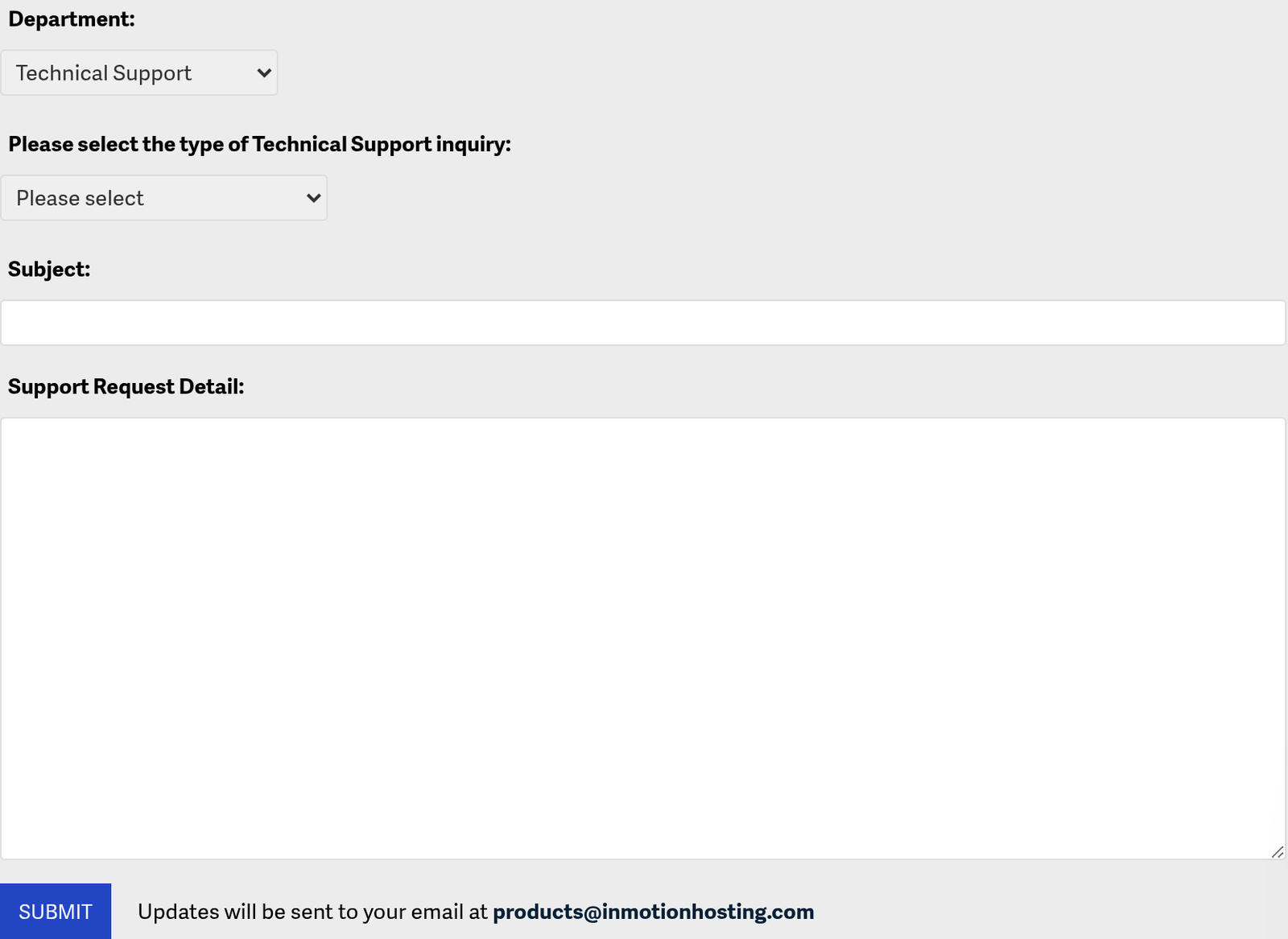
Note: Because you are logged in to AMP, InMotion Hosting verifies the ticket for you. Agents can then discuss account specifics and make changes on your behalf.
Your ticket is in the queue. Next, learn where to watch its progress.
How to Check the Status of Your Ticket
The ticket form says you can track your ticket status in the support widget at the bottom right, or check your inbox for updates. The widget is the round red button at the bottom right of every AMP page.
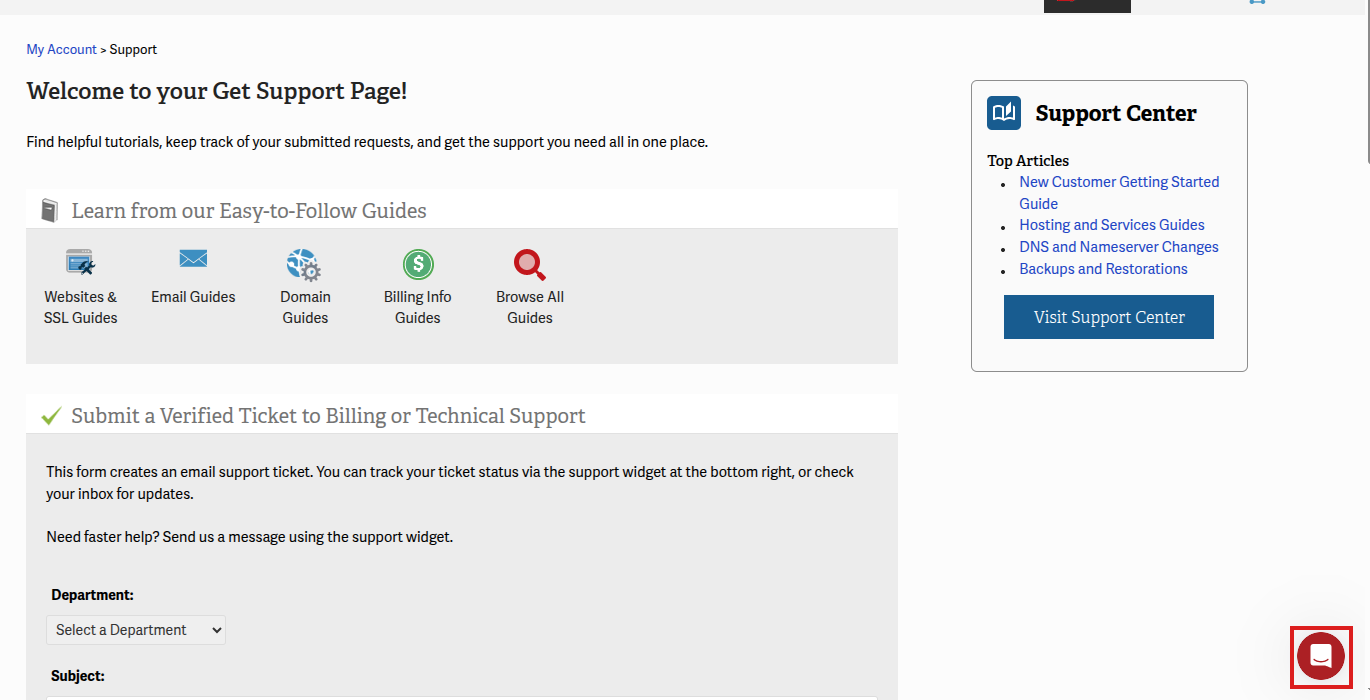
- In AMP, click the round red support widget button at the bottom right of the page.
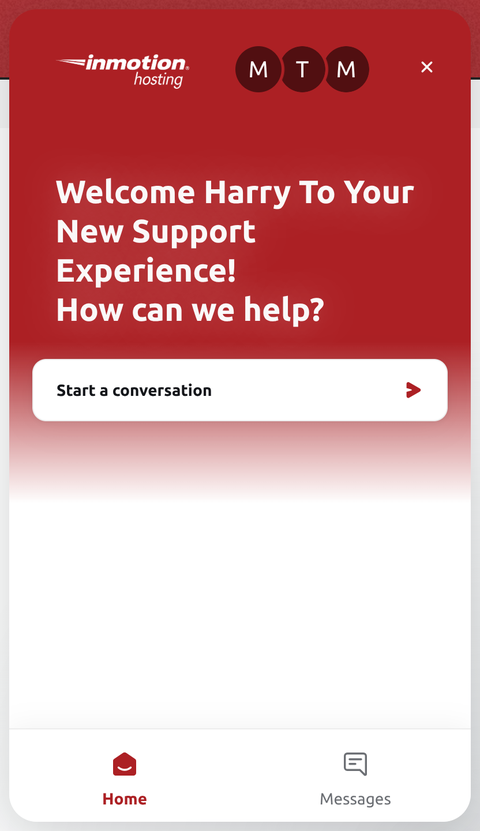
- The widget opens on the Home tab, which greets you and offers a Start a conversation button. The Messages tab lists your conversations.
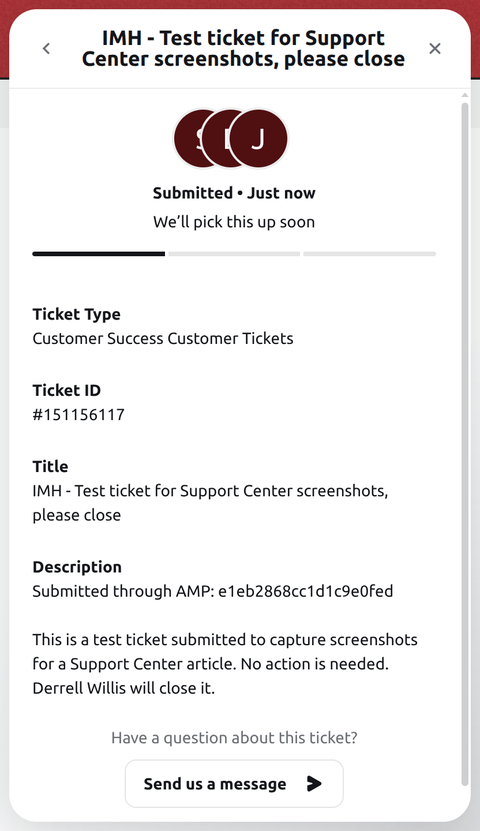
- Click the Tickets tab to see your tickets with their ticket numbers and current status. Open a ticket to see its status, ticket ID, title, and description. A new ticket shows Submitted until the support team picks it up.
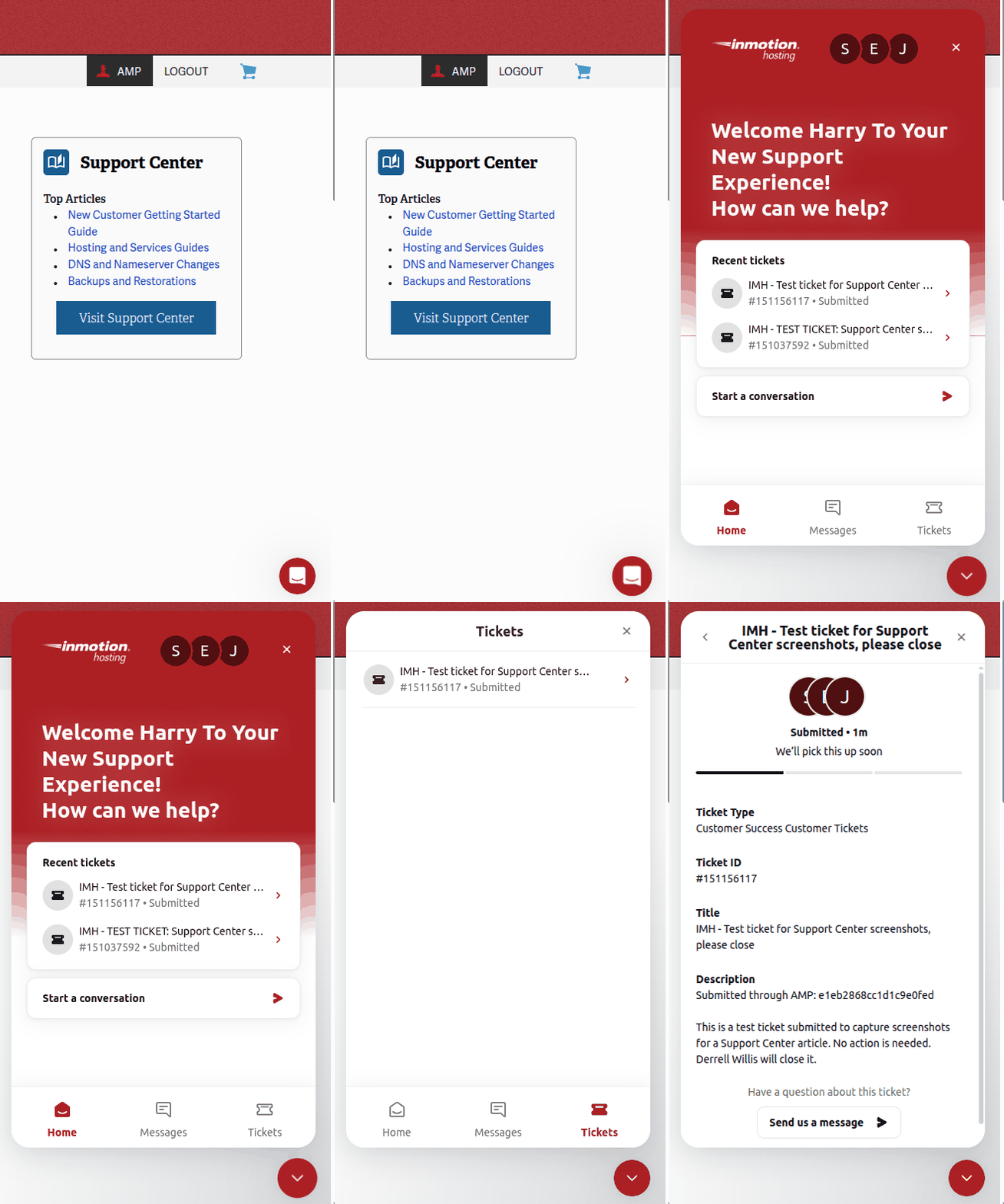
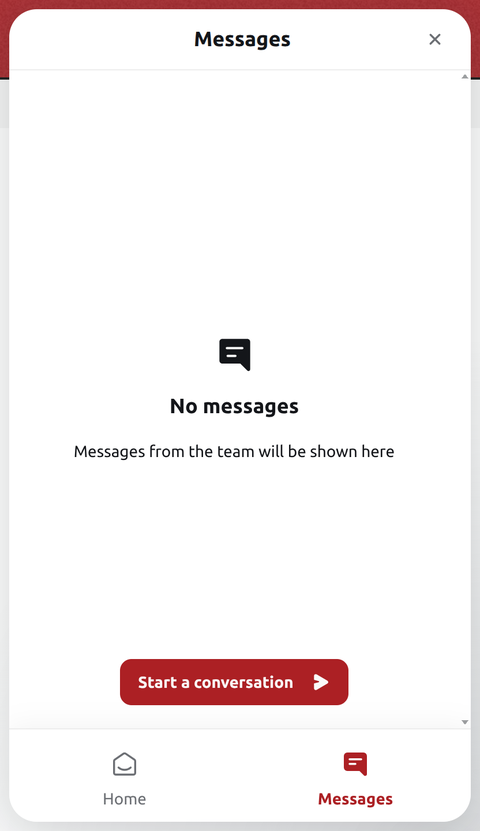
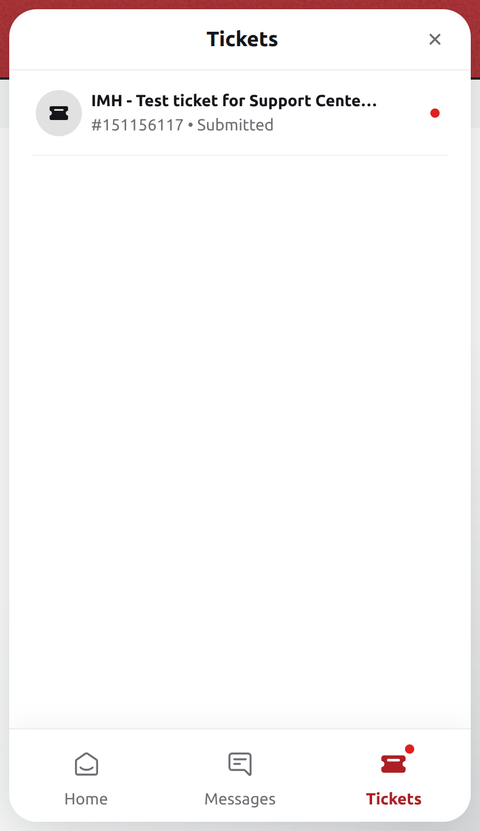
Note: The Tickets tab appears only after your account has at least one ticket. If you do not see it yet, check the Messages tab and your email.
Updates about your ticket also go to your account’s primary email address, so you can follow it from your inbox. An agent’s reply that you have already read in the support widget is not emailed to you again. You can also reply to those emails to add details, which the next section covers.
How to Add Details to an Open Ticket
New information belongs with the original ticket, so the agent sees the full history in one place. A ticket that is still in Submitted status has no reply box of its own, but you can send a message that is linked to it.
- Open the support widget, click the Tickets tab, and open your ticket.
- Scroll to the bottom of the ticket and click Send us a message under “Have a question about this ticket?”
- A conversation opens under Messages with your ticket pinned at the top. Type your details in the Message box, drop any files or images into the conversation or use the attachment button, and send.
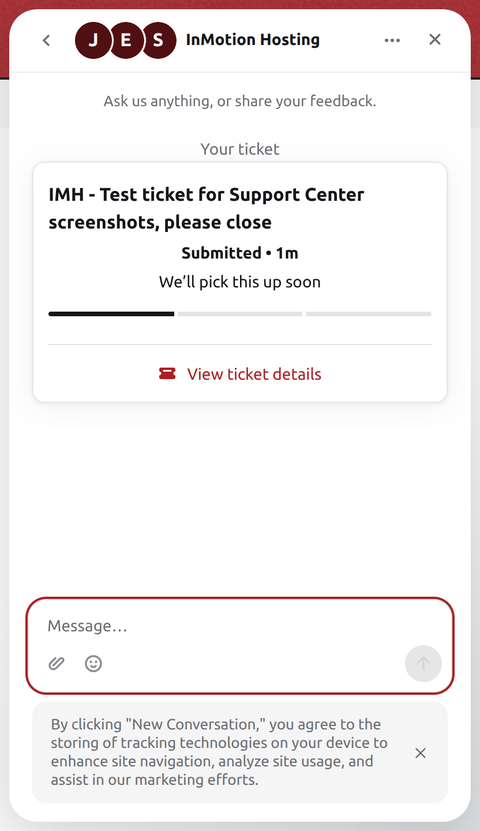
You can also reply directly to any email update about the ticket to follow up.
Important: If the problem comes back after your ticket is resolved, submit a new ticket and mention the earlier one in the Support Request Detail.
Long conversations are easier to read in a bigger window, so here is how to enlarge the widget.
How to Expand the Chat Window
- Click the round red support widget button, then open a conversation from the Messages tab or click Start a conversation.
- Click the three-dot Conversation options button at the top right of the widget.
- Choose Expand window. The widget widens to a larger window.
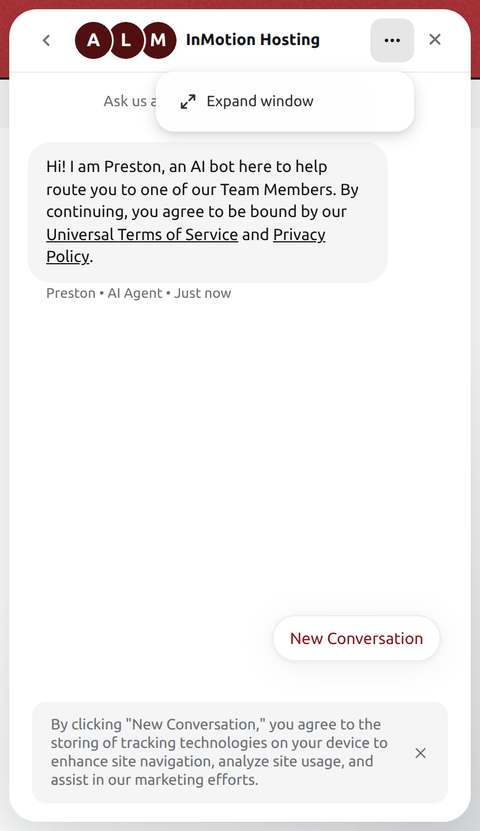
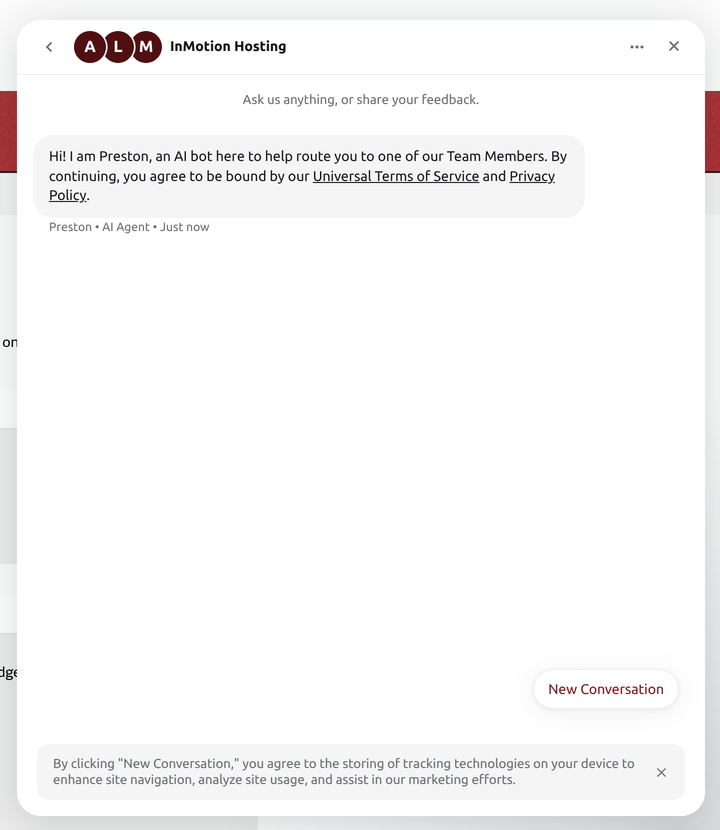
If your problem cannot wait for a ticket reply, there are faster routes.
Need Immediate Help?
Start a chat from the support widget. When you start a conversation, an AI bot named Preston routes you to a team member. Chat and ticket support run 24×7. You can also click LAUNCH CHAT in the Contact Us for Billing and Technical Support section of the Get Support page.
To talk to someone, call Technical Support or Account & Billing at 757-350-8523. Phone support is available Monday to Friday, 9am to 9pm Eastern Time (ET). Phone lines are not open 24×7. See the InMotion Hosting contact page for other options.
The Verification Code for Support on the Get Support page verifies your account when you call, so give the agent the code. A chat started while you are logged in to AMP is verified automatically. The code changes every time you log in, so copy the current one.
It was a very nice article, thank you