This article teaches you all about checking an email account in Thunderbird. We will only need to create a mailbox in Thunderbird. Below are the step by step instructions.
You will need your email settings to complete this guide. You can view your email settings in cPanel at any time.
How to create a new account in Thunderbird
- Open up your Thunderbird email client onto your desktop
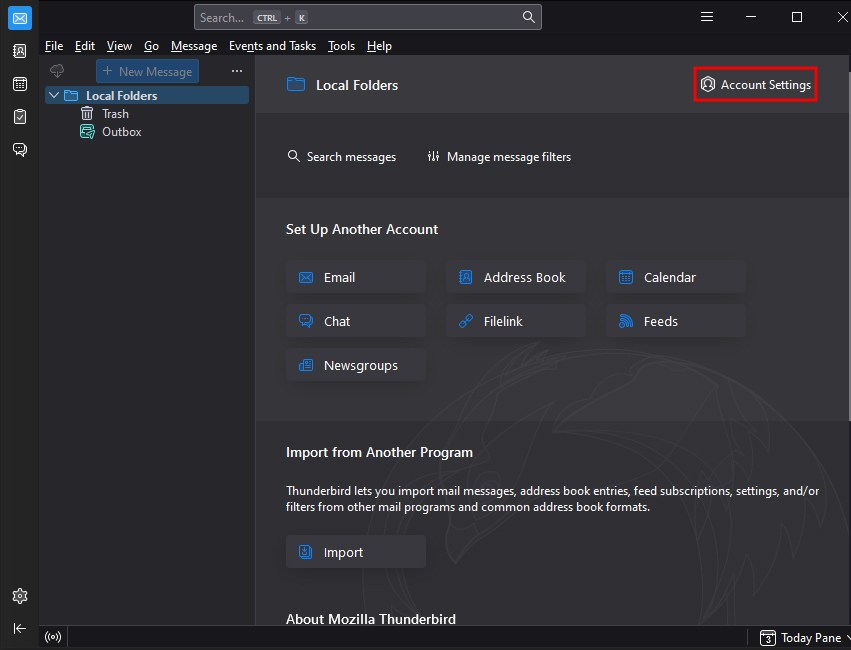
- On your Thunderbird Home page, you’ll see an “Account Settings” option at the top right (Clicking email under Set up Another Account will do the same thing.)
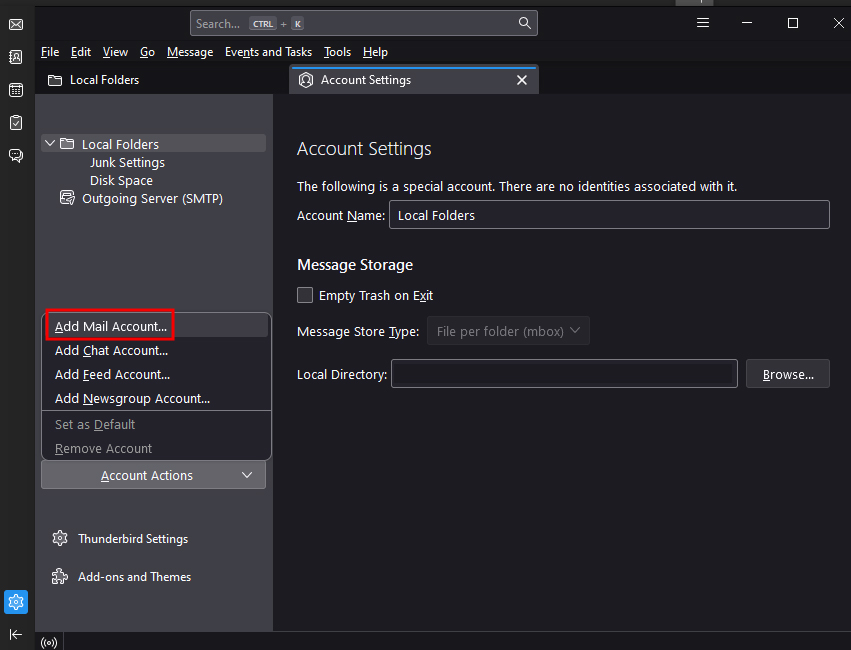
- You’ll see an “Account Actions” drop down button on the left of the “Account Settings” page. Click that and then click “Add Mail Account.”
- You’ll enter your email account information on the following screen

- Thunderbird will now try and find standard connection information to connect the email account. While this will work most of the time, you may need to configure this information yourself by clicking the Configure Manually button found at the bottom. Be sure to select the incoming protocol you wish to use (IMAP or POP3). You can read about the differences here. Generally speaking, IMAP is best if you plan on checking the email from multiple devices. This is the manual configuration page, where you will set up the incoming and outgoing servers and their respective ports. Once you have entered your settings, hit the Re-test button. If the settings are correct, the Done button will become available. Click it to move on to the next step.
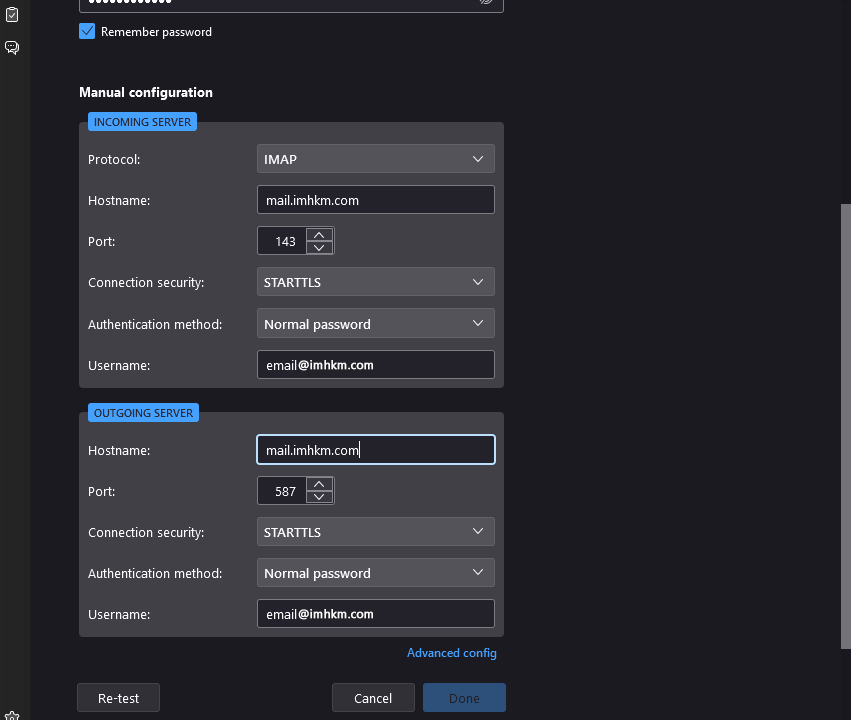
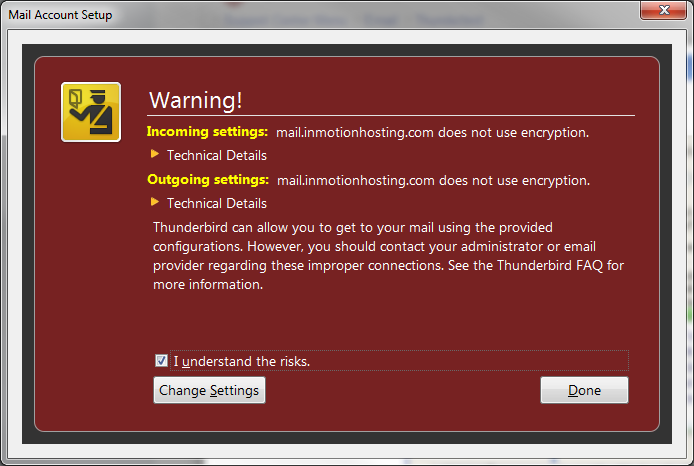
Server Hostname You will need to know the servername to the email company you are using. InMotion servers use mail.servername.com. Others may use imap.mail.servername.com or pop.mail.servername.com, which are fairly standard. Port Port number will change depending on your IMAP/POP choice as well as your SSL choice. Use the table below to determine which port number to use. Incoming Ports IMAP 143 IMAP with SSL 993 POP3 110 POP3 with SSL 995 Outgoing (SMTP) Ports Regular (Non-SSL) 25 or 587 SSL 465 SSL This is where you set your encryption settings. Autodetect Thunderbird will test different standard encryption and port settings. None Standard setup with no encryption STARTTLS Not used for InMotion Hosting Servers. SSL/TLS Standard encryption setting. Authentication Autodetect Thunderbird will test different standard encryption and port settings. Normal Password Use an unencrypted password (Recommended Setting.) Secure Password Use an encrypted password. Kerebros/GSSAPI Security Protocol not supported by InMotion Hosting servers. NTLM Microsoft security protocol. (Not supported by InMotion servers) - If you did select the normal (unencrypted) settings, you will be presented with a popup telling you that the email connection to the server is unencrypted. You can check the I understand the risks checkbox and then click the Done button to continue.
That should complete the process of adding an email address to the Thunderbird email client. You should now see your new email address in the left hand sidebar. That means it is ready for use!

