
You don’t need to create an account with Asana or Trello, or add a plugin for WordPress or Nextcloud, to benefit from kanban project management. Kanboard is free, open source software (FOSS) you can self-host to visualize multiple projects with teams (called groups) privately or publicly. Whether you have the best VPS website hosting or a lower profile hosting account, Kanboard can be installed and run quickly and efficiently.
Kanboard only requires PHP to work. This allows you to maintain a minimal server environment on Linux cloud servers while managing projects.
Below we cover Kanboard kanban:
Install Kanboard Kanban
cPanel users can easily install install Kanboard with Softaculous. Or you can install Kanboard manually. Afterwards, simply visit your Kanboard site in your browser to get started.
Managed VPS/Dedicated server users can purchase Softaculous from Account Management Panel (AMP).
Create a Project Task
You’ll need to create your first project, or board, before you can add tasks.

- Log into your Kanboard installation.
- Select New project.
- Add a Name and Identifier, then select Save.
- In the upper-left corner, select Board.
- You’ll have 4 preset columns, or lists – Backlog, Ready, Work in progress, and Done. Select the + icon to the right of a column name to add a new task.
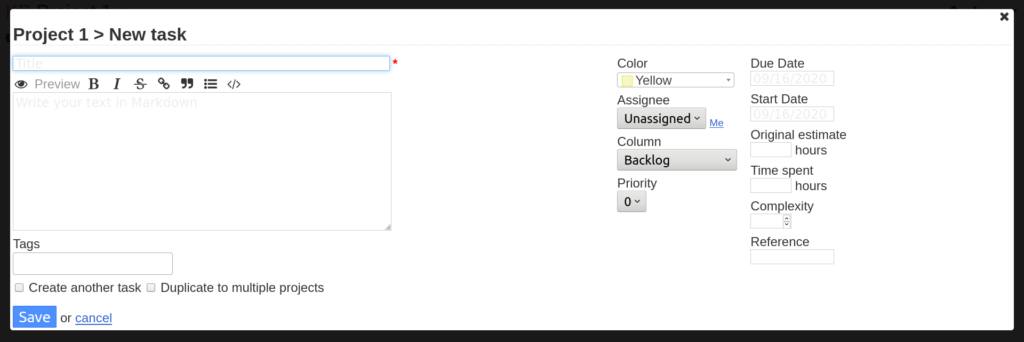
- You’re only required to add a task title. However, you should add at least a description text (in Markdown), assignee, and priority to start.
- Once complete, select Save.
Manage Tasks
Tasks will show the following information from the board view:
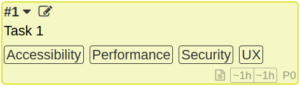
- Task number
- Title
- Assigned tags
- Related links
- Attachments
- A text file icon that shows the task description when you hover your cursor over it
- Task age
- Time task has been in the current column
- Task priority (e.g. P0)
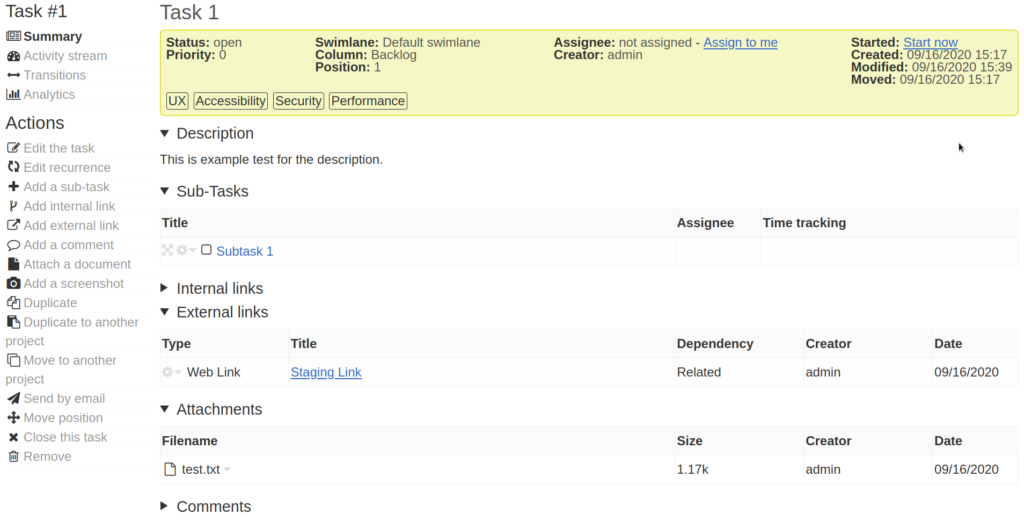
Select the down-arrow beside the task number to make quick changes. Or click anywhere in the colored area for all task management options.
Protect your proprietary, intellectual property by hardening your VPS and ensuring PHP is up-to-date.