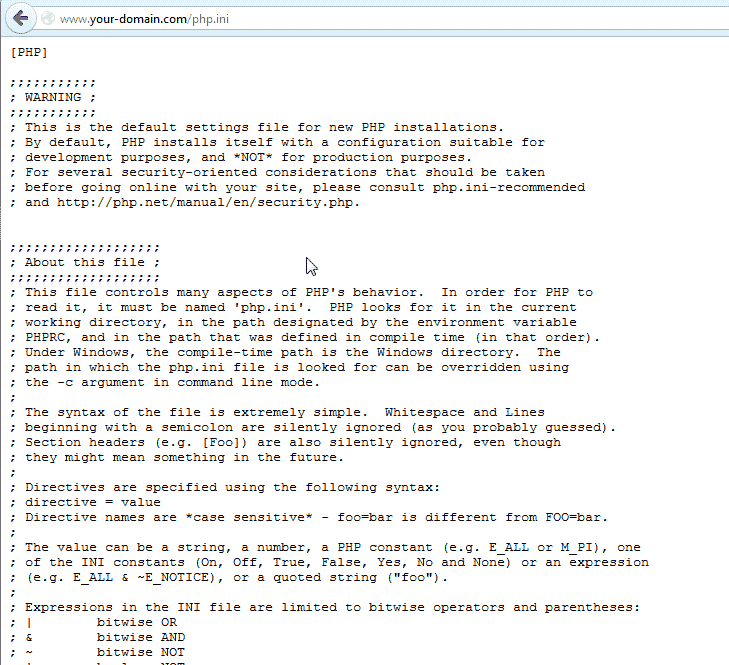
By default the php.ini file is stored in the public_html folder on your server. When you visit your domain and add /php.ini at the end of it like the following:
https://your-domaincom/php.ini
You will see the contents of your PHP configuration available over the internet. See the image to the right. To secure your php.ini settings so they are not publicly viewable, you can restrict access to the php.ini and other file types with the following code in your .htaccess.
<filesMatch ".(htaccess|htpasswd|ini|phps|fla|psd|log|sh)$"> Order Allow,Deny Deny from all </filesMatch>
The parameters “htaccess|htpasswd|ini|phps|fla|psd|log|sh” in the code will restrict anyone trying to see the following file types.
- .htaccess
- .htpasswd
- .ini
- .phps
- .fla
- .psd
- .log
- .sh
You can add more file types to the restriction by separating each file type in the code with a | and adding the file extension without the ( . ). The following steps explain how to restrict files access to your pip.ini and other secure files types.
Restricting access to the php.ini and other file types
- Login into your cPanel.
- Go to the File Manager. Select your public_html web root and click Go.
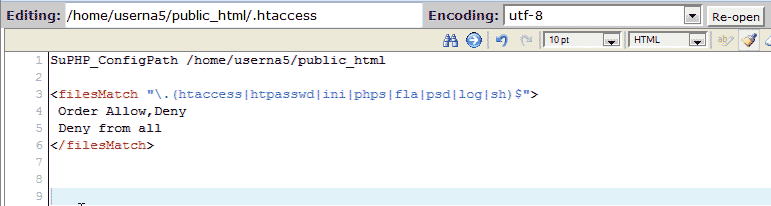
Find your .htaccess file and edit it with a code editor. Place the following code in your .htaccess.
<filesMatch ".(htaccess|htpasswd|ini|phps|fla|psd|log|sh)$"> Order Allow,Deny Deny from all </filesMatch>
Save the changes.
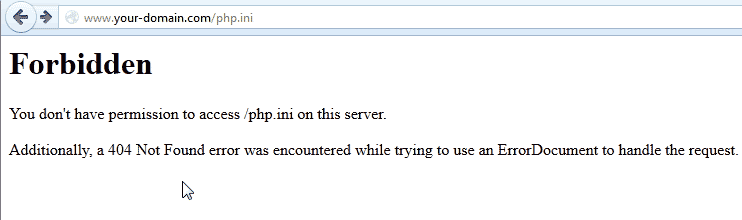
Now when you visit your php.ini in your browser you will get a “Not found” error.


For more information on our .htaccess tutorials, please see our .htaccess file reference list.