
WP fail2ban is a freemium WordPress security plugin with features for logging, brute-force attack prevention, and spam protection. In the free version you must edit the wp-config.php file with any configurations. Then, it’ll view within your WordPress dashboard.
If you prefer a full-featured security plugin, we recommend Cerber Security, Antispam & Malware Scan and BBQ: Block Bad Queries.
There’s a lot of data in your wp-config.php file already. However, you only need to add two lines to block user enumeration (requests for author username queries). Below we cover how to block user login attempts with WP fail2ban using your wp-config.php file (free version) and the WordPress dashboard (paid version).
Install the WP fail2ban plugin before continuing.
WP-config.php
- Log into SSH, cPanel or FTP
- Navigate to your WordPress root directory
- Edit your wp-config.php file
- Under your database lines (e.g.
define( 'DB_COLLATE', '' );, add this to block users who try to login with specific usernames:define('WP_FAIL2BAN_BLOCKED_USERS', ['^admin$', '^root$']);
This blocks any user login attempts including “admin” or “root”This is case-insensitive and you can use regular expression (regex) if you’re using PHP 7 or higher.
- Add this to block enumeration: attempts:
define('WP_FAIL2BAN_BLOCK_USER_ENUMERATION', true); - Save your changes
Paid Version
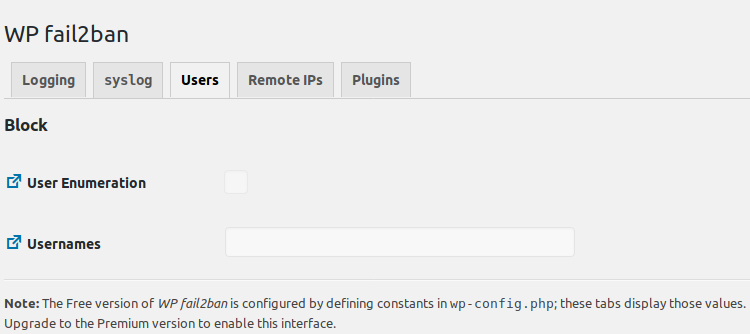
Users with the paid subscription can block user enumeration attempts and login attempts within the WordPress dashboard:
- Log into your WordPress dashboard
- On the left, select WP fail2ban, then Settings
- Click the Users tab
- Check the User Enumeration box and add Usernames to block
Get more comfortable with the file with our in-depth look at wp.config.php.
Enhance your WordPress performance with our NGINX-powered WordPress Hosting.
