In this article:
There are many great WordPress security plugins available for free. But it’s still beneficial to know of zero-day exploits and new vulnerabilities in your installed plugins and themes.
WPvulndb.com compiles such information using WordPress vulnerability reports from various sources including Common Vulnerabilities and Exposures (CVE). The developers also have a WordPress plugin, WPScan, which keeps you up to date with new issues to help you understand what changes you may need to make to your website or security configurations.
Note: You’ll need to create a WPvulndb.com account to use this plugin.
Below we cover how to setup WPScan and vulnerability notifications.
Looking for high performance without a high price? Ask about our Nginx-powered WordPress Hosting today.
Install WPScan
There are multiple ways to install the WPScan plugin. You can install the plugin manually or via WP-CLI (plugin slug wpscan). Below we’ll use the WordPress dashboard.
- Log in to your WordPress dashboard.
- Install the WPScan plugin.
- Activate the plugin.
Setup
- Register an account on WPvulndb.com.
- Log in to your WPvulndb.com account.
- Click FREE USAGE.
- On your profile page, scroll down and copy your API token.
- At the top of your WordPress site, you’ll see the following:
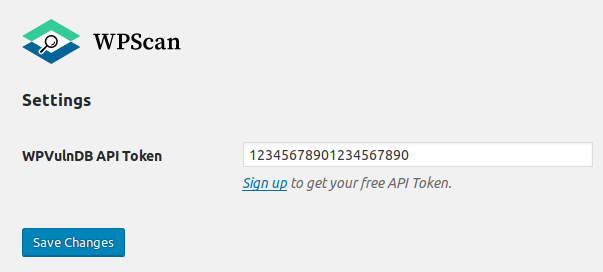
To use WPScan you have to setup your WPVulnDB API Token. Settings
Click Settings. - Copy your API code from your WPvulndb.com account.
- Click Save Changes.
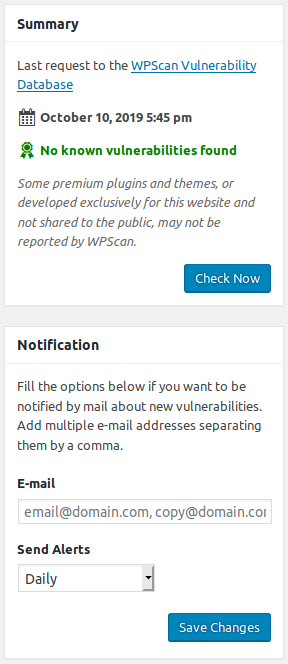
- Under WPScan, on the left, click Reports. You’ll see any reported vulnerabilities for your installed WordPress version, plugins, and themes.
Notifications
On the right, enter your email address and a time-frame (daily, weekly, or monthly) to receive email notifications about new vulnerabilities.