One of the first steps when using Sucuri is to add a new site. This allows you to monitor or scan the site. In this tutorial, we will show you how to add a site to Sucuri.

Adding a Site to Sucuri
With Sucuri, you can add multiple sites at the same time and then enable monitoring or request a malware cleanup.
- Login to the Sucuri Admin Dashboard.
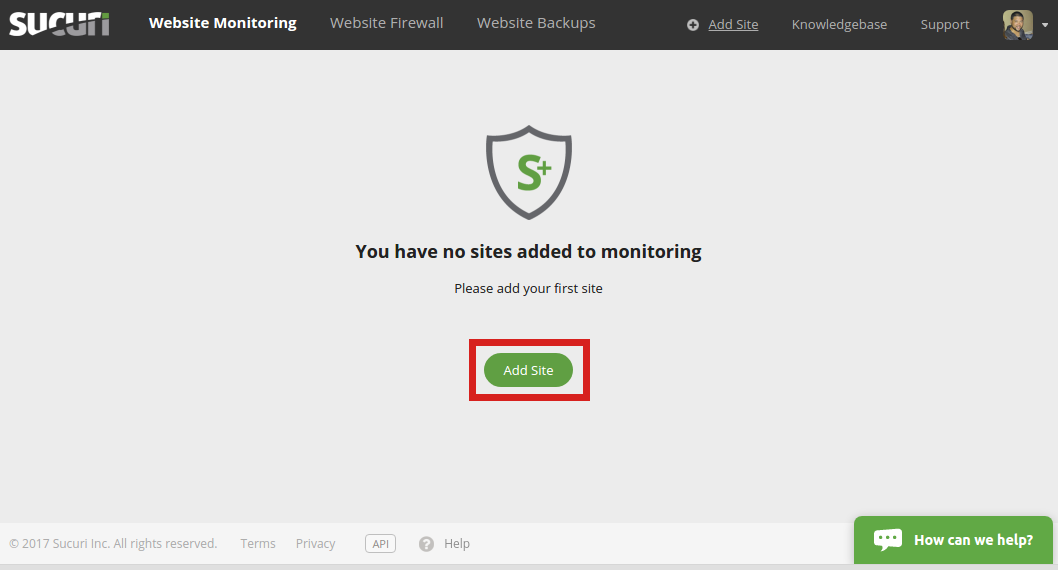
- Click the Add Site button.
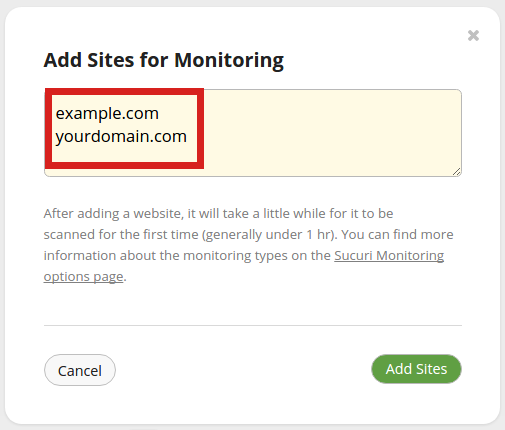
- You will then see an “Add Sites for Monitoring” page. Enter the site domain names that you want to monitor, one per line. Sucuri advises “After adding a website, it will take a little while for it to be scanned for the first time (generally under 1 hr). You can find more information about the monitoring types on the Sucuri Monitoring options page.“
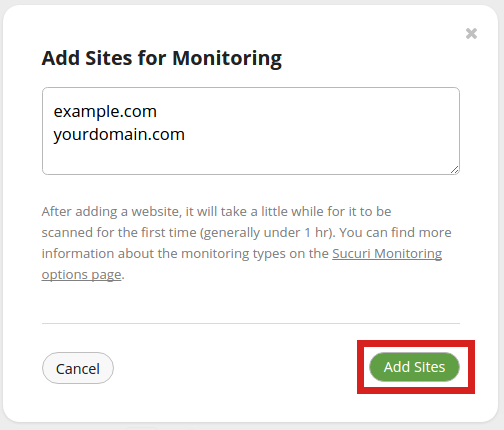
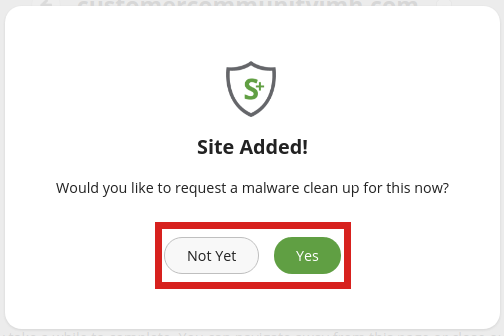
- Click the Add Sites button. You will then see a Site Added message.
- You can then choose if you want to start a malware cleanup at this time.
Congratulations, now you know how to add a site to Sucuri!