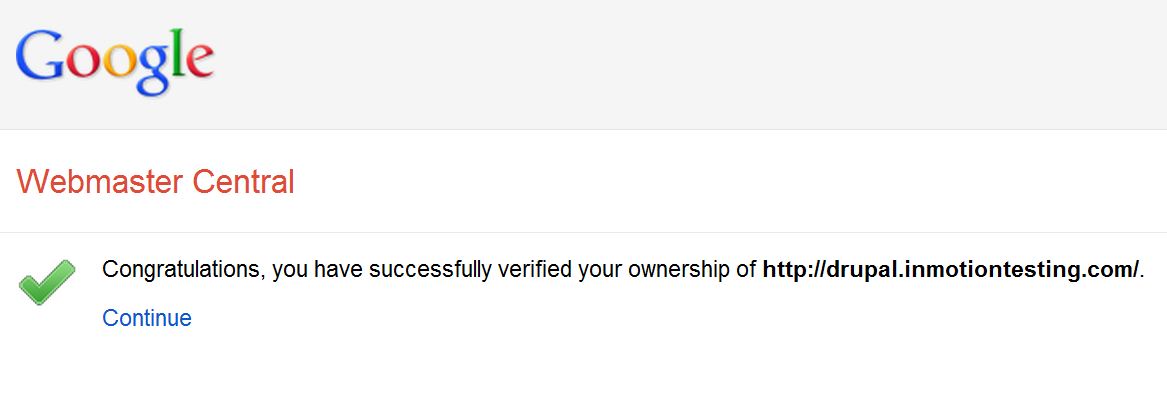
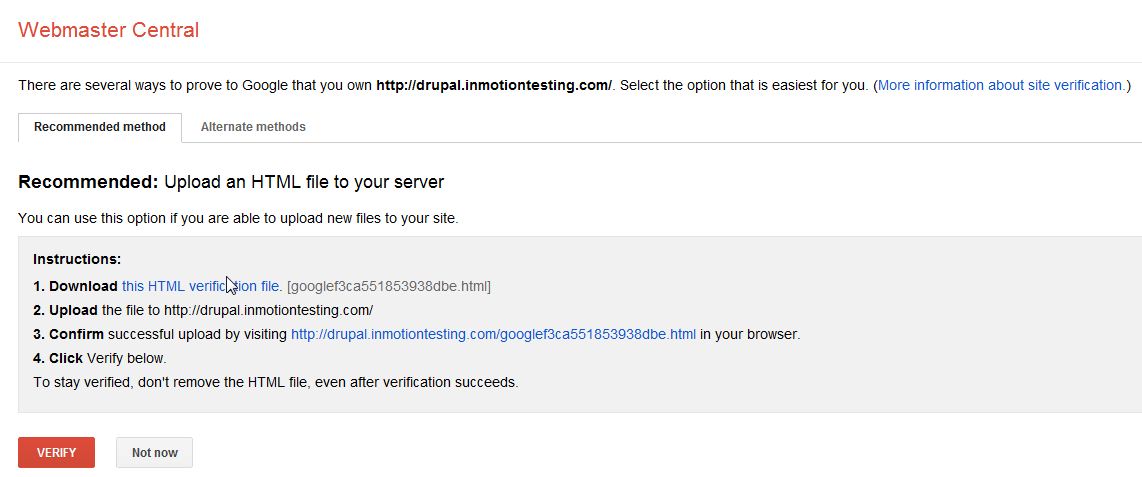
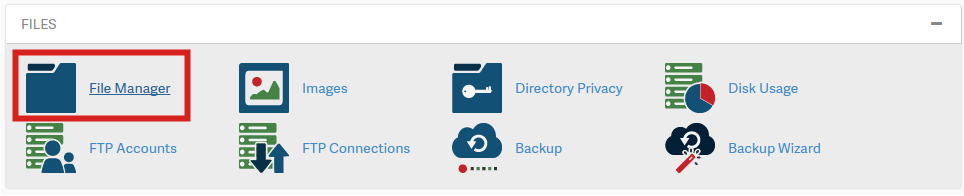
Verifying your website with Google Updated on August 16, 2021 by Carrie Smaha 1 Minutes, 34 Seconds to Read Anytime you use a Google Webmaster tools, you’ll need to verify ownership of the website to Google. Verification with Google does not affect PageRank or your website’s performance in any way. It does allow you to use Google’s products. Verifying ownership of a website is easy and you have more than one option on how to do so. There are many reasons to verify your site with Google and here’s a list of some of the more popular reasons: Why should I verify my website with Google? So you can see the data Google has on your Webmaster tools accountTell Google when your website changes or updatesRemove site pages from Google Search resultsSpecify to Google how your website should be indexedSet a specific geographic region your website targetsRequest a crawl rate change Add other site owners to share your website’s data How to verify your website with Google by uploading a file The easiest and quickest method to verifying your website with Google is uploading a file that they provide. The file can be easily uploaded via file manager in cPanel. Log into Google Webmaster Tools and download the file for HTML verification Log into cPanelGo to File Manager in the Files section. Go to the domains root folder (if this is your main domain it will be your public_html folder)Click “Upload” and upload the HTML file you downloaded from GoogleOnce the file has uploaded. Go back to the page you downloaded the HTML file from in Google Webmaster Tools and click “Verify” Important! If Google does not find your HTML file you may need to check your DNS. Your domain may not be pointing to our server or you may need to use a different method to verify. If you need further assistance please feel free to ask a question on our support center. Share this Article Carrie Smaha Senior Manager Marketing Operations Carrie enjoys working on demand generation and product marketing projects that tap into multi-touch campaign design, technical SEO, content marketing, software design, and business operations. More Articles by Carrie Related Articles How to Edit CSS Using Google Chrome Developer Tools How to Change Nameservers in Google Domains How to Use Google Apps to Host Your Mail How to use Google Web Fonts for your builder Setting up Google Workspace MX Records in cPanel Google Launches Site Kit Plugin for WordPress How to Set up Google My Business Setting a Crawl Delay in Google Webmaster Tools Generating Google API keys How to Add a Google map with a Marker to your website

I LOVE YOU, whoever put this together. I am not good at all with this back end stuff and the step by step was perfect, perfect. thank you!
The steps will remain the same, just be sure to upload the file to the document root of the site you are verifying. Thank you, John-Paul
I have uploaded the html file to one of my website and it was verified . The second website and trying to verify is not going . What could be wrong and secondly. how many websites can I verify?
Make sure that you have a verification code for EACH website. You can’t use the verification code from one site to another.
Thanks! Been trying to figure this out. Got it done in about 1 minute with your clear, easy explanation!
Hello. Please if there are variations to my website for instance the website, blog etc, is one verification on the main website sufficient for all subdomains? Thanks
Verification requirements will depend on the application you’re running. You may need to check with the developer or associated documentation.
I managed to upload, but now I have the html code and details at the very top of my home page!! Cannot see how to remove it?
Reg, it sounds like something may have gone wrong, or your content management system( CMS ) is inadvertently pulling the code from your ‘google********.html’ file. I would recommend removing the file that you uploaded, downloading a new copy, and trying again. If the issue persists you may wish to speak with your web developer.
I really appreciate your step-by-step tutorials, which often include screen captures. They are so dummy-proof, and I love them!! Thanks and keep up the great work!
Thank you, this was so helpful. Finally somebody who´s not just repeating what´s already written in the google webmaster tool and finally telling me where to upload this ***** file 🙂 🙂 Thank you, thank you, thank you, thank you 🙂
Thank you for the step by step instructions. For once – something EASY TO FOLLOW! I have been going crazy trying to understand the verification process & Google+!