
WordPress added automatic upgrades starting in version 3.7. Automatic upgrades are important because they keep your WordPress installation updated with the latest security patches and overall WordPress fixes or additions. The following tutorial shows you how to enable or disable automatic upgrades, though we strongly recommend that you not disable your automatic upgrades.
How to Enable Automatic Updates
In order to enable automatic updates in WordPress versions 3.7 or later, you will need to look for the code used to disable the option in the wp-config.php.
- Login to your cPanel.
- Open the File Manager and then go to the WordPress installation files. You will need to find your wp-config.php file.
- Search for: define( ‘AUTOMATIC_UPDATER_DISABLED’, true );
- Once you find the line, delete it from the WP-CONFIG.PHP file.
- Click on SAVE in order to save your changes.
How to Disable Automatic Upgrades
You should not disable your automatic updates unless it’s absolutely required!
- Login to your cPanel.
- Open the File Manager and then go to the WordPress installation files. You will need to find your wp-config.php file.
- Once you find the file, select it, and the use the edit options within File Manager in order to proceed.
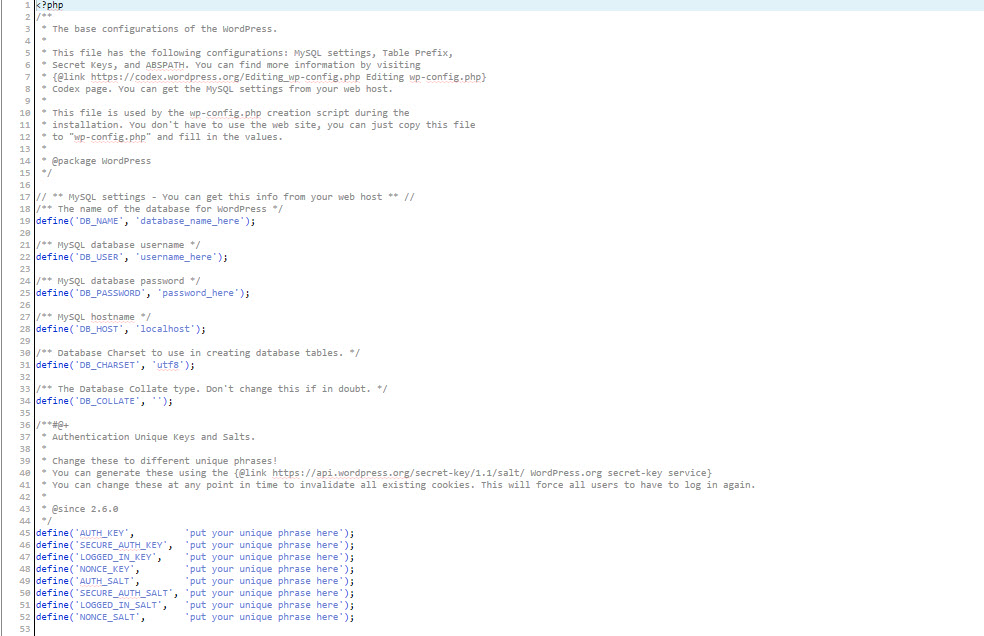
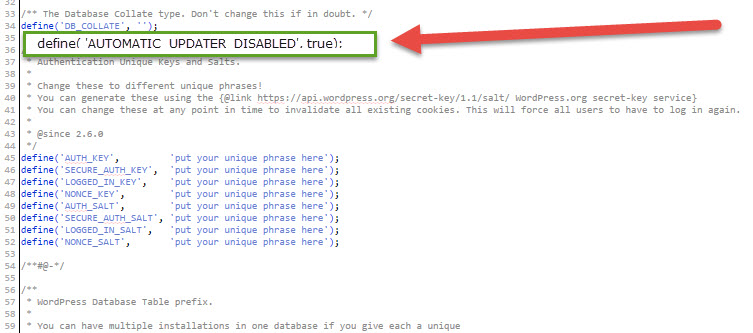
- Insert the following line after the initial “define” statements, right above the Authentication Unique Keys and Salts.
define( 'AUTOMATIC_UPDATER_DISABLED', true );
- Click on SAVE in the top right hand corner of the editor to save your changes.
This completes the tutorial for enabling or disabling the automatic updates for your WordPress site. For more complete information and other options, please see Configuring Automatic Background Updates.
Professional Websites Without the Tech Headaches
Our team will build a beautiful WordPress site and take care of updates, security, and maintenance – so you can focus on running your business.
