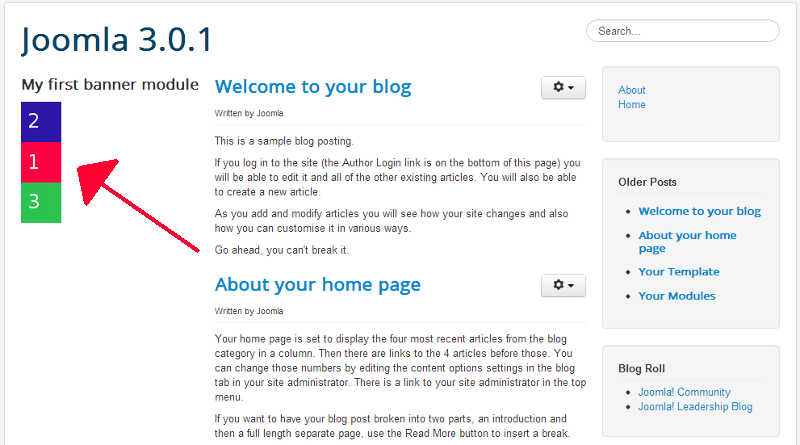
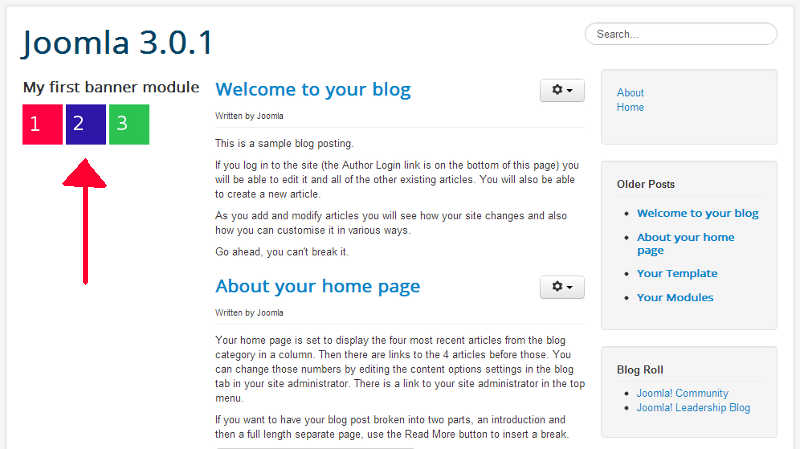
As we dive deeper into another tutorial about using banners in Joomla, we will now teach you how to show your banners side by side.
By default, banners are shown in div tags, which by default are block elements. Our goal in this tutorial is to turn them into inline elements instead. Does this CSS jargon not make sense? That’s OK, simply follow the steps below to show your banners horizontally instead of vertically.
- Log into your Joomla 3.0 admin dashboard
- In the top menu, click Extensions and then click Template Manager
- In the left menu, click Templates
- Next to the template you are using, click the Details and Files link
- Edit your template’s CSS file
In our testing, we are using the Protostar template, so we clicked on the link that says Edit css/template.css. If you are using a different template, your css file may be named differently.
When your template’s css file is open, add the following code to the bottom and then click the Save button in the top left:
.banneritem,
.banneritem .clr{
   display: inline;
}
When you visit your site again, you will notice that your banners are now showing side by side.
Default Banner Display Banners side by side after CSS update