
The previous article in the Getting Started with Moodle course explained the process for resetting the Moodle username and password in the Moodle dashboard. In the event the Moodle dashboard is not accessible to do this, the password and username can be reset in the database through PhpMyAdmin.
Using PhpMyAdmin to reset the User Password/Username
- Log into phpMyAdmin cPanel hosting will have a database utility called PhpMyAdmin within the cpanel. If the Moodle is installed on a non cPanel hosting, contact the hosting company for information on how to edit your database on the server. For more information on loging into PhpMyAdmin and php web hosting, please see the article on “How do I manage a MySQL database in PHPMyAdmin in my control panel (cpanel)?“.
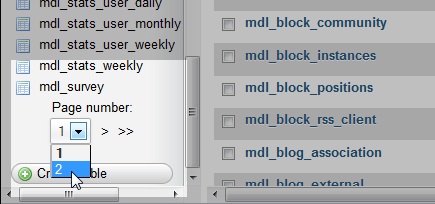
In PhpMyAdmin, find the table called mdl_user and select it. Since Moodle has many tables, the mdl_user table may be on the second page. Select the second page.
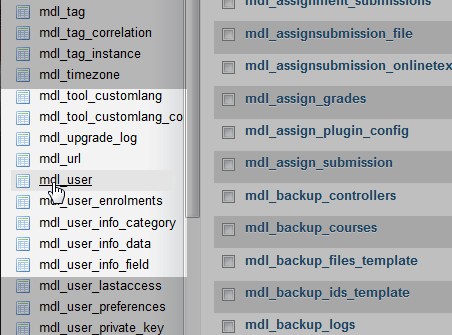
Click the mdl_user table.
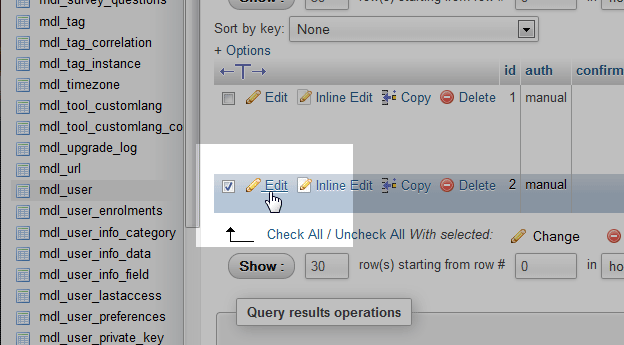
After selecting the table, find the table row for the user that is being edited. Click the Edit link with the pencil icon.
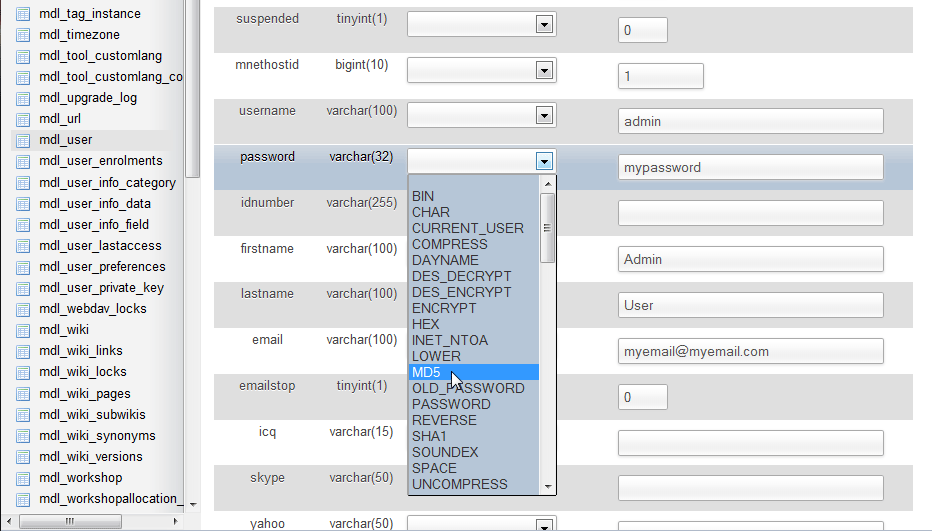
There will be a series or characters and numbers in the password field. This is an encrypted password so it cannot be viewed in the database. Replace the encrypted text with the new password for the login. Next, in the drop down menu to the left, select MD5 then click Go. This can also be done for the Email address and the Username. The Email and the Username do not need the MD5 hash.




Now that the basics of the Moodle set up is established, it is time to learn more about how to use Moodle. Please check the next article on How to edit the Front page settings in Moodle.