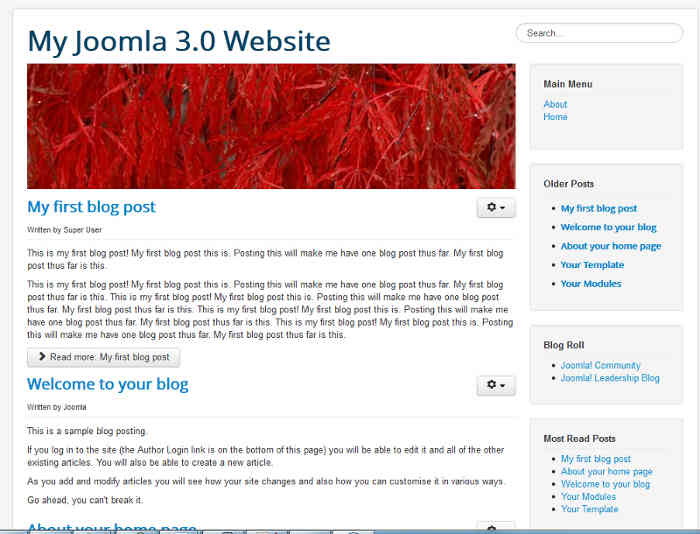
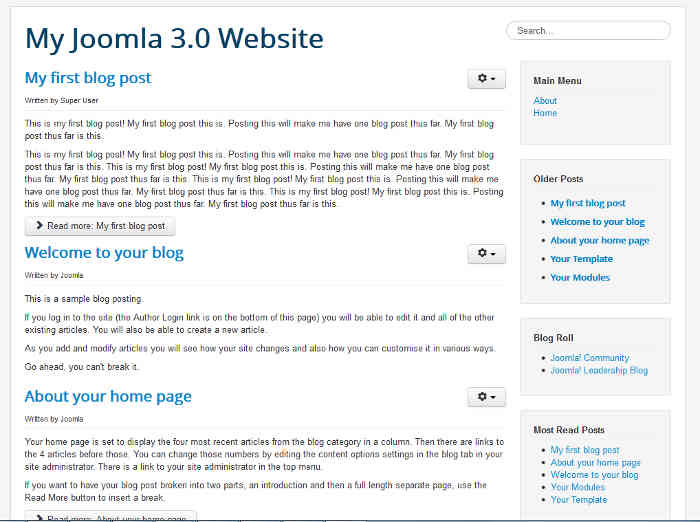
In our last tutorial, we showed you how to change the banner image within Joomla 3.0. If you want to hide the banner image all together, that is much easier to do. In this tutorial, we are going to walk you through the steps for removing the header image in Joomla 3.0.
Hiding the Header image in Joomla 3.0
- Log into your Joomla 3.0 admin dashboard
- In the top menu, click Extensions and then click Module Manager
- Disable the Image module
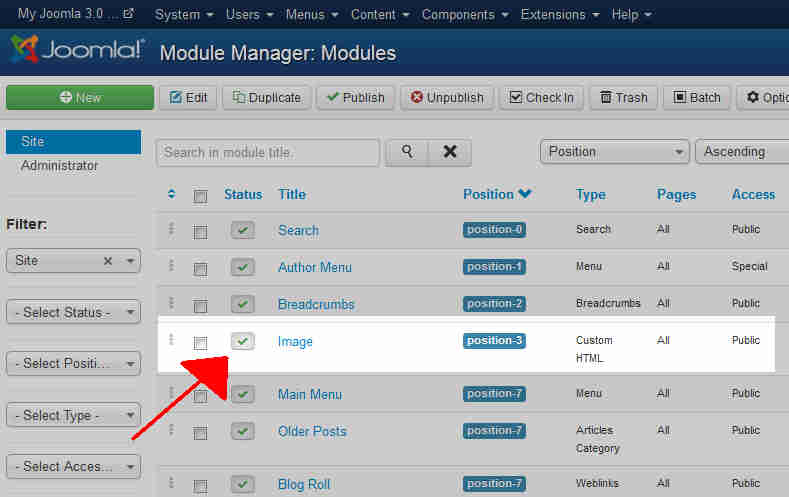
Because the header image is shown using a Custom HTML module, we need to find this module and disable it. In the list of modules listed, find the module with a title of Image, which is located in position-3 and is of type Custom HTML. Click the green checkmark to the left of the Image title, and this will disable the module.
After disabling the Image module, you can see in the screenshots below that the header / banner image is no longer showing in Joomla 3.0:
Image Module: Enabled Image Module: Disabled