

WordPress widgets allow you to add additional information and functionality to the header, footer, and sidebar areas of your website. There are many helpful default widgets included with the base installation WordPress; however, the text widget may be the most helpful of all. With the WordPress text widget, you can post business information, weather alerts, YouTube videos, and more.
Continue reading to learn:
Enjoy fast, secure hosting optimized for your WordPress website with our WordPress Hosting plans.
How to Use the WordPress Text Widget
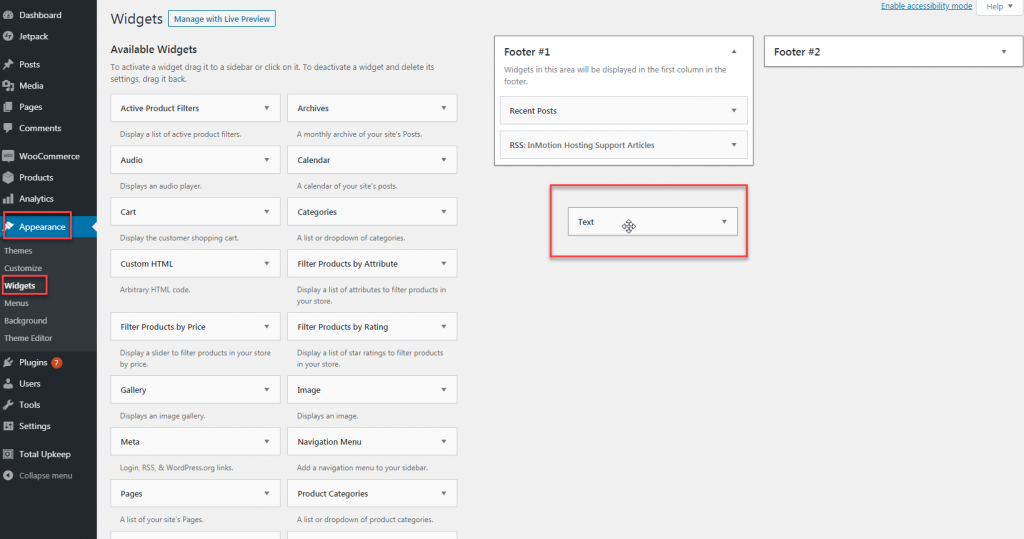
- Login to your WordPress Dashboard.
- Navigate to Appearance>Widgets.
- Find the Text widget under the Available Widgets section, then drag and drop it to one of the widget areas on the right-hand side.
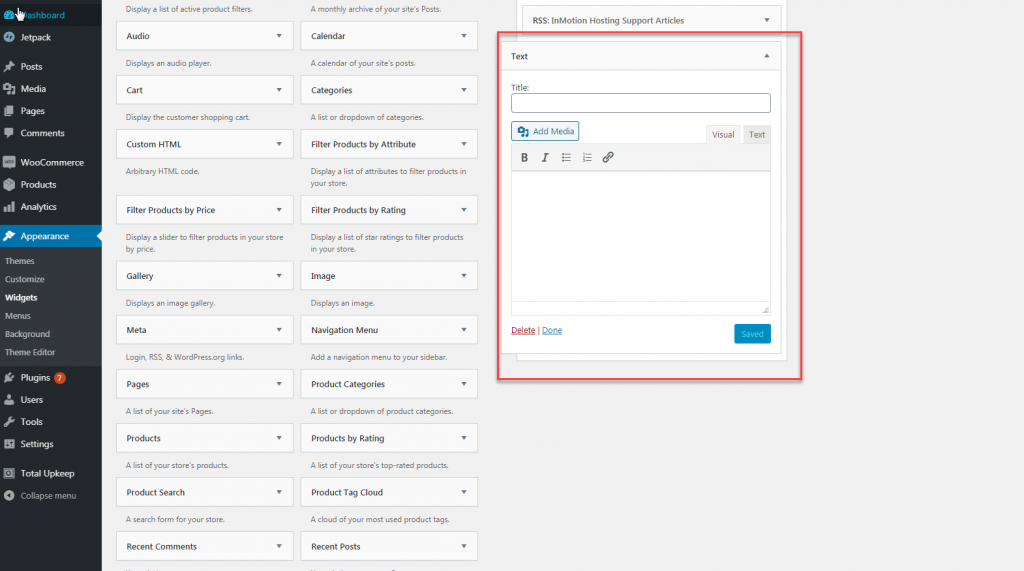
Of note, the widgets areas will vary based on the activated WordPress theme. - Once the text widget has been added to a widget area, add a title to the Title field, then enter your text, code, or add an image.
- Click Save to add the widget and content to your website.
Ideas for Utilizing the WordPress Text Widget
In addition to the ease at which a WordPress text widget can be added, the many uses of the widget are a huge bonus as well. There are many ways you can utilize the text widget to improve the user experience on your website. Here are a few ideas on elements you can add to your website using the simple WordPress text widget:
- Email Newsletter Subscription: Depending on the third party and/or plugin you’re using for your email marketing, you can add a link, embed code, or simple HTML to the text widget to allow your visitors to sign up for your newsletter.
- Display Important Business Information: Use the text widget to display your hours of operation, important alerts, promotions, upcoming events, and more. You can also create and upload branded content to the text widget — which will help attract your users to the information and promote engagement.
- Ads: Use the text widget to add a code for Google AdSense and earn money through ad placements.
- Affiliate banners: If you’re an affiliate, use the text widget to add your affiliate code.
- Shortcodes & Custom HTML: You can use the text widget to add shortcodes and custom HTML for specific plugins and functionality that is relevant to your website. For example, if you run a financial blog, you can add HTML code for a stock ticker.
- Social Media: Though there are many ways to integrate social media onto your website, you can use the text widget to add your social media. You can add a Twitter feed by creating a code from Twitter, then adding it to the text widget. For other social media platforms, you can add your own icons and link them to your profiles respectively.
As you add dynamic, custom content to your website via the text widget, check out more WordPress tips and tricks in our WordPress Education Channel!
