
When you sign up for a shared hosting account, the account will use the same “Main” IP address as the other sites on the server. Reseller Hosting, Dedicated servers, and VPS servers have a single “Main” IP address set up on the server as well. In this article, we are discussing how to obtain additional IP addresses.
Sell your own brand of reliable and feature-rich web hosting by subscribing to InMotion’s Reseller Hosting solutions.
Is My IP Address Shared or Dedicated?
The “Main” server IP address is referred to as a “Shared IP address”. This is because all cPanel accounts on the server by default will use that “Main” IP address for their domain. To find out if you have a dedicated IP or not, log into your cPanel and look at the stats to the right. cPanel accounts can have a dedicated IP address assigned separate from the main IP (See images below).
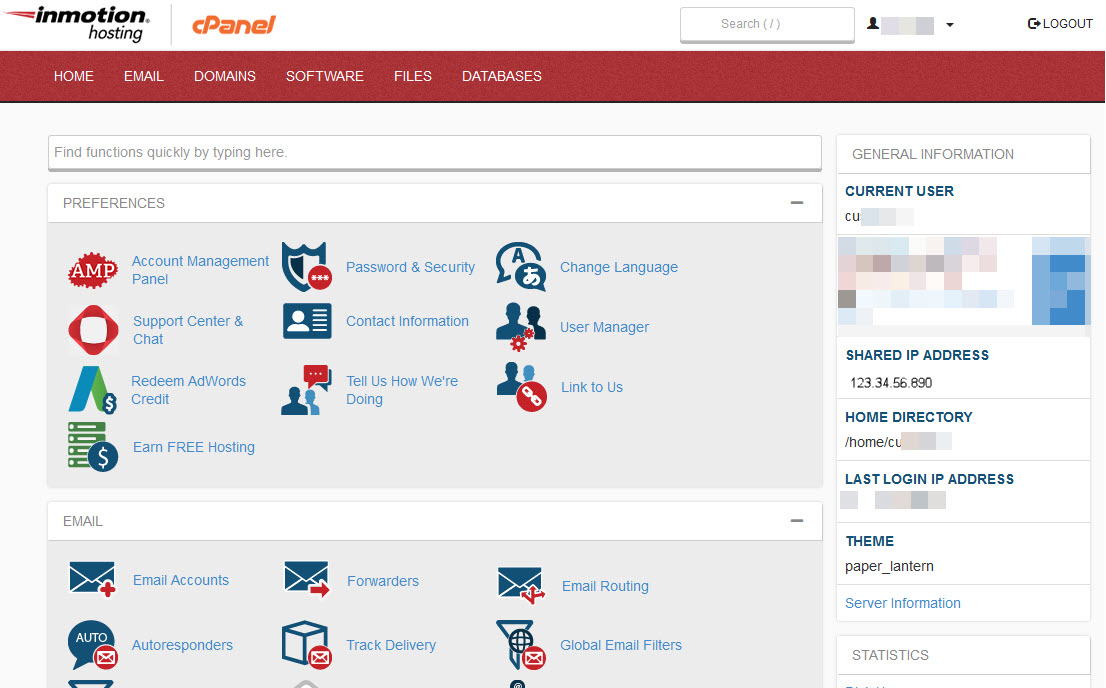
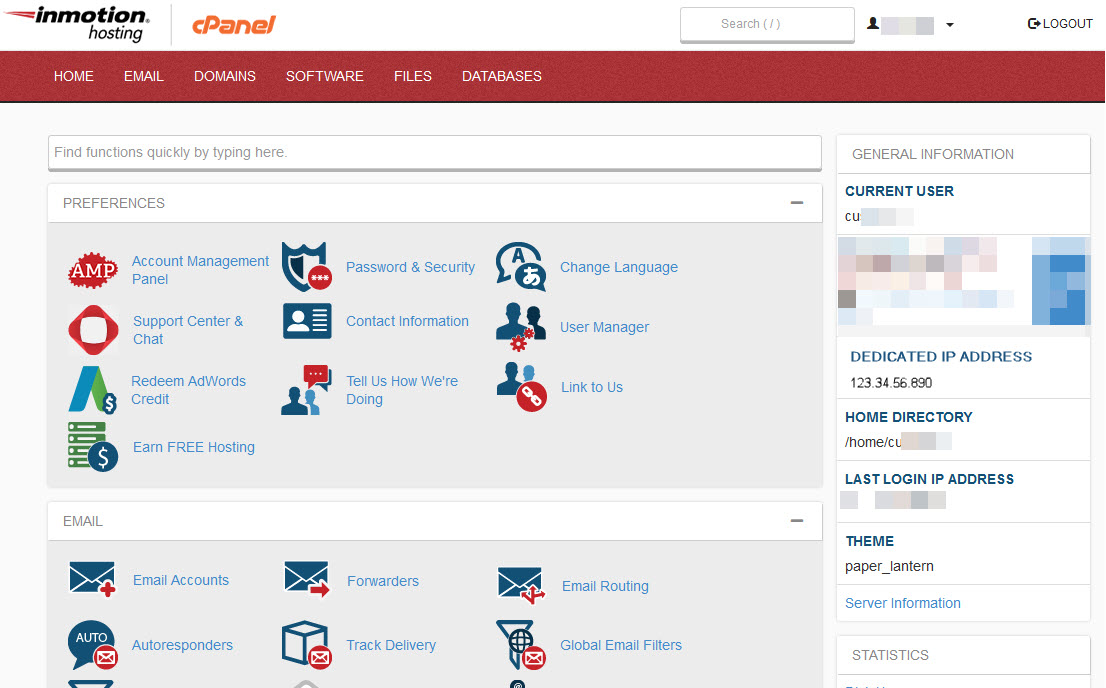
VPS and Dedicated servers include additional free IPs, but are only assigned one dedicated IP by default due to IP scarcity. That dedicated IP is shared throughout your services and cPanel accounts only.
In order for an IP address to be changed or added to any server with InMotion Hosting, the IP will need to be requested, and depending on the plan you have, you may need to either purchase the IP or have it assigned for free.
The next 2 sections will explain how to purchase a dedicated IP or have one assigned.
Warning: If the button isn’t present in AMP, you’ll need to request a dedicated IP address via email ticket.
Purchasing a Dedicated IP Address
If you require a dedicated IP address and your plan does not have any free IP addresses included, you can purchase one from within your Account Management Panel (AMP). The following steps will explain how to purchase a dedicated IP address.
- Log into your AMP (Account Management Panel).
- Under your account name, click Purchase Dedicated IP.
- On the next page, select the domain name associated with your account from the drop-down.
- Next, select the associated username from the list.
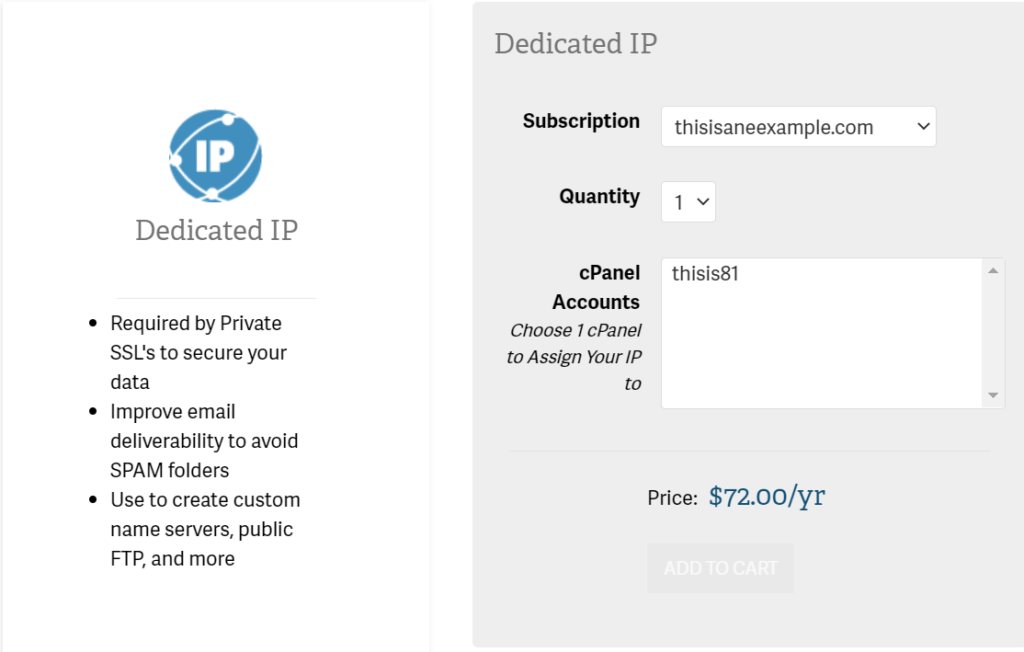
- Click add to cart.
- Scroll down to read the disclaimer for the IP address assignment. Click Continue to Cart.
- On the next page, confirm your payment details and click Order.
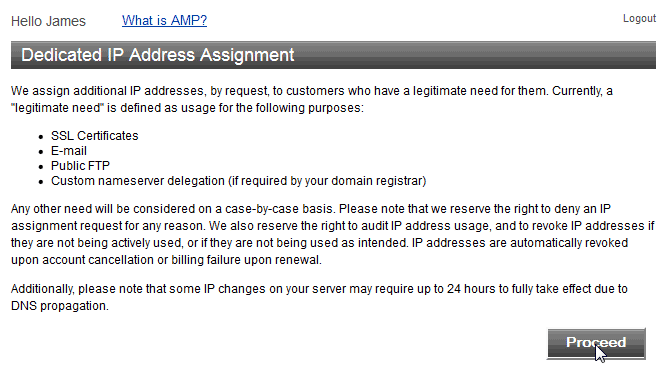
After you order the dedicated IP address, you’ll get an email confirming your Dedicated IP was set up with the IP included in the email. Due to DNS Propagation, the new IP address can take up to 24 hours before it is fully activated.
Adding an IP Address Through AMP
If your hosting plan includes an IP address, you can request it from AMP.
- Log into AMP.
- Under your account name, click the Request Dedicated IP button.
- Read the disclaimer for the IP address assignment. Click Proceed.
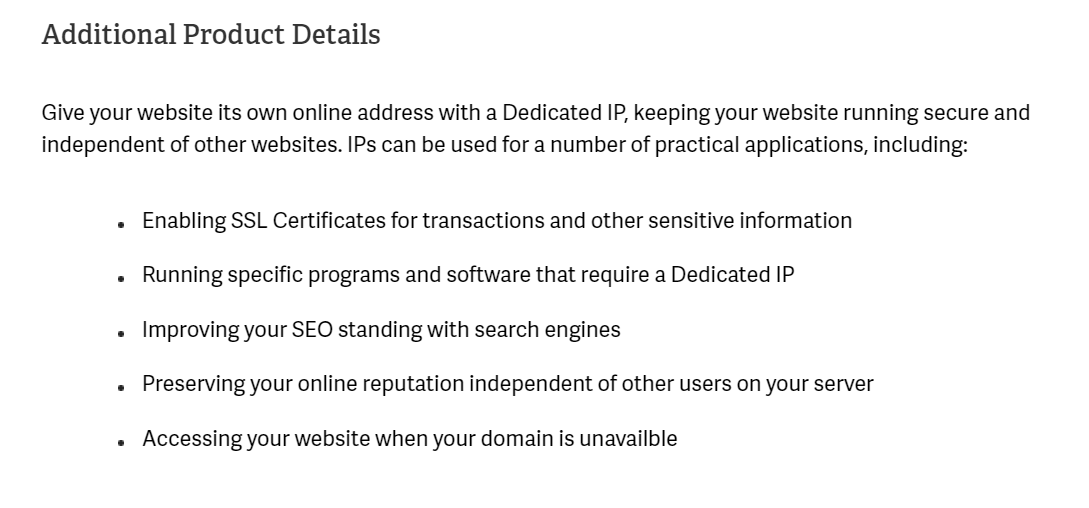
You will see a confirmation that the IP address was submitted.

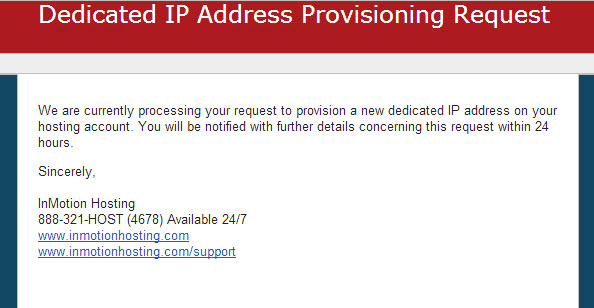
After this, check the email address that you signed into AMP with. You will see an initial email explaining the request was submitted.
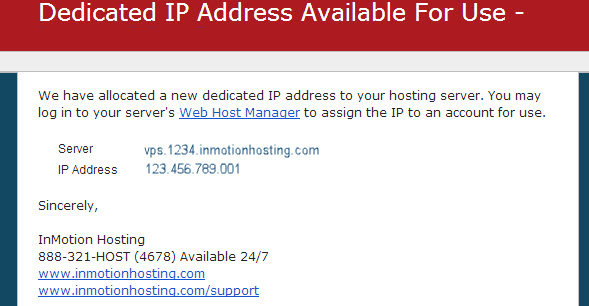
Shortly after you will get an email with your new IP address in the contents. Next, you will need to assign the IP address to the domain.
Assigning an IP in WHM (VPS, Reseller, and Dedicated)
- Log in to WHM.
- Type IP in the search to narrow the list of options on the left. Look for the IP Functions section and click Change a Site’s IP address.
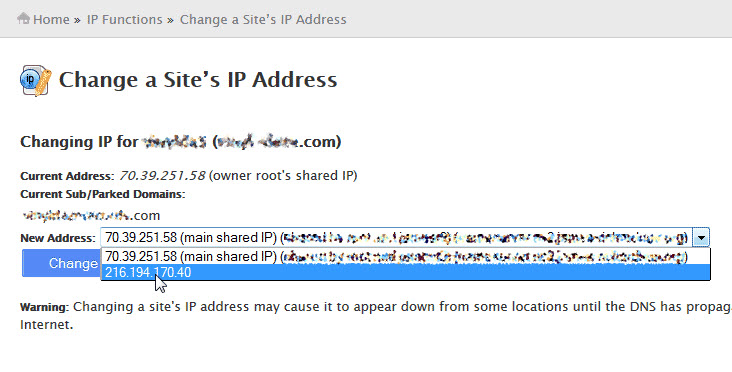
- Select the domain from the list or type the domain you want the IP for. Click Change.
- From the New Address drop-down menu, select the IP address from the list.
- Click Change.
Congratulations! You now know how to obtain additional IP addresses for your websites or server. For more information, please see our Reseller Hosting, Dedicated Server, or VPS Product Guides.