
cPanel AutoSSL installs and renews free Domain Validated SSL certificates for every eligible domain on your account, with no manual steps once it is turned on. This guide covers how AutoSSL works, how to enable it on shared, VPS, and dedicated hosting through your InMotion Hosting Account Management Panel (AMP), how to diagnose the issues that cause it to fail, and when a paid SSL certificate makes more sense.
What is cPanel AutoSSL and How Does It Work?
AutoSSL is a built-in cPanel feature that issues and installs free Domain Validated (DV) SSL certificates for every qualifying domain on an account. It runs on a daily schedule in the background, checks which domains need a valid certificate, and requests one through a supported Certificate Authority using cPanel’s AutoSSL system.
Each certificate is valid for 90 days, and AutoSSL attempts renewal roughly 30 days before expiry. That keeps your site continuously secured without anyone tracking expiration dates.
Under the hood, AutoSSL proves domain ownership through Domain Control Validation (DCV). The server places a verification file at either /.well-known/acme-challenge/ or /.well-known/pki-validation/, and the Certificate Authority reads that file from your domain to confirm you control it. If the request succeeds, the CA issues the certificate and cPanel installs it automatically across the services that need it, including Apache, Dovecot, Exim, and cPanel itself.
On cPanel servers, the available providers are typically cPanel-branded Sectigo (formerly Comodo) and Let’s Encrypt. Which CA actually issues your certificate depends on how the server’s AutoSSL provider is configured in WHM.
Free vs. Paid SSL Certificates: Which Do You Need?
Both free AutoSSL and paid certificates use the same underlying encryption strength. The differences come down to validation level, warranty coverage, and use case.
Free AutoSSL certificates are Domain Validated. The CA confirms you control the domain, nothing more. That is enough to remove browser security warnings, satisfy modern SEO requirements, and support PCI DSS when paired with current TLS settings.
Paid certificates add organizational validation, warranty coverage, and direct support from the Certificate Authority. Organization Validated (OV) certificates verify your business identity. Extended Validation (EV) certificates apply the highest level of background check. Chrome removed the green EV address bar in version 77 back in 2019, and Firefox did the same in version 70, so EV no longer produces a distinctive visual in the browser. The underlying verification still carries weight in regulated industries and high-trust B2B contracts.
A practical way to decide:
- Content sites, blogs, marketing sites, SaaS landing pages, and most small e-commerce stores: Free AutoSSL covers your needs.
- Financial services, healthcare portals, and regulated enterprises that need verified business identity in the certificate details: a paid OV or EV certificate.
- Sites that need a formal warranty from the CA or liability coverage: paid.
One note on e-commerce. Major payment processors including Stripe, Square, PayPal, Braintree, and Authorize.net all accept valid DV certificates. The older idea that payment processors require premium SSL is no longer accurate.
Requirements to Enable AutoSSL on Your Domain
AutoSSL only succeeds when a few conditions line up:
- The domain and every subdomain you want secured must resolve to your InMotion Hosting server’s IP address. Verify with a tool like whatsmydns.net or by running
dig yourdomain.comfrom a terminal. - The domain must be present inside cPanel as the primary domain, an addon, a subdomain, or a parked domain.
- Any existing non-AutoSSL certificate (custom upload, self-signed, or expired) must be removed first. AutoSSL will not replace a non-AutoSSL certificate by default, even an expired one. This is one of the most common reasons installs fail silently.
- Your
.htaccessfile must allow requests to the two validation paths above without redirecting them. - No IPv6 AAAA record should point the domain somewhere other than your server. If your A record points correctly but a stale AAAA record points elsewhere, validation will fail.
On InMotion VPS and dedicated servers, AutoSSL also needs to be enabled inside the cPanel feature list assigned to the account.
How to Enable Free AutoSSL on Shared Hosting at InMotion
InMotion shared hosting customers activate free AutoSSL from the Account Management Panel (AMP) rather than directly inside cPanel. The AMP tool handles provisioning and eligibility checking across every domain on the account.
Activate the Free AutoSSL Option
- Login to your Account Management Panel (AMP).
- Click on the icon for Manage Free Basic SSL.
- If the switch under Enable Free SSL is in the OFF position, click it so that it moves to the ON position.
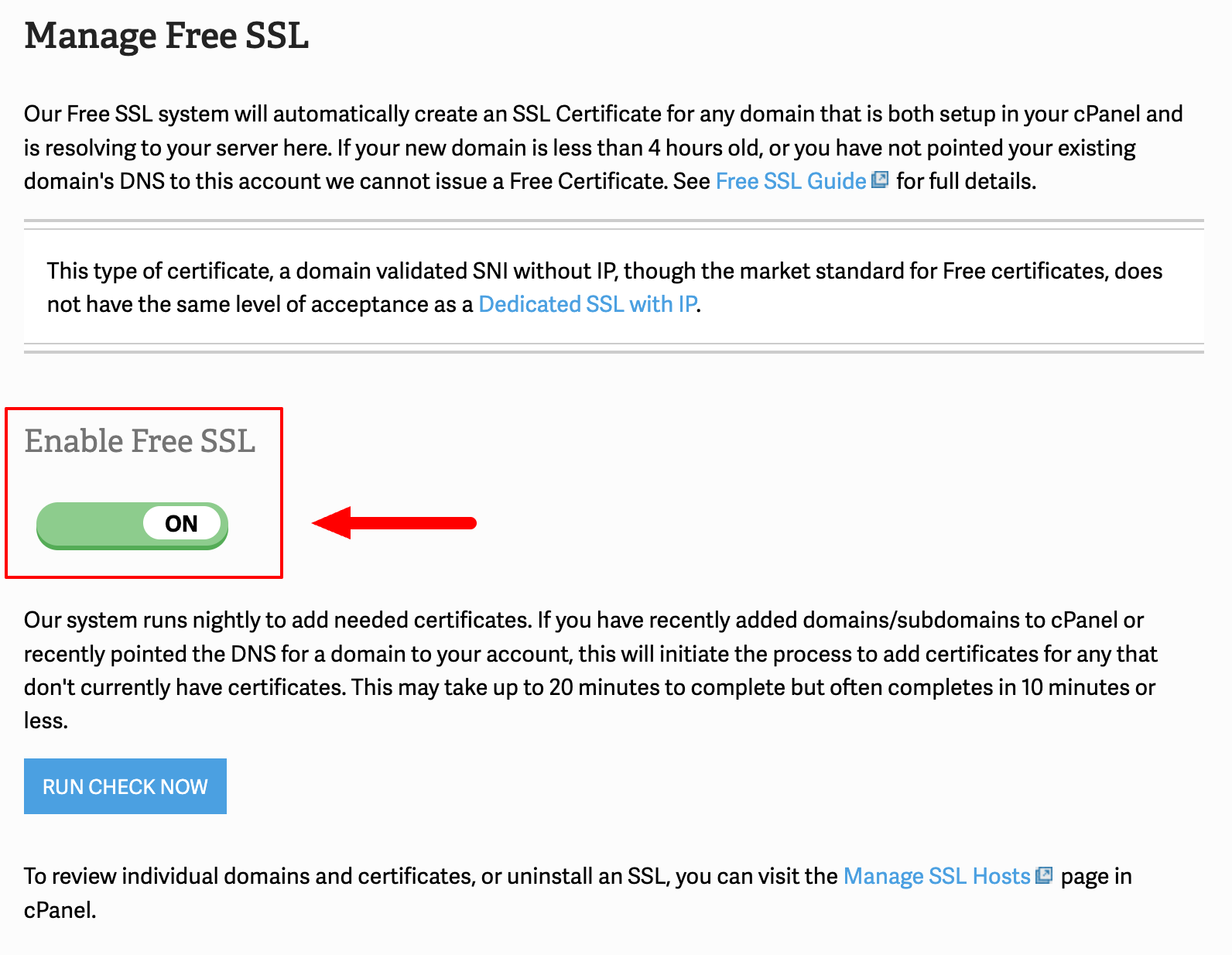
- Go ahead and click the blue Run Check Now to automatically add SSLs to any valid cPanel account.
Check Eligibility of Your Domains
When you enable free AutoSSL, your domains are automatically assigned an SSL if they are eligible. In the Account Management Panel (AMP) you can scan your domains to check for eligibility. Your domain(s) need to be pointed to us and added to WHM to be eligible for the free AutoSSL. Follow the steps below to check your domain(s) eligibility for the free AutoSSL.
- Login to your Account Management Panel (AMP).
- Click on the icon for Manage Free Basic SSL.
- In the box at right side of the screen you will see a box listing all of the domains on your account. You can click on Check All to select all of the domains, or you can click each check box in order to select only the domains that you want to check for eligibility.
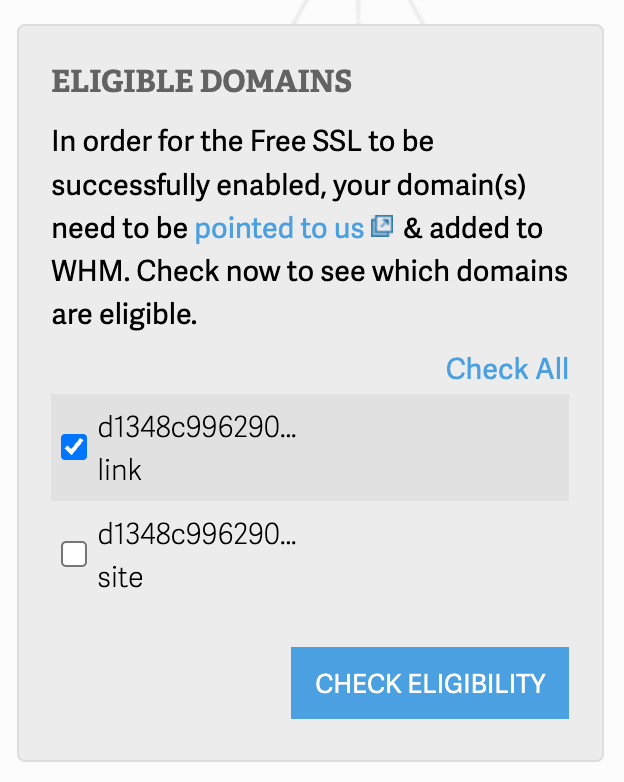
- Click on Check Eligibility in order to see if the domain can have the free AutoSSL enabled.
- When the check is completed you will either see a red X or a green check mark indicating the domain’s eligibility. If you see a red X, then click on the link labelled ‘Find out why‘ in order to determine the reason that the domain is ineligible.
- Go ahead and click the blue Run Check Now to automatically add SSLs to any valid cPanel account.
How to Enable AutoSSL in WHM for VPS and Dedicated Servers
Customers on InMotion VPS or dedicated hosting with WHM access configure AutoSSL at the server level. This requires root and covers every cPanel account on the machine.
- Log in to Root WHM.
- Open SSL/TLS then Manage AutoSSL.
- On the Providers tab, pick your CA. The options typically include Let’s Encrypt™ and Sectigo. If Let’s Encrypt is not listed, install it from Home > Plugins > Manage Plugins first.
- On the Options tab, decide whether AutoSSL should replace existing non-AutoSSL certificates. Leaving this off is safer because it prevents AutoSSL from overwriting a valid OV or EV certificate with a DV one.
- On the Manage Users tab, enable AutoSSL for the cPanel accounts you want covered.
- Click Run AutoSSL For All Users to trigger the first installation.
From inside each cPanel account, users can also open SSL/TLS Status and press Run AutoSSL to request a certificate on demand.
Troubleshooting Your Free SSL
Why is AutoSSL Failing to Install on my Domain?
Most AutoSSL failures come from a short list of causes. Diagnose in roughly this order:
The domain is not pointed to the server. If DNS is still at the old host, the CA cannot reach your validation file. Confirm the A record resolves to your InMotion Hosting IP and remove any stale AAAA records pointing elsewhere.
An existing certificate is still installed. AutoSSL refuses to overwrite non-AutoSSL certificates by default. Open SSL/TLS > Manage SSL Sites, uninstall any old, expired, or self-signed certificate, then rerun AutoSSL.
.htaccess is blocking validation. Redirect rules that force HTTPS or route everything through a front controller often catch requests to /.well-known/. See the next section for the fix.
Security plugins are interfering. WordPress plugins including Wordfence, Solid Security (formerly iThemes), and All In One WP Security can block or reroute .well-known requests. Temporarily disable them, rerun AutoSSL, then re-enable them.
A CDN is in front of the origin. When Cloudflare or Sucuri is proxying traffic, validation requests may not reach your server at all. CDN handling is covered below.
Rate limits have been hit. Let’s Encrypt limits certificates to 50 per registered domain per week. Repeated failed attempts during a migration can trigger a temporary lockout.
AutoSSL is not enabled on the account. On VPS and dedicated plans, AutoSSL is configured per-account by the root user in WHM. If the Run AutoSSL button is missing inside cPanel, the server administrator needs to add it to the feature list.
How to Fix .htaccess Conflicts That Block AutoSSL
The AutoSSL validation paths must bypass any redirect, authentication, or IP restriction rules in .htaccess. Add these conditions near the top of the file, above any RewriteRule that forces HTTPS or routes traffic to an application’s front controller:
RewriteEngine On
RewriteCond %{REQUEST_URI} !^/.well-known/acme-challenge/.+$
RewriteCond %{REQUEST_URI} !^/.well-known/pki-validation/[A-F0-9]{32}.txt$
These rules tell Apache to skip your redirects whenever a Certificate Authority is checking for a validation file. Without them, a rule that forces http:// to https:// or routes everything through index.php can break AutoSSL silently.
If the site already has a working SSL and you are troubleshooting a renewal failure, the same fix applies. Place the conditions before your HTTPS redirect block, save, and trigger AutoSSL again.
How to Handle AutoSSL When Using a CDN like Cloudflare
A CDN between your visitors and your server complicates AutoSSL because validation traffic may hit the CDN’s edge, not your origin. There are two reliable approaches:
Option 1: Issue the certificate on your origin, then secure the edge separately. In Cloudflare’s DNS tab, temporarily set the domain to DNS-only mode (gray cloud) long enough for AutoSSL to run and validate. Once the certificate installs, switch back to proxy mode. Cloudflare will issue its own edge certificate, and the AutoSSL on your origin handles server-to-Cloudflare encryption.
Option 2: Use the CDN’s SSL and exclude the domain from AutoSSL. If Cloudflare is terminating SSL for the public, mark the domain as Exclude from AutoSSL in cPanel’s SSL/TLS Status so the system stops trying. You still want an origin certificate for end-to-end encryption, which Cloudflare provides free through their Origin CA.
Sucuri and other reverse proxy services behave the same way. The working pattern is always identical: validation requests must reach your actual server, either by routing them through the CDN or by temporarily bypassing it.
Further Reading:
What to Do When Your Site Still Shows “Not Secure” After AutoSSL Installs
A valid certificate alone does not make the browser happy. If the lock icon is missing, broken, or showing a warning after AutoSSL installed correctly, the most likely cause is mixed content: the page itself loads over HTTPS, but individual images, scripts, stylesheets, or iframes are still requested over HTTP.
Fix mixed content in three steps:
- Open your browser’s developer tools, go to the Console tab, and reload the page. Every mixed content error logs the specific HTTP URL causing the problem.
- Update hardcoded
http://references in your theme, plugins, and content tohttps://or protocol-relative//URLs. For WordPress, the Better Search Replace plugin handles database-level replacements safely. - In WordPress, update Site URL and Home URL under Settings > General to use
https://.
If the site is a headless or custom application, the same principle applies: every asset reference must use HTTPS or a protocol-relative path.
How to Force HTTPS Site-Wide After Installing AutoSSL
Once AutoSSL is working, redirect every request to HTTPS so visitors cannot accidentally use the insecure version. Add these lines to .htaccess, after the AutoSSL whitelist rules:
RewriteCond %{HTTPS} off
RewriteRule ^(.*)$ https://%{HTTP_HOST}%{REQUEST_URI} [L,R=301]
For WordPress sites, plugins like Really Simple SSL perform this redirect along with mixed-content cleanup and are lower-risk if you are uncomfortable editing .htaccess directly.
HTTPS redirects also matter for SEO. Google treats http://example.com and https://example.com as two separate URLs, and split signals dilute ranking authority.
When Should You Upgrade to a Paid SSL Certificate?
Free AutoSSL works for most websites. A paid certificate earns its cost in a few specific cases:
- You need a warranty from the Certificate Authority to cover damages in the event of a mis-issuance.
- Your business operates in a regulated industry where verified organizational identity in the certificate is an audit requirement.
- You want visible business identity in the certificate details shown to technical buyers and procurement teams.
- You run a high-trust B2B service where enterprise customers expect OV or EV validation in security questionnaires.
- You need a specific certificate type that AutoSSL does not issue, such as a wildcard across many unrelated subdomains on a non-cPanel setup.
If none of those apply, the free AutoSSL certificate on your cPanel account is doing the same encryption job as a paid certificate at a fraction of the cost.
Getting Help from InMotion Support
If AutoSSL is still failing after working through the steps above, InMotion Hosting Support can investigate server-side logs that are not accessible from inside cPanel. Contact Support through your Account Management Panel with the domain name and a short summary of what you have tried.
Customers on a Premier Care plan have access to Advanced Product Support, which handles more involved troubleshooting including .htaccess edits, plugin testing, and CDN coordination. For root-level VPS and dedicated server tuning that falls outside standard support, Premier Care also includes one hour of InMotion Solutions consulting per month.