Database tables can become corrupted after server crashes, disk errors, or interrupted write operations. Symptoms include missing data, slow queries, or error messages mentioning table corruption.
cPanel includes built-in tools to check for and repair these issues.

Checking a Database
- First, you will need to be logged in to cPanel.
- Once inside cPanel, click on MySQL Databases.
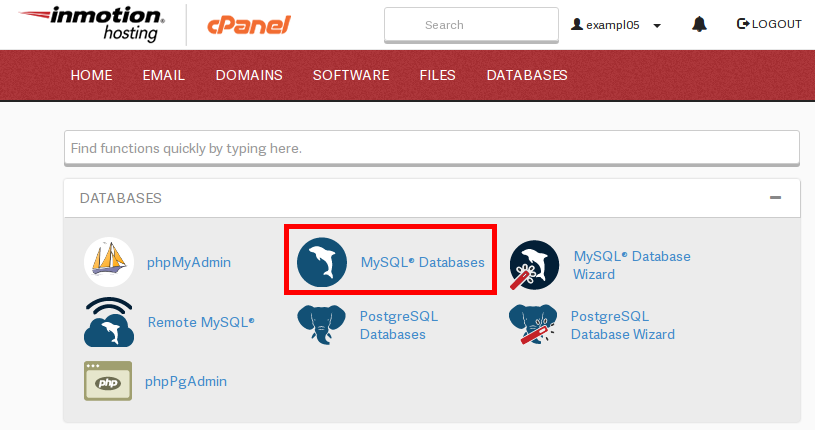
- In MySQL Databases, scroll to Modify Databases.
- Select your database from the Check Database dropdown.
- Click Check Database.
cPanel runs a diagnostic and reports whether the tables are healthy or need repair.
Repairing a Database
- In the Modify Databases section, select your database from the Repair Database dropdown.
- Within this page, you will see a section labeled Modify Databases. To repair a database, select the database that you want to check and repair in the dropdown next to Repair Database, and click on Repair Database.

- cPanel will then check and automatically repair all tables that require it.
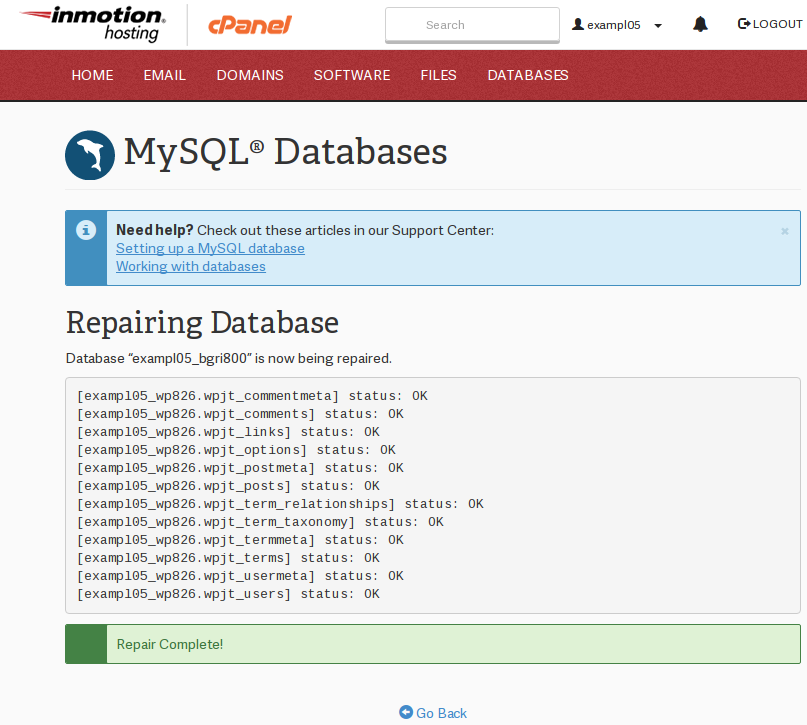
This process works well for minor corruption. Severe corruption may require restoring from a backup or using command-line tools like mysqlcheck.
For more control over individual tables, use phpMyAdmin to repair and optimize specific tables.
Congratulations, now you know how to check and repair databases in the MySQL Databases section of cPanel. We also have a helpful guide on How to Check and Repair a Database in phpMyAdmin.