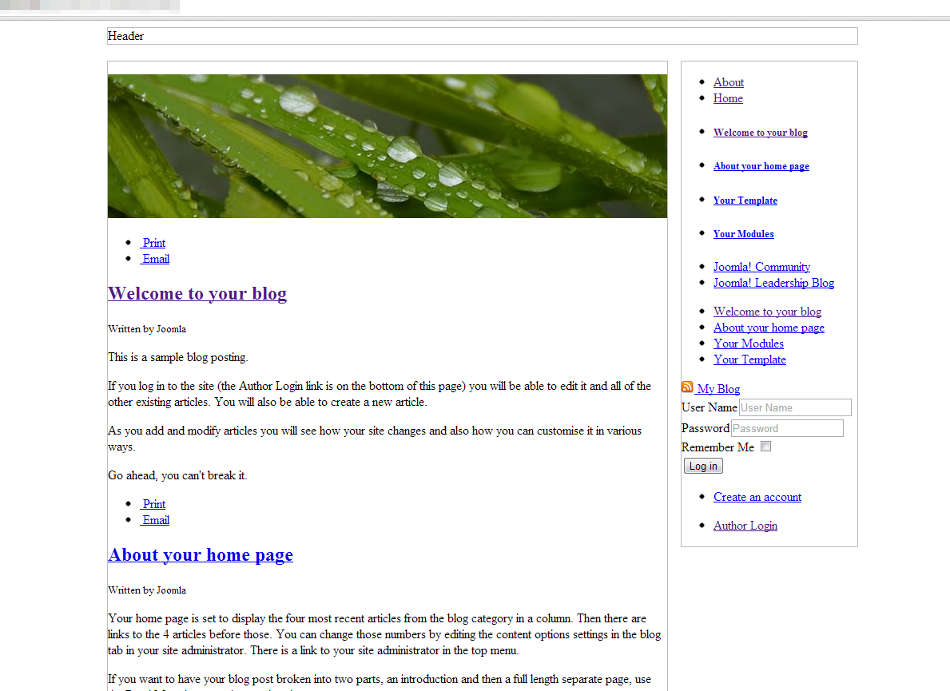
If you’ve been following along in our tutorials series on creating Joomla 3.0 templates, you would have seen in our last tutorial after changing site templates that the template does not look very nice at all (see screenshot to the right).
The reason the template looks a mess is because the CSS file that we created is not being called correctly, and is actually resulting in a 404 error.
In this tutorial we will show you how to properly include CSS and JS files within a Joomla 3.0 template.
Before we Begin: Background information
In our template, we have two files that we want to include:
- css/style.css
- js/main.js
We will be updating our template’s index.php file to include these files. As the template is already installed on the server and we are technically not adding any files to it (because the style.css and main.js files are already on the server), we will update the template file directly on the server. This will save us time as we don’t need to edit the files on our desktop and then reinstall the template to see the changes.
Adding CSS and JS Files to a Joomla 3.0 Template
- Open for edit your index.php fileAs our template’s index.php file is already on our Joomla Hosting account, we are going to use the file manager within our cPanel to edit the file.
- Use $doc->addStyleSheet and $doc->addScript to include filesAt the top of your template, use $doc->addStyleSheet to include your css/style.css file and $doc->addScript to add your js/main.js files. For these functions to work, we must also add $doc = JFactory::getDocument(). So far, we’ve updated the top portion of our index.php file, and the code in green below shows those changes.
<?php $doc = JFactory::getDocument(); $doc->addStyleSheet('templates/' . $this->template . '/css/style.css'); $doc->addScript('/templates/' . $this->template . '/js/main.js', 'text/javascript'); ?> <!DOCTYPE html> <html> <head> - Remove the previous calls to include these filesWithin our head tag, we previously included css/style.css and js/main.js. We are now going to remove these two lines of code, which you can see below crossed through.
<!DOCTYPE html> <html> <head> <link rel="stylesheet" href="css/style.css" type="text/css" /> <script src="js/main.js" type="text/javascript"></script> </head> <body> - Add
<?php

$doc = JFactory::getDocument();

$doc->addStyleSheet('templates/' . $this->template . '/css/style.css');
$doc->addScript('/templates/' . $this->template . '/js/main.js', 'text/javascript');

?>
<!DOCTYPE html>
<html>

<head>

    <jdoc:include type="head" />

</head>

<body>
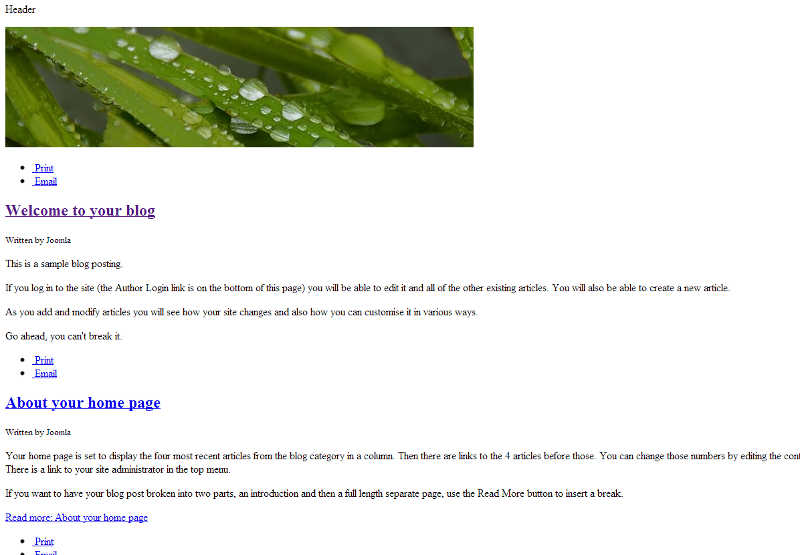
Once we make these changes and save our index.php file, we’ll go back to our Joomla site and refersh the page. As you can see, our template is looking a bit better than when compared to the screenshot at the top of this article.