
One of the benefits of setting up your own Google Workspace services is the ability to use custom URLs that include your domain name of choice. This can be useful for organization or branding purposes and can enhance the usability of your Google Workspace services.
For example, using custom URLs can help if you want to update the default URL for Google Drive access from drive.google.com/a/exampledomain.com to drive.exampledomain.com. This can be done for any service within Google Workspace and can greatly enhance the usability of your online toolset.
In this article we will outline how to use custom URLs in Google Workspace.
Topics Include
Why Set Up Custom URLs?
While the default URLs for Google Workspace services function perfectly fine, you may want to simplify them to make it easier for users to keep track of the various services available to them.
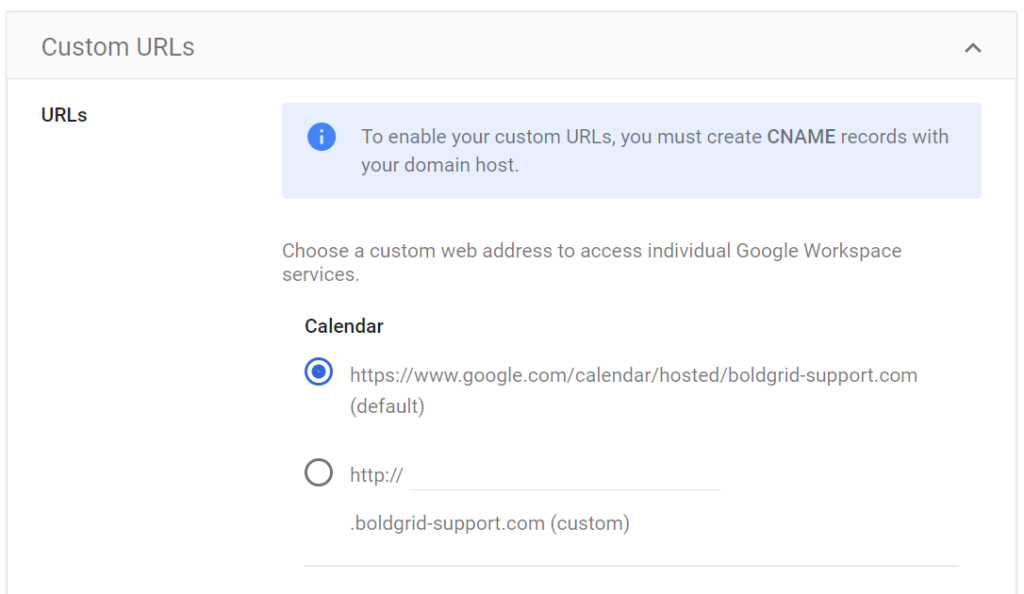
For example, let’s say you are using the domain example.org for your Google Workspace. By default, the URL to access your email services within Google Workspace will be mail.google.com/a/example.org. This URL is lengthy and difficult to memorize, so you could change it to mail.example.org. To do this, follow the steps outlined in the next section.
Setting Up Custom URLs
- First, log into your Google Admin console.
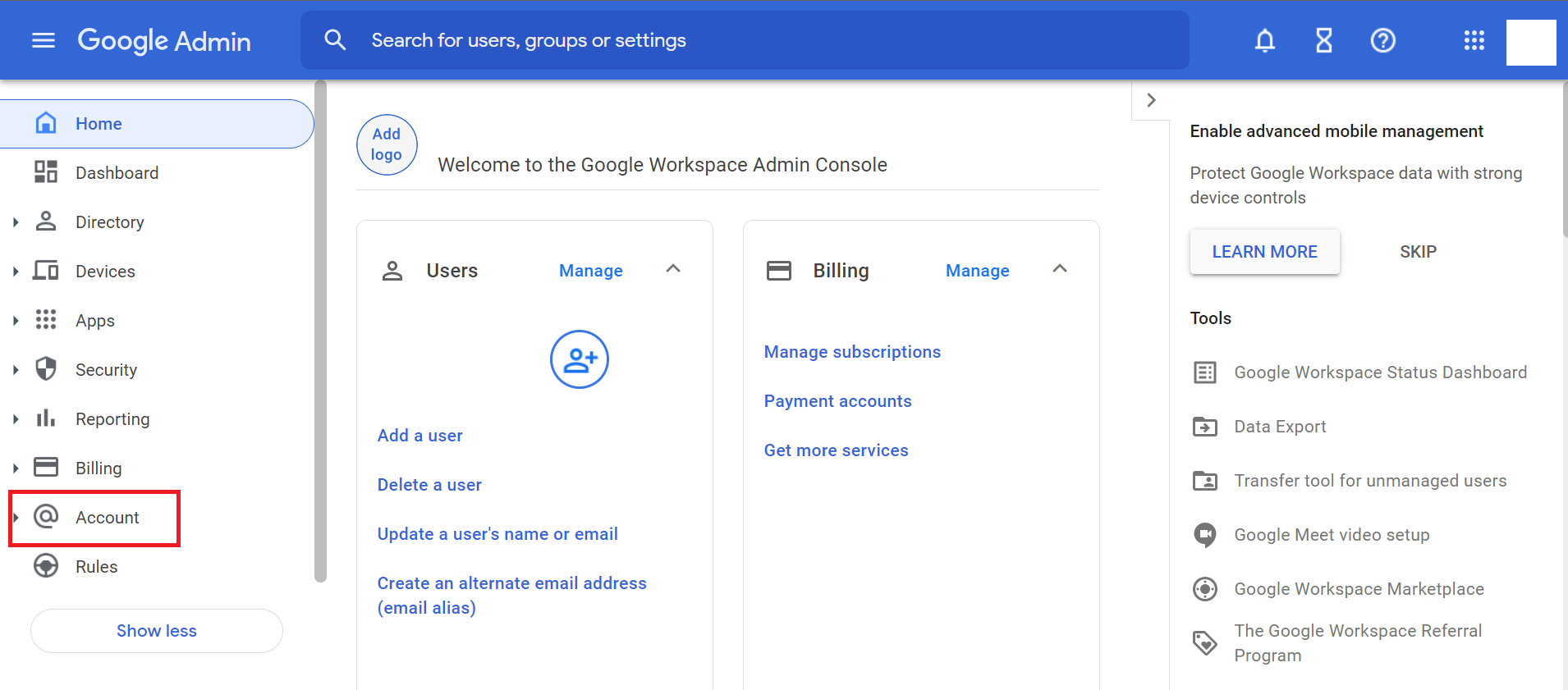
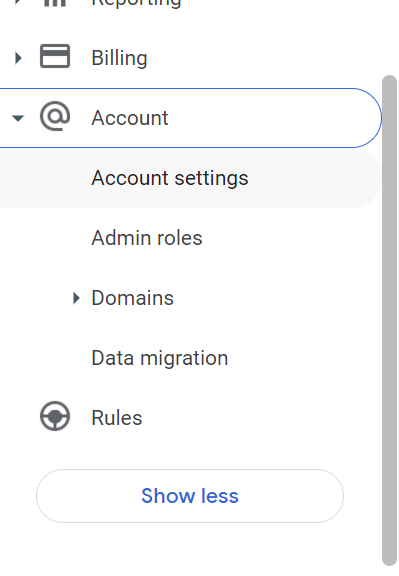
- On the Google Admin Home Page, navigate to Account > Account Settings.
- On the following page, scroll down to the section labeled Custom URLs and browse the list of domains. Click the down-facing arrow to expand the menu and navigate to the domain you want to customize.
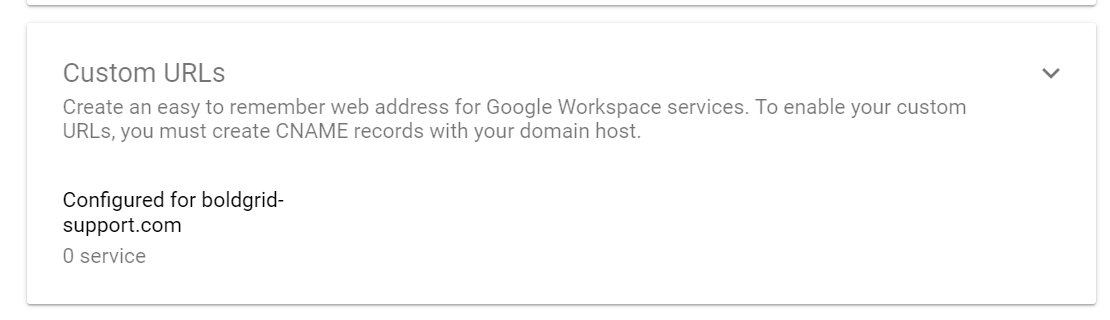
- Review the displayed list of services and select one to modify.
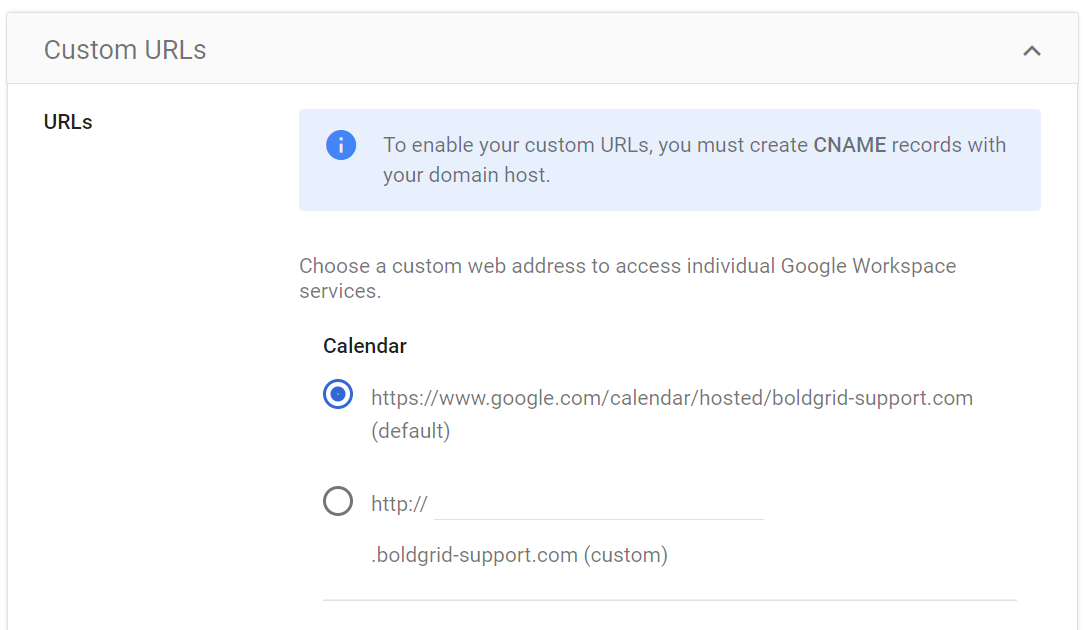
- For the chosen service, input a prefix. Examples of prefixes are calendar, mail, or sites. The prefix should be a single descriptive word that can be used to easily identify the given service. For this example, we will use the prefix mail with the domain name example.org.
- When done, click Save.
- Next you will be presented with the option to add a CNAME record or skip it for now.
- When possible, go to your DNS provider and add a CNAME record that points mail.example.org to ghs.googlehosted.com.
- After adding the CNAME record, return to the Custom URLs page of the Google Admin console and click the link indicating that you’ve completed the steps.
Congratulations you have successfully created custom URLs in Google Workspace!
Why is My Custom URL Not Working?
If you’ve update the URL and it no longer works, it may be due to one of the following reasons:
- The chosen address is already in use by another customized Google Sites website
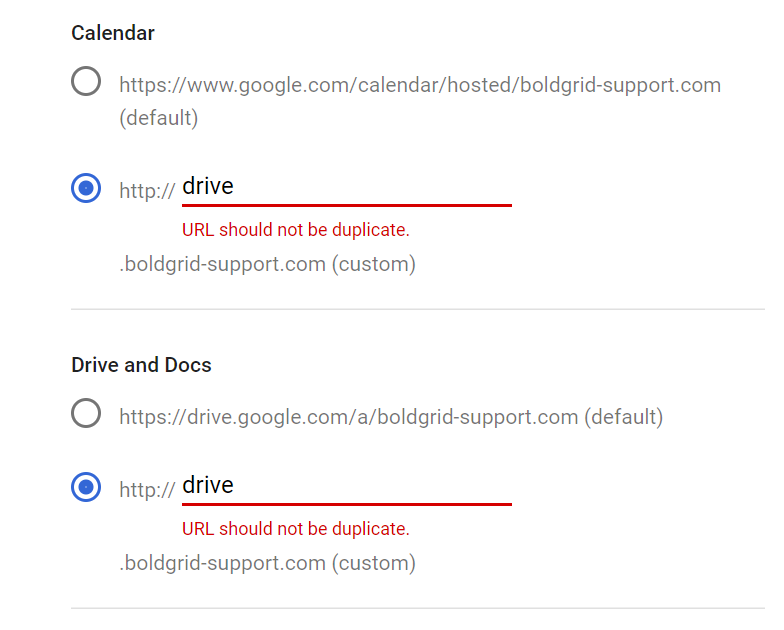
- A duplicate URL already exists.
- Your domain was set up with a strict HTTPS connection instead of HTTP. Google Workspace only supports custom URLs that use HTTP connections.
Next Steps
To further customize your Google Workspace experience, consider setting up organizational units to divide your teams into easily identifiable units.