
Note: This article refers to Outlook 2010. If you need help with a newer version of Outlook, such as Microsoft 365, Outlook 2024, Outlook 2021, Outlook 2019, or Outlook 2016, please refer to the official documentation from Microsoft.
If you are using IMAP to connect to your email account you may only see your inbox folder and no other folders you may have set up in another mail application or webmail. An IMAP folder list can be downloaded to your Outlook 2010 email client so you can subscribe to it.
- Open your Outlook 2010 email client
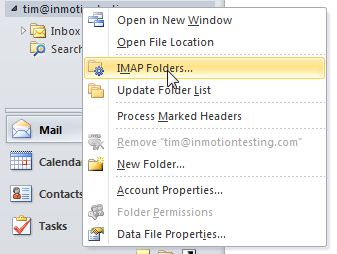
- In the left pane, right-click on the top level folder for your IMAP account
- Click “IMAP Folders“
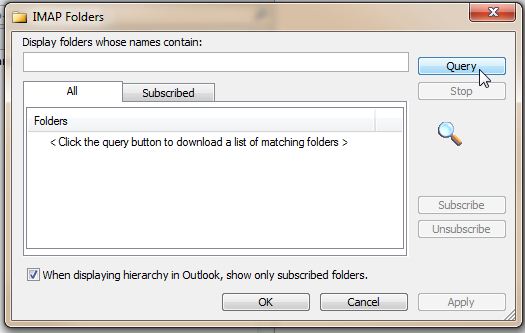
- Click “Query“
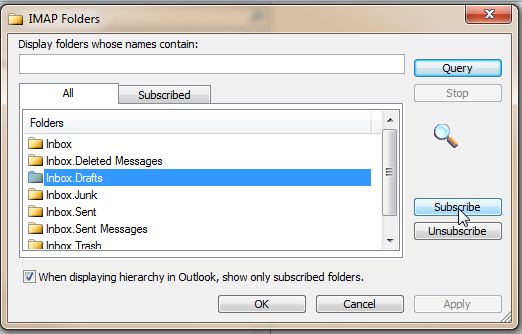
- Select a folder and then click “Subscribe“. If you want to select multiple folders, press and hold the crtl key as you select multiple folders.
If you do not see all the folders you have created in another mail program or webmail itself, you may need to update the IMAP folder list. The folder list can be updated by following these steps. It may be necessary to repeat these steps multiple times until all your folders appear:
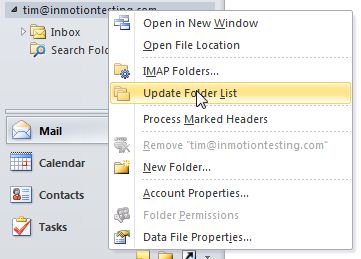
- In the left pane, right-click on the top level folder for your IMAP account
- Click “Update Folder List“
For more step-by-step guides and practical tips, visit our Drupal Education Channel.