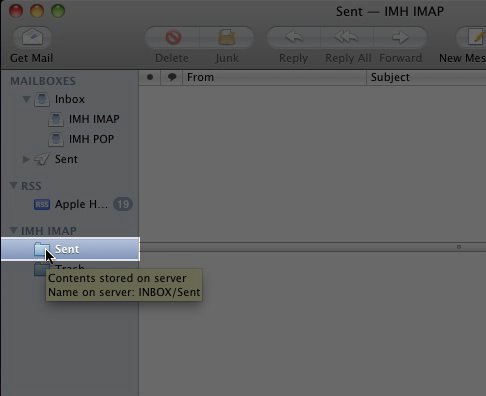
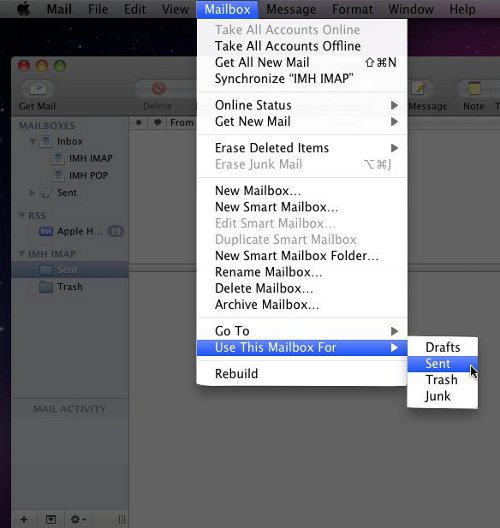
How do I set up Mac Mail to Save Sent Items on the Server? Carrie SmahaUpdated on August 16, 2021 1 Minute Read When you setup Mac Mail, by default MacMail will not use the “Sent” folder on the server to place sent emails in when the server is configured for IMAP. If you wish to have your sent items stored on the server you will need to go through a short, simple process in order to have this done: Step 1: First you must select the “Sent” folder in the left side that is listed under the IMAP folders for the account. Step 2: Next, click “Mailbox” from the menu bar. Go to “Use This Mailbox For” and in the box that opens up select “Sent”. With this done MacMail will now use the “Sent” folder on the server to store sent emails rather than use the local “Sent” folder. Share this Article Carrie Smaha Senior Manager Marketing Operations Carrie Smaha is a Senior Marketing Operations leader with over 20 years of experience in digital strategy, web development, and IT project management. She specializes in go-to-market programs and SaaS solutions for WordPress and VPS Hosting, working closely with technical teams and customers to deliver high-performance, scalable platforms. At InMotion Hosting, she drives product marketing initiatives that blend strategic insight with technical depth. More Articles by Carrie Related Articles Transferring Emails from Your Old Host to InMotion Hosting How to Setup Office 365 DNS Records How to fix OLMAPI32.dll and WWLIB.dll error in Outlook 2013 How to Setup Outlook 2016 for Mac Issues with Outlook 2007 Running on Windows 10 Outlook not working after installing Windows 10 IMAP Issues Affecting Outlook 2013 and Office 365 Outlook 2013/Office 365 – Subscribing to your Inbox How to create an email signature in Outlook 2003 How to create an email signature for Mac in Outlook 2011