
When you install Webmin on CentOS or Ubuntu, the web-based system administration interface forces HTTPS (SSL) by default. This is great for security. However, if you don’t have an SSL certificate, you’ll see a self-signed certificate warning. You’ll want to fix this error sooner than later since Webmin has access to server data.
You can continue to work in HTTPS with the self-signed error. However, we recommend you install a free SSL certificate or purchase an SSL certificate for a secure connection.
Below we cover how to:
Develop your web applications with our scalable Cloud Servers.
Toggle HTTPS in Webmin Dashboard
- Log into your Webmin dashboard
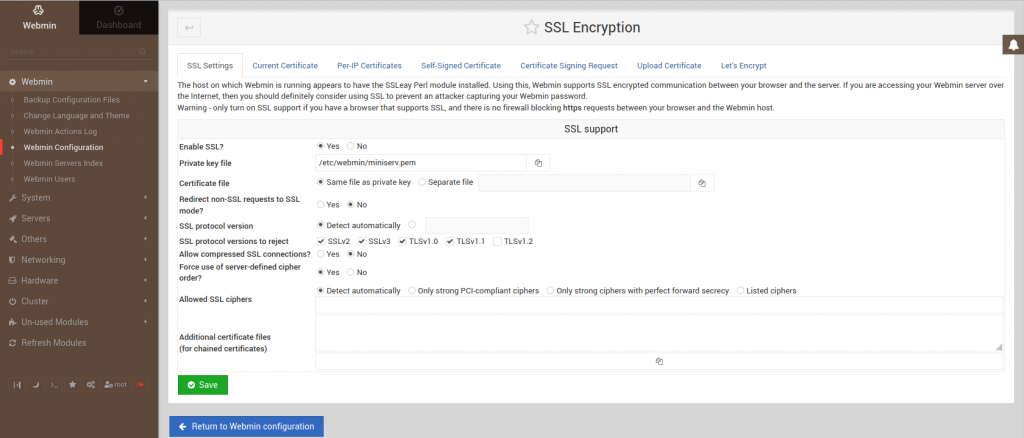
- Select Webmin, then Webmin Configuration
- Select SSL Encryption
- Toggle Enable SSL?
- Save at the bottom
- Refresh Webmin
- Log back into Webmin
Toggle HTTPS in SSH
- Log into SSH
- Edit the Miniserv configuration file:
nano +10 /etc/webmin/miniserv.conf - Change
ssl=1tossl=0to disable HTTPS - Save your changes
- Restart Webmin:
/etc/init.d/webmin restart - Restart Apache:
service apache2 restart - Log into your Webmin dashboard
Fix the SSL Certificate Error on cPanel Server
This section applies to users on a managed cPanel VPS / Dedicated server. cPanel server users can request a new free SSL depending on your AutoSSL settings in WebHost Manager (WHM).
- Log into Webmin
- On the left, select Webmin, then Webmin Configuration
- Select SSL Encryption
- Select the Let’s Encrypt tab
- Beside Website root directory for validation file, select Other directory:
/var/www/html - Select Request Certificate
- Select Return to Webmin configuration
- Restart Webmin
- On the lower-left, select the red exit icon to log out and close Webmin
- Open Webmin in a new window to use an active SSL connection
If you need help at any time, let us know in our Community Support Center. Or contact our Managed Hosting team for advanced technical support.