If you receive spam emails that successfully passed the SpamExperts monitoring tool, you can report it so the SpamExperts algorithm gets smarter for the future. In this article, we will demonstrate how to report emails as spam in your SpamExpert dashboard.
NOTE: Before you can report an email as spam, you will need to save it to your local system as a .eml or .msg file from within your email client.
Using the Report Spam Tool
- Log into your SpamExperts account dashboard.
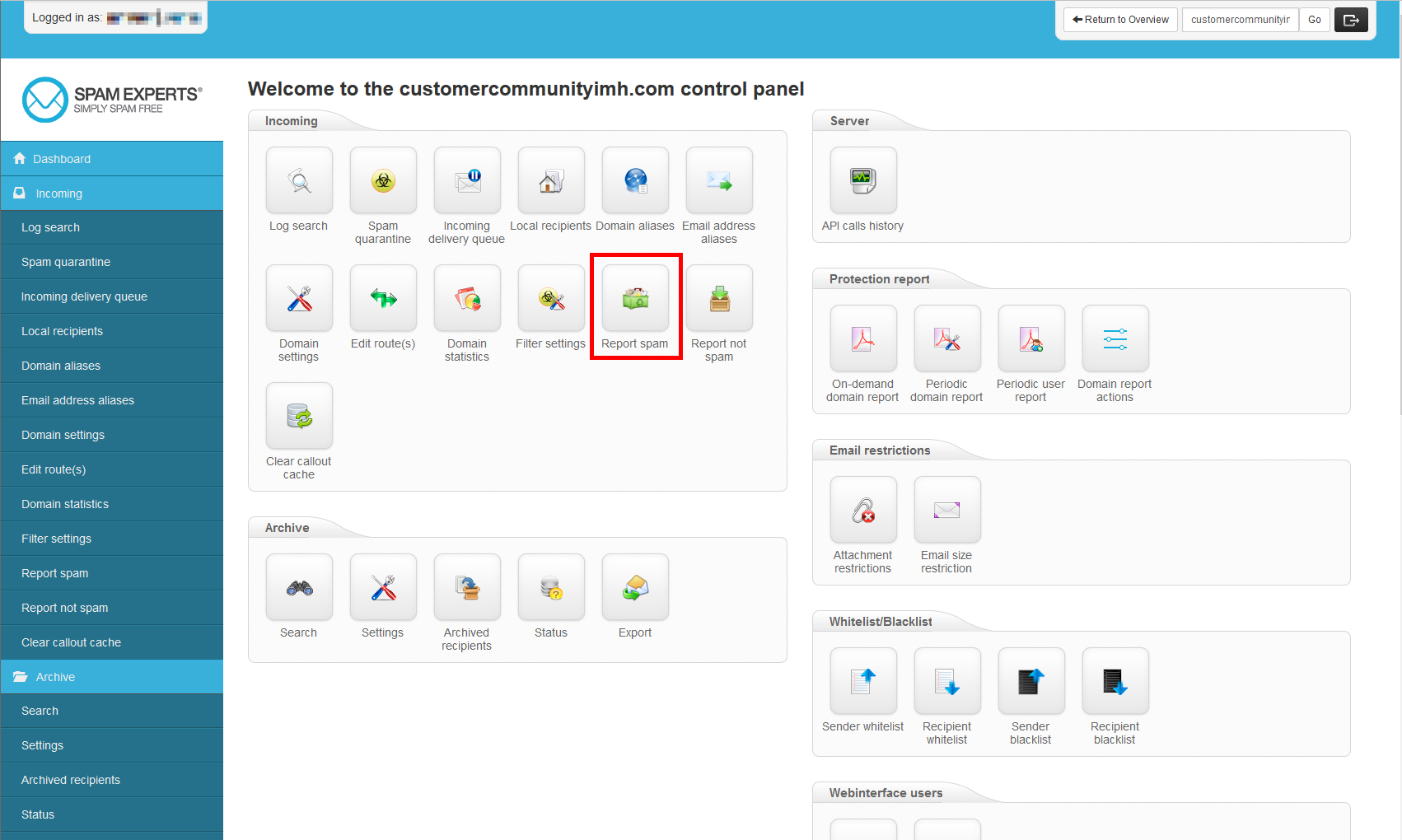
Click on the Report Spam icon.
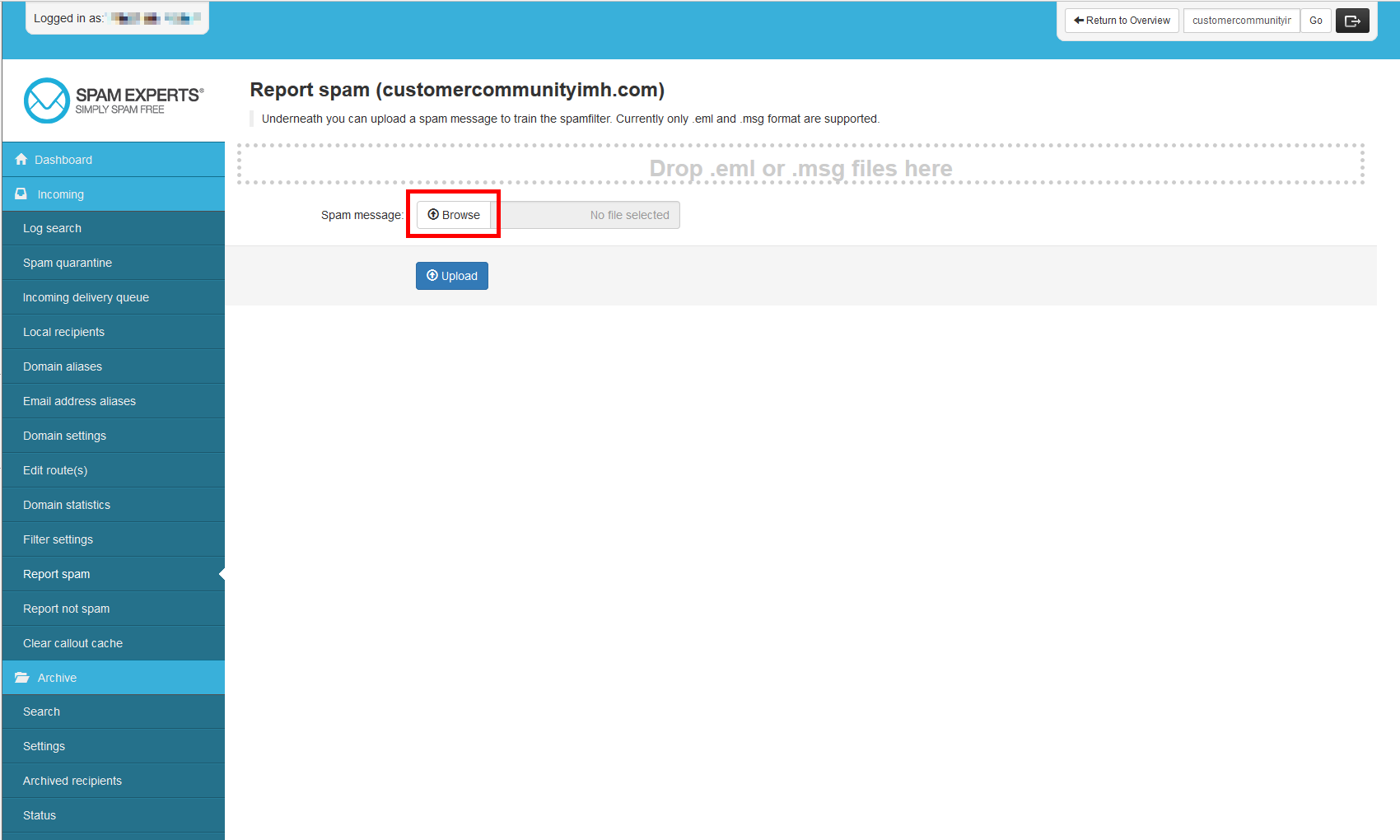
Click on the Browse button.
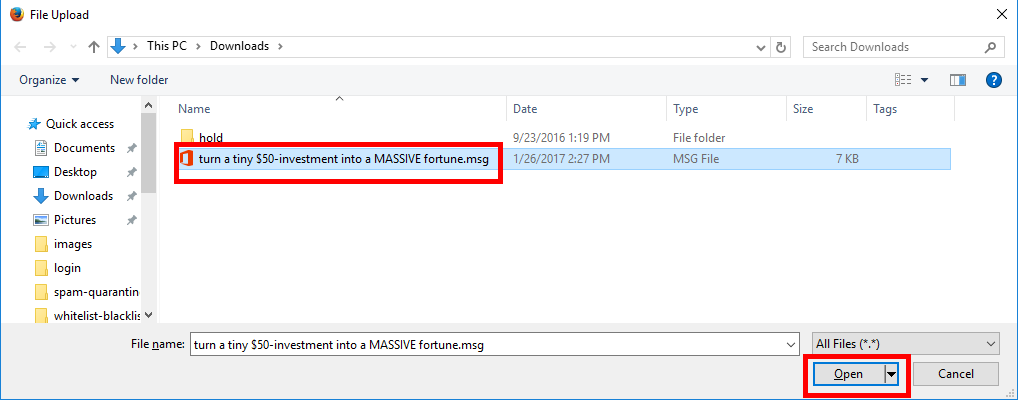
Select the file from your local machine and click Save.
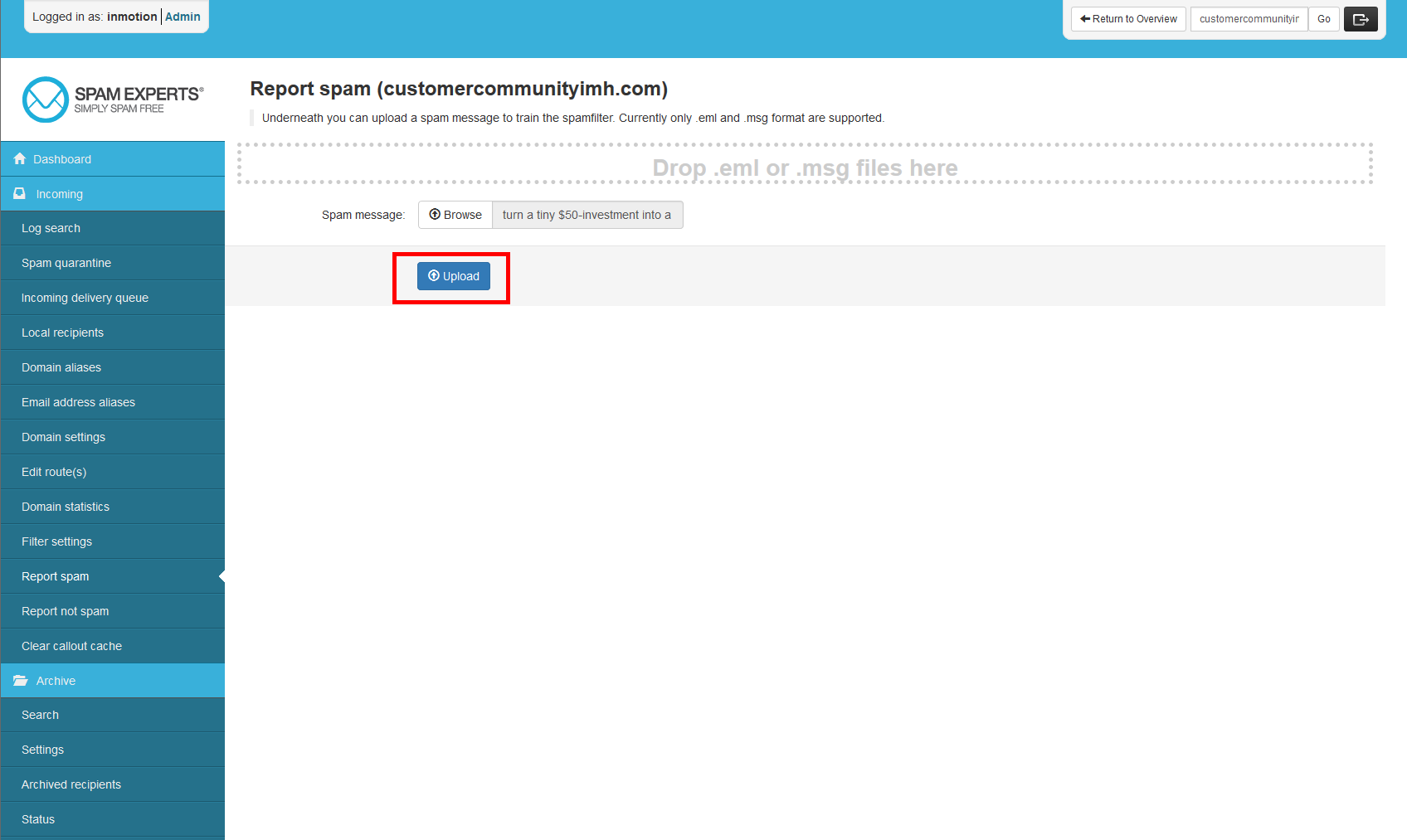
Click Upload.
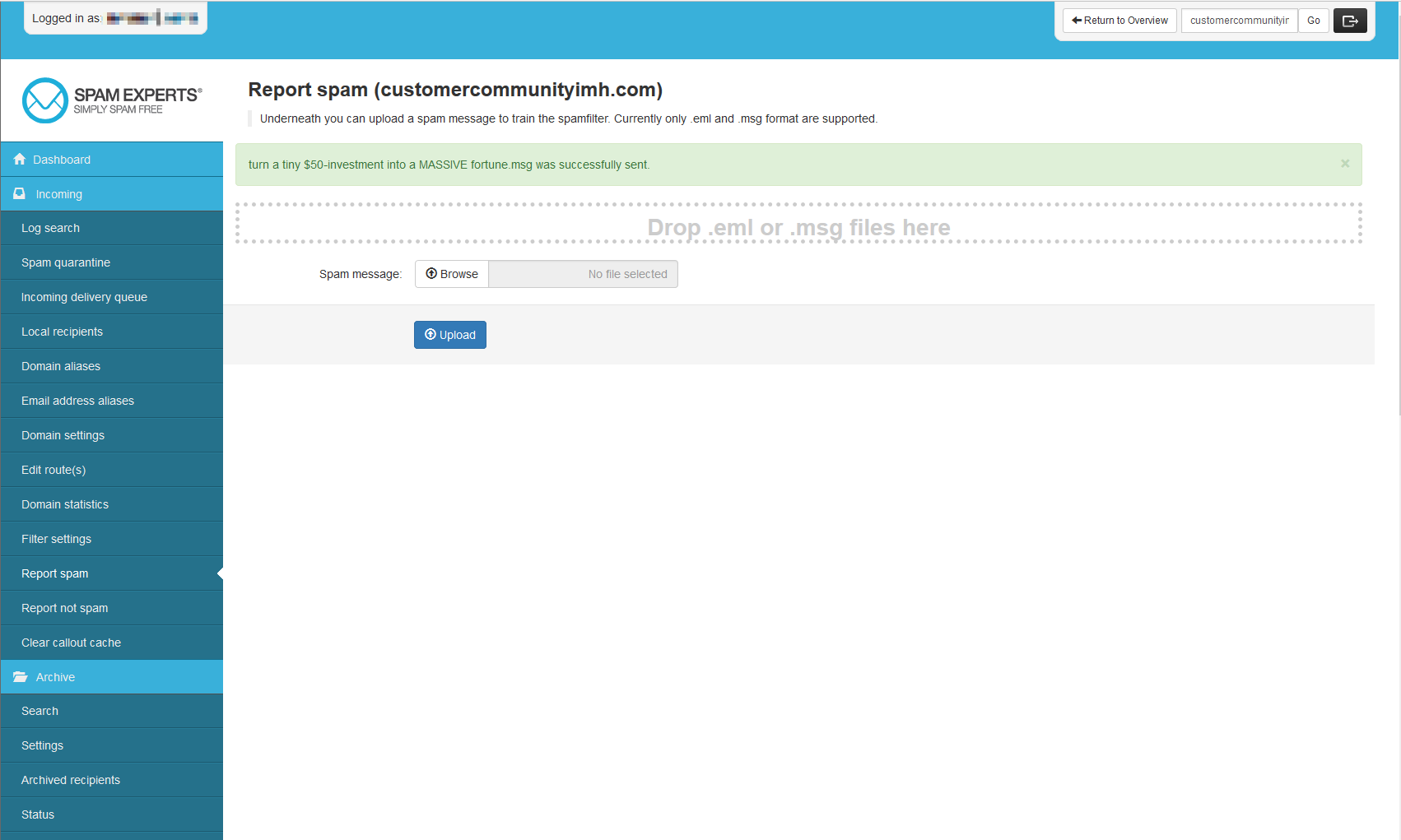
After the file is uploaded you should get a green confirmation message saying it was successfully sent.