
Email attachments are often an easy way to spread malware and viruses. It’s important to block certain file types to help protect your local computer. Attachments can be restricted easily in the Spam Experts control panel.
- Log into SpamExperts Control Panel.
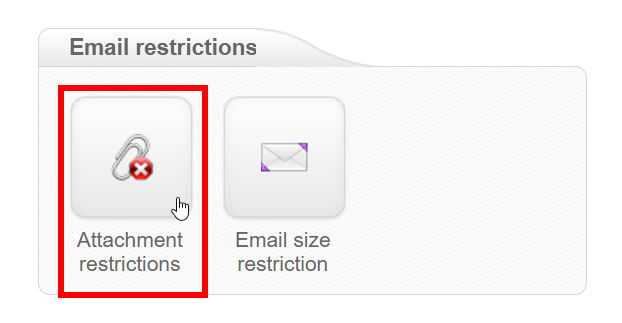
Go to Attachment Restrictions under the Email Restrictions heading.
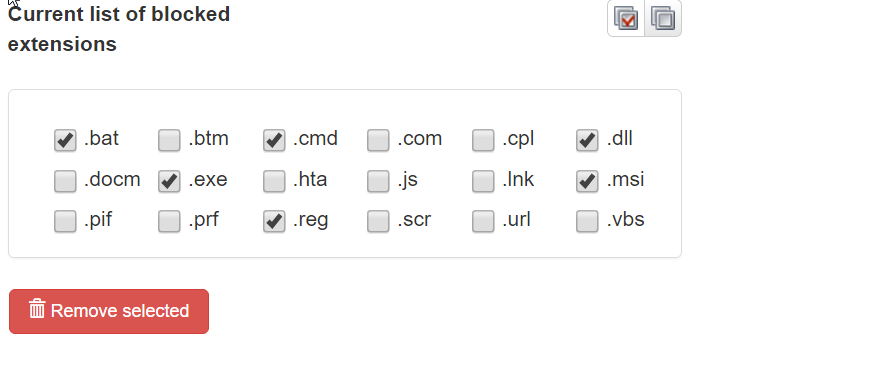
In the first section select the extensions you wish to block.
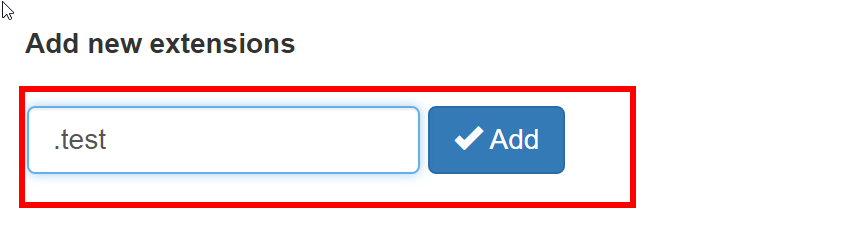
If you would like to add a custom file extension to block you can do it here. Click add.
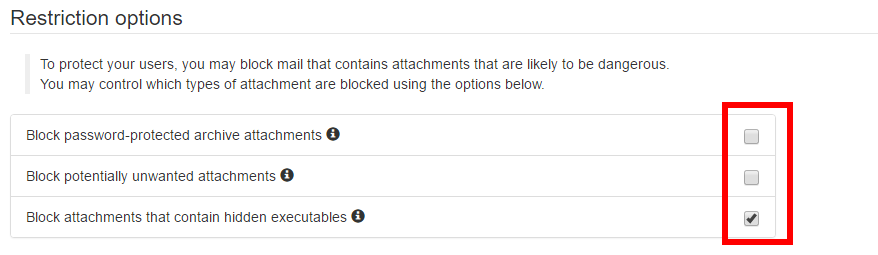
In the next section Restriction optionsSelect the restrictions you wish to apply.
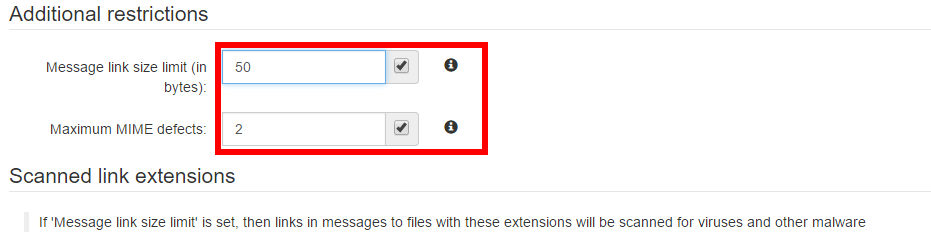
Next, under Additional restrictionsSelect the restrictions you wish to use.
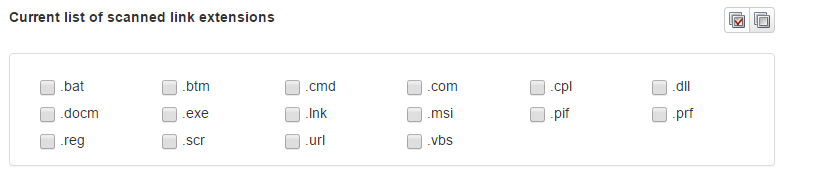
Next, under Current list of scanned link extensions, check any extensions you wish to scan.
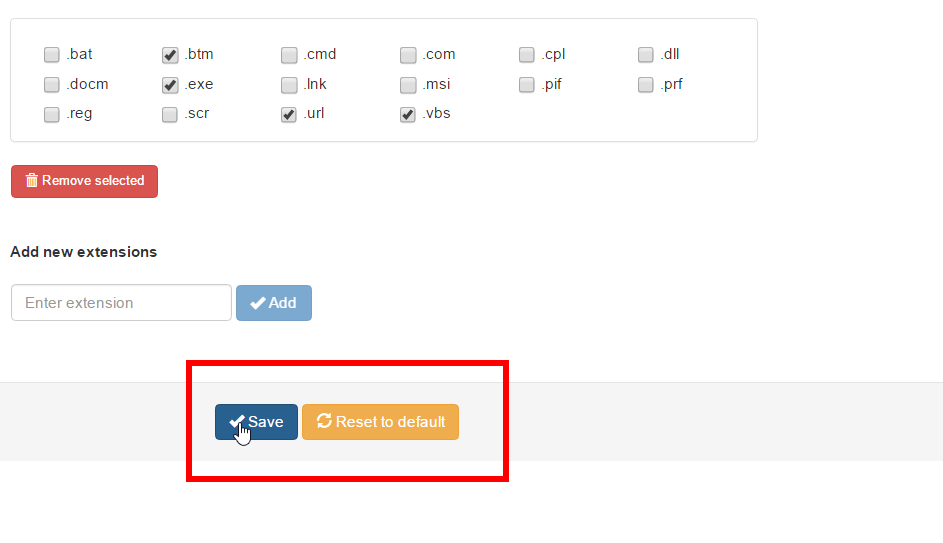
Click Save to save your changes.
Congratulations! You now should be comfortable setting attachment limits in incoming emails in the SpamExperts control panel.