After installing PostgreSQL and phpPgAdmin on your server, you can begin to work with postgreSQL databases. In this tutorial we will show you how to Create a PostgreSQL database in cPanel.
How to Create a PostgreSQL Database
- Login to cPanel.
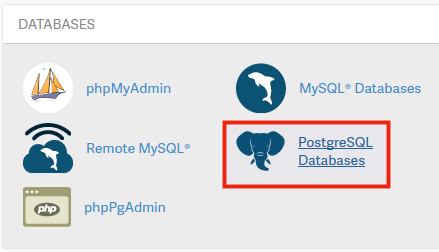
- Click the PostgreSQL Databases button in the Databases section.
- In the Create New Database section, enter your database name.
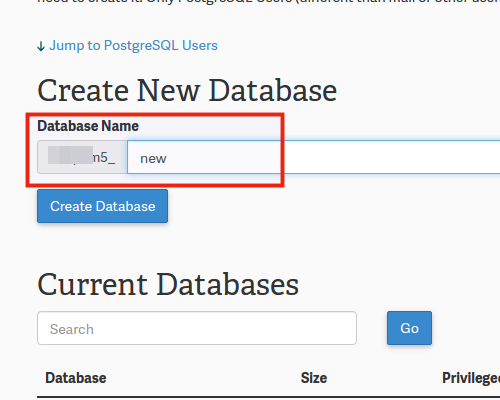
- Click the Create Database button. You are finished when you see a message stating “Added the database” along with the database name.
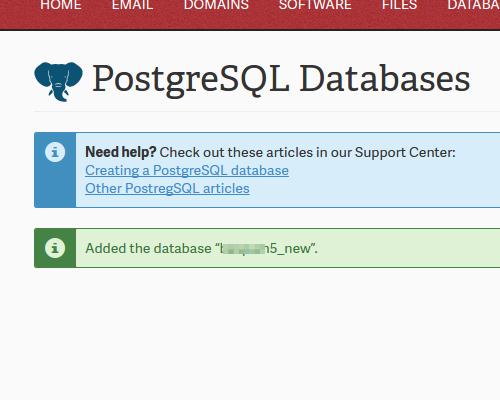
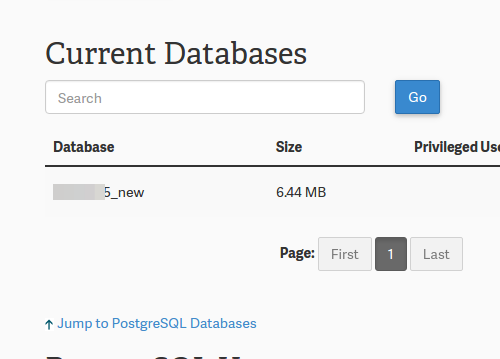
- Click the Go Back button to return to the previous page. You will then see your new database listed in the Current Databases section.




Congratulations, now you know how to create a PostgreSQL database in cPanel! Continue to our next guide where we will show you how to create a database user, and add them to a postgreSQL database. Learn more about PostgreSQL Hosting options.