In our last tutorial, we showed you how to show parent categories within your Joomla 3.0 articles. In this tutorial, we are going to show you how to make those parent categories link to the parent category itself.
How does the Link Parent setting work?
This linking to the parent category is controlled by the Link Parent setting, and Joomla 3.0 gives the following description for this setting:
Link Parent
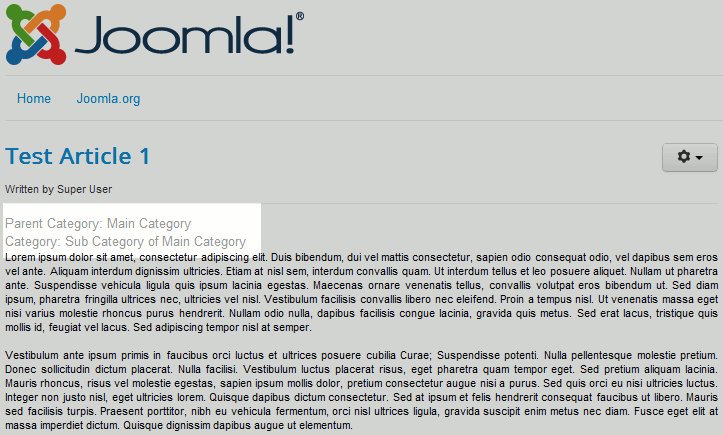
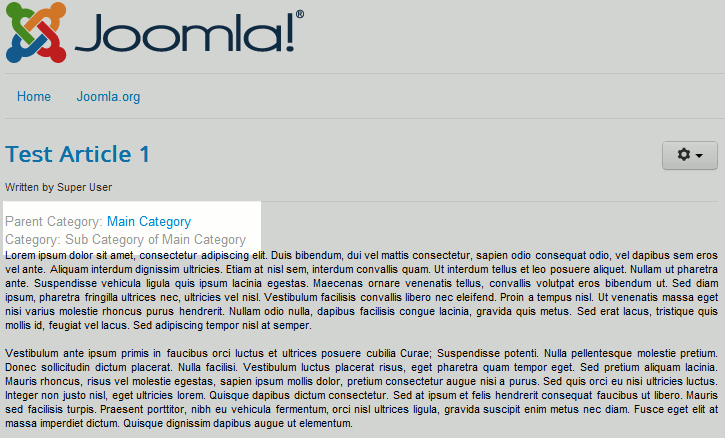
If set to Yes, and if Show Parent is set to ‘Show’, the Parent Category Title will link to a layout showing articles in that Category.
In the screenshots below, you can see how the Link Parent setting actually works:
| Link Parent: No | Link Parent: Yes |
|---|---|
|
|
Please note!
The default setting for Link Parent is No.
To enable linking to Parent Categories in Joomla 3.0:
- Log into your Joomla 3.0 Admin Dashboard
- In the top menu, click Content and then click Article Manager
- In the list of articles, click the title of the article you want you want to adjust this setting for
- In the tabs above the article, click the Article Options tab
- Find the setting labeled Link Parent. Select either Use Global, No, or Yes, and then click the Save button in the top left of the page.