Joomla 2.5 has reached its end of life as for 12/31/2014. Please be advised this may be a security risk to your website. You can view more information about the end of life here.
In our last few tutorials, we have been creating our own Joomla 2.5 plugin. The plugin is a simple Hello World plugin that prints Hello World before each article. We’re going to make this plugin even better by allowing the user to specify custom text. If the user doesn’t want to display “Hello World”, they can display anything else they want, such as “Howdy Internet!”
In this Joomla 2.5 plugin tutorial, we’re going to show you how to add a simple parameter to your plugin. Our parameter is going to be called “Alternative Text”, and will allow the user to type in another message besides Hello World.
Step 1: Add the new parameter to your XML file
New parameters in Joomla 2.5 plugins are contained within fields and fieldsets, which are added to the plugin’s xml file. We’ll show you the basic code for adding a new parameter below, and in another tutorial we’ll go into further details about how it works.
<?xml version="1.0" encoding="utf-8"?>
<extension version="2.5" type="plugin" group="content">
        <name>Hello World</name>
        <author>Brad Markle</author>
        <creationDate>June 18th, 2012</creationDate>
        <copyright>InMotion Hosting</copyright>
        <license>GNU General Public License</license>
        <authorEmail>[email protected]</authorEmail>
        <authorUrl>https://www.inmotionhosting.com</authorUrl>
        <version>1.0</version>
        <description>This is my very first plugin! Simple Hello World Plugin that prints "Hello World" at the beginning of every article.</description>
        <files>
                <filename plugin="helloworld">helloworld.php</filename>
                <filename>index.html</filename>
        </files>
        <config>
                <fields name="params">
                        <fieldset name="basic">
                                <field name="alt-text"  type="text" default="" label="Alternative Text" description="Besides Hello World, you can specify other text here to print to the screen instead." />
                        </fieldset>
                </fields>
        </config>
</extension>
Step 2: Add a value to the parameter
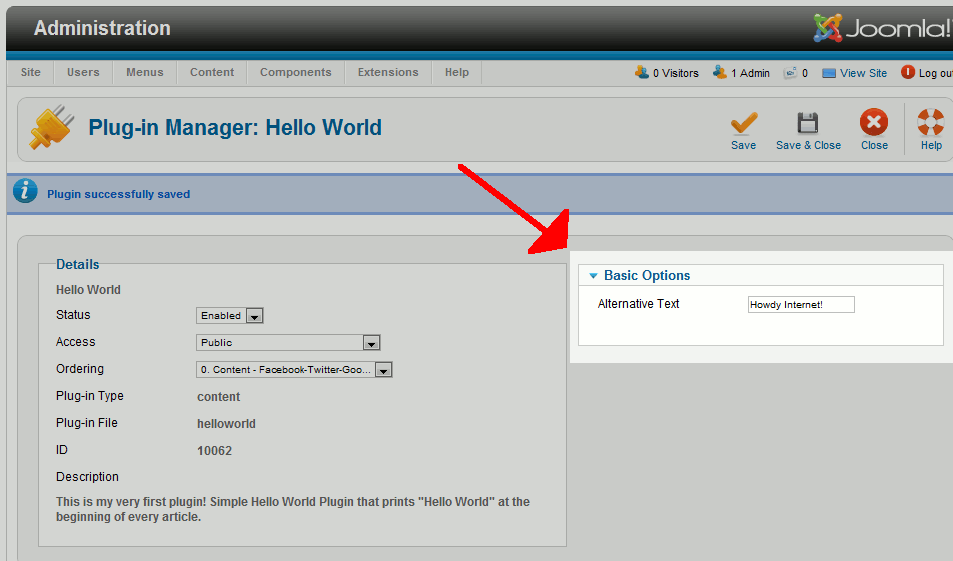
Now that that we have updated our xml file with a new attribute, we will give this attribute a new value. To do this, go to your Joomla 2.5 plugin manager and save a new value. Refer to the screenshot to the right to see where we entered our Alternative Text Howdy Internet!
Step 3: Accessing the Plugin Parameter from PHP
Now that we’ve saved our new plugin parameter, we can use it in our code! Accessing a plugin parameter can be done using the following code:
$this->params->get(‘attribute-name’)
The following is our updated php code in helloworld.php:
<?php

// no direct access
defined('_JEXEC') or die;

class plgContentHelloworld extends JPlugin
{
        public function onContentAfterTitle($context, &$article, &$params, $limitstart)
        {
                // If the user has entered alternative text to use
                // besides "Hello World", then return that instead.
                if($this->params->get('alt-text'))
                        return $this->params->get('alt-text');
                else
                        return "<p>Hello World!</p>";
        }
}

?>
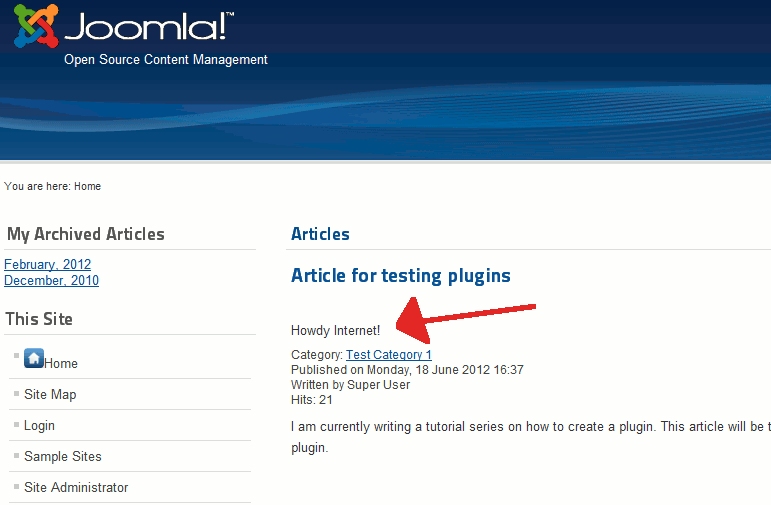
As you can see in the screenshot below, as we saved alternative text, it now shows instead of the standard Hello World text.