In this article, I’ll quickly show you how to update WordPress to the latest, greatest, and most secure version currently available. An updated WordPress installation will ensure your WordPress site is as fast as can be and helps protect your website from malicious users.
It’s really a very simple process to upgrade WordPress, that said you do want to take some caution before just diving right in. I’d recommend that you backup your WordPress site in case anything goes wrong.

Upgrade WordPress to the Latest Version
- Login to your WordPress admin dashboard.
- At the top of the WordPress admin dashboard, you should see that a newer version of WordPress is available, click on Please update now to be taken to the Updates page.
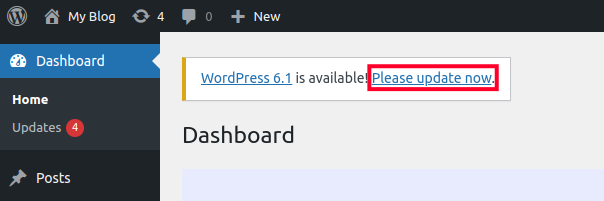
If you don’t see that link for some reason, you can also click on the update icon at the top, or click on the Updates link in the menu on the left.
- You will see a message stating “An updated version of WordPress is available.” Click the button that begins with Update to version and lists the available upgrade. In this example, it is WordPress 6.1
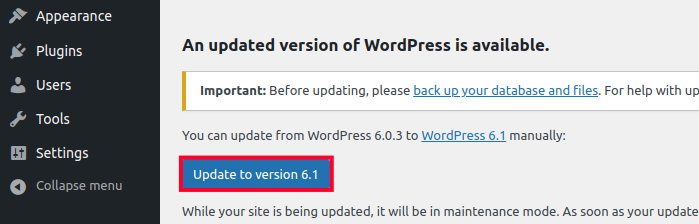
The update process will begin immediately. When it is complete, you will see a “What’s New” page showing what is included in the latest update.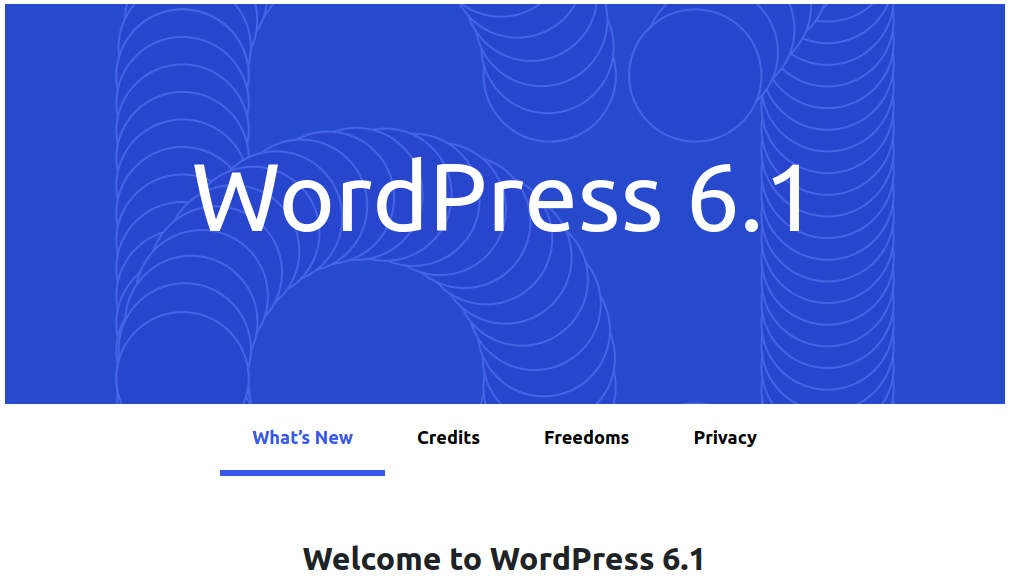
You should now know how to update WordPress to the latest version available. After that, you’ll probably also be interested in learning how to update a WordPress plugin, or update a WordPress theme to ensure your full WordPress installation is completely up to date and secure.
