In this guide, we’ll show you how to make changes to your database settings in the MySQL my.cnf file. For example, you may need to increase the number of max_connections or the query_cache_size value for your server.
To do this, you simply log in the server via SSH and edit the my.cnf file using an editor such as Nano. This article will explain the steps to view and edit your my.cnf file. We’ll also show you how to view your MySQL variables through SSH then how to access them in phpMyAdmin, where they can be edited.
You will need root access to our VPS or Dedicated server to follow this guide.
- How to View Mysql Settings in the my.cnf File
- Editing the Mysql my.cnf File
- Viewing the Mysql Variables Through Shell
- Viewing MySQL Variables in phpMyAdmin
Scalable VPS Infrastructure, Fully Managed
When shared hosting can't handle your traffic, VPS delivers dedicated resources that scale with demand. Our team manages the technical complexity while you manage your business.
 NVMe Storage High-Availability Ironclad Security Premium Support

How to View Mysql Settings in the my.cnf File
- Login to your server via SSH
- To view the MySQL my.cnf settings type the following:
cat /etc/my.cnf
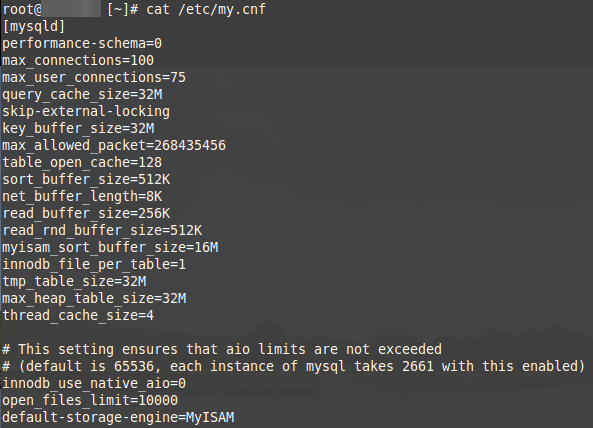
The contents of the my.cnf file will display similar to the snapshot above.
Editing the Mysql my.cnf File
- Login to your server via SSH.
- To edit the MySQL settings with nano type the following:
nano /etc/my.cnf
There are several editors you can use in shell. Nano, Vim, or Emacs. This article will focus only on Nano.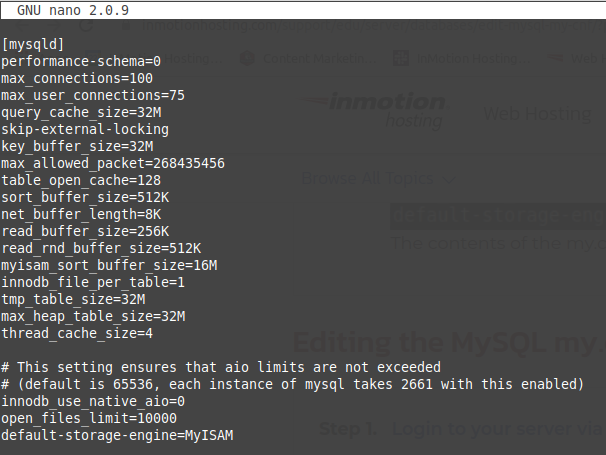
- Find the line to edit. For example, if you want to edit the max_connections, find the following line.
max_connections=100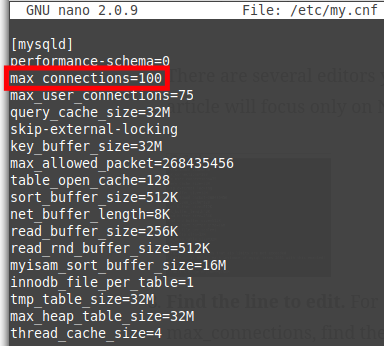
- To increase the max_connections to 110 change it to the following.
max_connections=110 - Enter Ctrl + O to “WriteOut” or save the settings.
- Then Ctrl + X to exit.
- Restart MySQL by typing the following.
service mysql restart
Now the max_connections is increased to 110 instead of 100.
Viewing the Mysql Variables Through Shell

- Login to your server via SSH.
- Type the following command.
mysqladmin variables
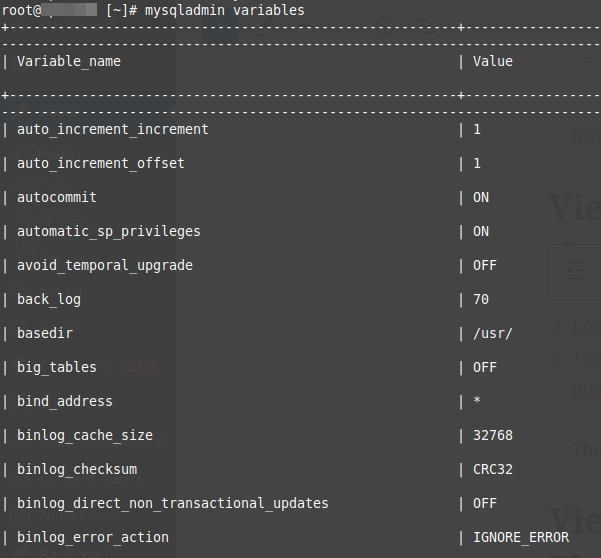
The variables will display similar to the snapshot above.
Viewing MySQL Variables in phpMyAdmin
- Log into your phpMyAdmin.
- Click the Variables tab at the top right. Then PhpMyAdmin will list all the variables and their settings on your server.
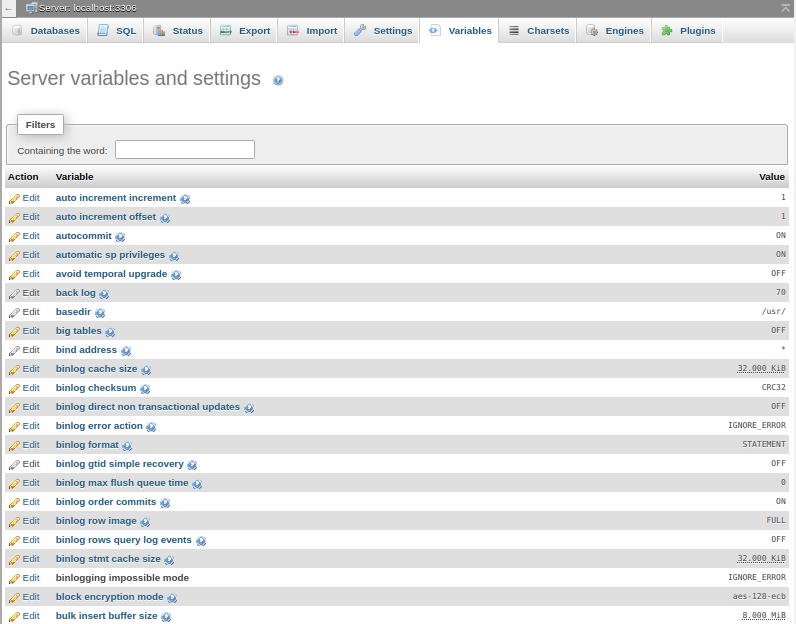
- If you want to edit the values, you should edit the my.cnf file as described above.
Now you know how to edit your database settings in the MySQL my.cnf file and view database variables. For more guides check out our full section on Working with Databases.